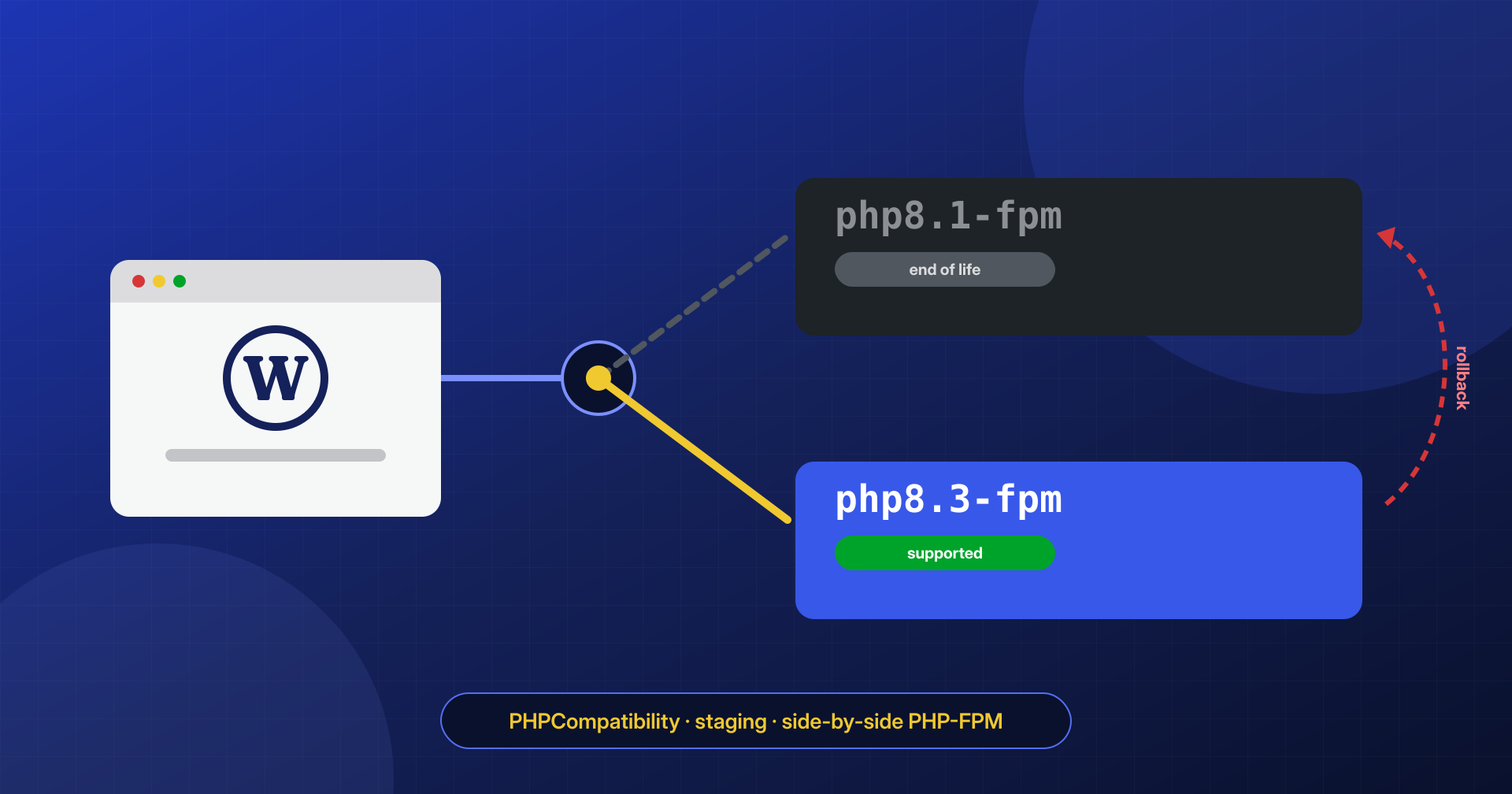
Among the sites we clean up, the PHP version is one of the details that most often tells the story of the infection. A site stuck on an unsupported version usually has plugins stuck for years too, because newer plugin versions require a more recent PHP; and a site with stuck plugins is a site with known, never-fixed vulnerabilities. Upgrading PHP gets put off because it’s scary: “what if something breaks?” Done methodically, the risk shrinks to a few minutes of work and a rollback that takes one command.
The risk of a PHP upgrade is measured in hours and can be undone. The risk of an obsolete version grows every month and cannot be undone.
In this article we look at which PHP versions are supported today and what WordPress recommends, why an obsolete version is a security problem even when “everything works,” how to check plugin and theme compatibility before switching, how to run several PHP-FPM versions side by side on the same server, and how to move from one to the other with a rollback plan ready.
Which PHP versions are supported today
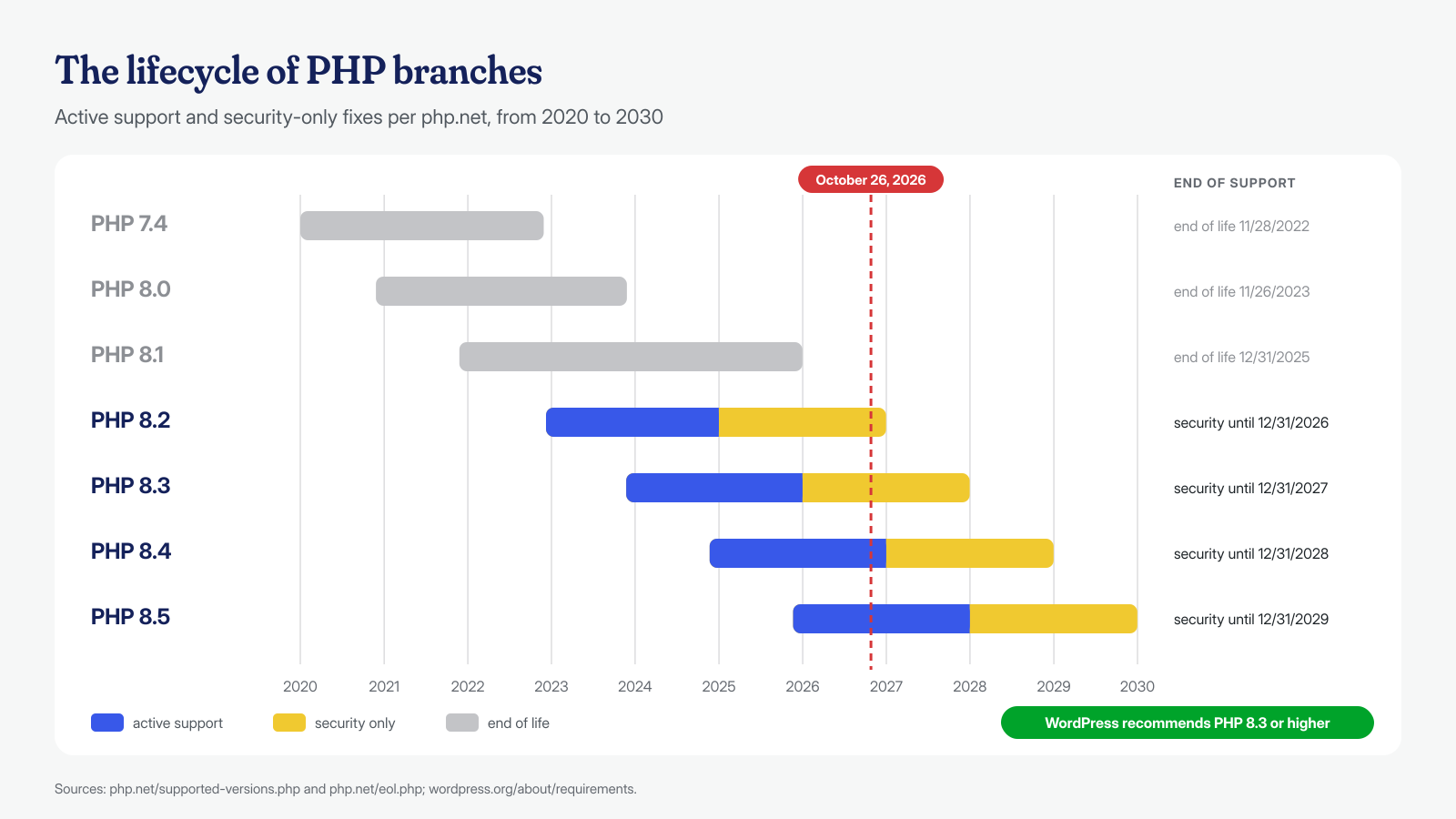
Each PHP branch receives two years of active support, with bug and security fixes, followed by two years of security fixes only. According to the official supported versions page, at the end of October 2026 there are four live branches: PHP 8.2, which receives security fixes only until December 31, 2026; PHP 8.3, security only until December 31, 2027; PHP 8.4, in active support until December 31, 2026 and with security fixes until December 31, 2028; PHP 8.5, in active support until December 31, 2027 and security until December 31, 2029. The list of unsupported branches includes PHP 8.1, which reached end of life on December 31, 2025, PHP 8.0 (November 26, 2023), and PHP 7.4 (November 28, 2022).
On the WordPress side, the requirements page recommends PHP 8.3 or higher, and notes that WordPress also works with PHP 7.4, but that these versions have reached end of support and may expose the site to vulnerabilities. With WordPress 7.0 the minimum rose to PHP 7.4, as announced on the developer blog in the post on dropping PHP 7.2 and 7.3, and the handbook’s compatibility table lists WordPress 6.9 and 7.0 as compatible with PHP 8.3, 8.4, and 8.5. In practice: if you’re on 8.2 you have two months to plan the move, and if you’re on 8.1 or earlier you’re already late.
One necessary clarification: long-term-support Linux distributions sometimes keep patching their own PHP versions even after official support ends, for the whole life of the release. A PHP 8.1 from a distribution that is still supported is therefore not necessarily unpatched. The problem in the WordPress ecosystem remains, though, as we see right away.
Why an obsolete version is a risk
The direct risk is obvious: a vulnerability discovered in the PHP engine after support ends is no longer fixed. The indirect risk is more insidious and, in our experience, more frequent. Plugin and theme developers raise the minimum PHP version they require, declared in the Requires PHP header. When a plugin update requires a more recent PHP than the one installed, WordPress flags it but does not install it. The site is left on the last compatible version of the plugin, and if the fix for a vulnerability only arrives in the new version, that site stays exposed forever, even if someone regularly clicks “update all.”
It is a silent mechanism: the dashboard shows no errors, the site works, and the vulnerability stays there until an automated scanner finds it. The same goes for libraries bundled in plugins and for themes. When we assess a site’s exposure to a plugin vulnerability, the first question is whether the fixed version can be installed; with an old PHP, the answer is often no.
Which PHP the site really uses
It sounds like a trivial question and it isn’t. Several versions can coexist on a server, and the one used by the website can differ from the command-line one, which is the one used by WP-CLI and cron jobs. The php -v command answers only for the latter. The version served to the web can be read in the web server configuration or from WordPress’s Site Health screen, under the Server entry of the Info panel. Avoid instead creating a phpinfo.php file in the docroot: it is one of the accidentally exposed files that scanners look for first.
# Command-line version (WP-CLI, cron)
php -v
wp --info | grep 'PHP version'

# Version served to the web: which PHP-FPM socket each site points to
grep -rn 'fastcgi_pass' /etc/nginx/sites-enabled/
grep -rn 'proxy:unix' /etc/apache2/sites-enabled/

# Installed PHP-FPM versions and active pools
ls /etc/php/
ls /run/php/
If the server announces it, the version also appears in the X-Powered-By header of responses, visible with curl -sI. It is handy for a check, but it is information that shouldn’t be handed to people looking for sites with vulnerable versions: after the upgrade, as we’ll see, it’s worth turning it off.
Check compatibility before switching
WordPress core is compatible with recent versions; the problems, when there are any, come from plugins and themes, especially custom-built or unmaintained ones. The first check is an inventory: wp plugin list and wp theme list with version and update availability, and for each plugin the date of the last release. A plugin that has been stuck for years is a candidate for replacement regardless of PHP.
The second check is static analysis of the code with PHPCompatibilityWP, a set of rules for PHP_CodeSniffer that flags removed functions, changed syntax, and deprecated features between one version and another, already tuned to ignore false positives caused by WordPress’s internal compatibility shims. It is installed in a separate working folder, outside the site, and run on plugins and themes specifying the target version:
mkdir -p ~/verifica-php && cd ~/verifica-php
composer init -n --name=verifica/php
composer config allow-plugins.dealerdirect/phpcodesniffer-composer-installer true
composer config minimum-stability dev && composer config prefer-stable true
composer require --dev phpcompatibility/phpcompatibility-wp:"^3.0@dev"

# Compatibility with PHP 8.3 and later, per-file summary
vendor/bin/phpcs -p --standard=PHPCompatibilityWP --runtime-set testVersion 8.3- \
  --extensions=php --report=summary \
  /var/www/esempio.it/htdocs/wp-content/plugins /var/www/esempio.it/htdocs/wp-content/themes
The result should be read with judgment. Errors always need to be checked; deprecation warnings point to code that still works but will stop working in a future version. Many plugins check the PHP version before using a function, and static analysis doesn’t see that. Above all, the analysis is no substitute for testing: it doesn’t see problems that depend on data, installed extensions, or runtime behavior. For that you need a copy of the site.
The test copy and error logs
Testing is done on a copy of the site, with the same code and a recent database, served by the new PHP version. Before starting, it’s worth enabling an error log dedicated to the copy’s PHP-FPM pool, so that deprecations and warnings end up in a readable file and not in the pages or in a public debug.log. Then walk through the functions that matter: home page, posts, search, contact forms, login, members area, cart and a full checkout with a test payment, the admin dashboard with the editor, WordPress cron.
; /etc/php/8.3/fpm/pool.d/esempio-staging.conf — error log of the test pool
php_admin_flag[log_errors] = on
php_admin_value[error_log] = /var/log/php/esempio-staging-error.log
php_admin_flag[display_errors] = off
# Errors grouped by type and message, most frequent first
grep -E 'PHP (Fatal error|Warning|Deprecated)' /var/log/php/esempio-staging-error.log \
| sed -E 's/^\[[^]]*\] //' | sort | uniq -c | sort -rn | head -30A fatal error in a key function blocks the switch until the plugin is updated or replaced. Warnings and deprecations, on the other hand, are noted and reported to the authors, but rarely prevent the upgrade. The test copy must stay private: password-protected and kept out of indexing, because it is in every respect a second site with the same data.
Multiple PHP-FPM versions on the same server
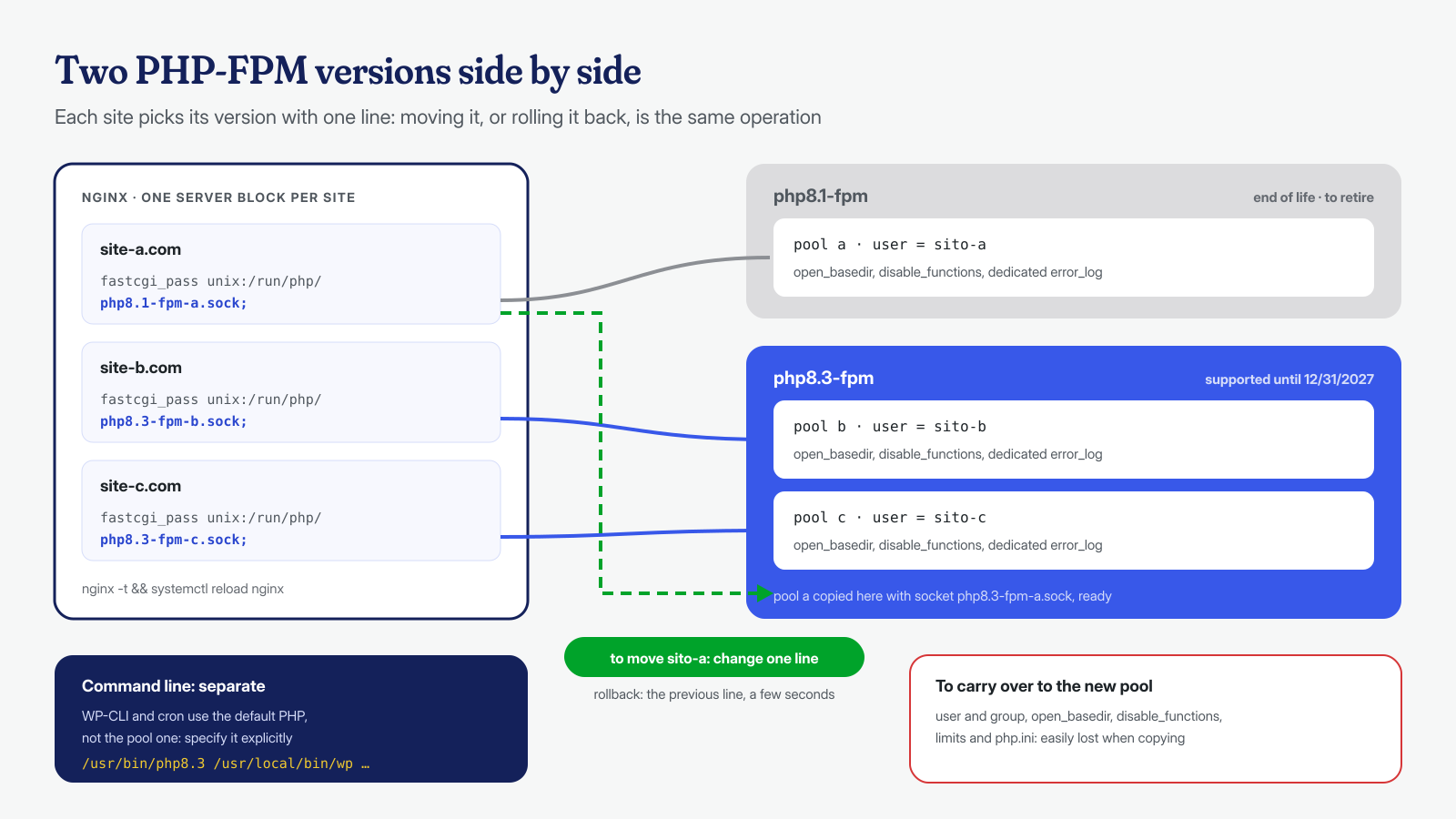
The safest way to upgrade is not to replace PHP, but to run the new version alongside the old one and move sites one at a time. With PHP-FPM each version has its own service and its own pools, each listening on a different socket, and the web server decides for each site which socket to send requests to. On Debian and Ubuntu, versions not included in the distribution are installed from Ondřej Surý’s repository; on Red Hat family distributions, from Remi Collet’s repository.
# Debian/Ubuntu: new version with the extensions WordPress uses
apt install php8.3-fpm php8.3-mysql php8.3-curl php8.3-gd php8.3-intl \
  php8.3-mbstring php8.3-xml php8.3-zip php8.3-imagick

# Extensions present in the old version and missing in the new one
diff <(php8.1 -m) <(php8.3 -m)

# The site's pool, copied with a new socket
cp /etc/php/8.1/fpm/pool.d/esempio.conf /etc/php/8.3/fpm/pool.d/esempio.conf
sed -i 's#/run/php/php8.1-fpm-esempio.sock#/run/php/php8.3-fpm-esempio.sock#' \
  /etc/php/8.3/fpm/pool.d/esempio.conf
php-fpm8.3 -t && systemctl reload php8.3-fpm
When copying the pool, every line must be checked, because that is where the security settings live: the pool’s user and group, open_basedir, disable_functions, memory and upload limits. If they were set as described in the hardening checklist, they must be in the new version too, as must any global settings changed in the old version’s php.ini. An upgrade that drops open_basedir along the way reopens the cross-site contamination that the separate pool was meant to prevent.
The switch and the rollback plan
With the new pool ready and verified on the test copy, the switch to production is a single line. First make a full backup of files and database, with the precautions described in the article on backups that preserve malware; then change the socket in the site configuration and reload the web server. New requests go to the new version, while in-flight ones finish on the old one.
# /etc/nginx/sites-available/esempio.it, in the PHP files location
#   before: fastcgi_pass unix:/run/php/php8.1-fpm-esempio.sock;
fastcgi_pass unix:/run/php/php8.3-fpm-esempio.sock;

nginx -t && systemctl reload nginx

# Rollback: restore the previous socket and reload
sed -i 's#php8.3-fpm-esempio.sock#php8.1-fpm-esempio.sock#' /etc/nginx/sites-available/esempio.it
nginx -t && systemctl reload nginx
The rollback plan only works if the old pool stays active and unchanged until the new version has proven it holds up: for a week or two, keeping an eye on the new pool’s error log. On Apache with PHP-FPM the principle is identical, only the directive changes, that is, the socket named in SetHandler "proxy:unix:…|fcgi://localhost". On hosting panels the per-site version choice is usually a menu, but behind it is exactly this mechanism.
In the first hours it’s also worth watching the site from the outside, through the access logs: an increase in 500 responses on specific paths, such as a plugin endpoint or a checkout page, indicates an error the test copy didn’t bring out. Also, php.ini is separate for each version: memory and upload limits, the time zone, and expose_php = Off, which avoids announcing the version in HTTP headers, must be carried over by hand into the new version’s file.
# 5xx responses after the switch, by code and path (combined format)
awk '$9 ~ /^5/ {print $9, $7}' /var/log/nginx/access.log | sort | uniq -c | sort -rn | head

# Differences between the PHP-FPM php.ini files of the two versions
diff /etc/php/8.1/fpm/php.ini /etc/php/8.3/fpm/php.ini | grep -E 'memory_limit|upload_max|post_max|expose_php|date.timezone'
That leaves the command line, which many people forget. WP-CLI, maintenance scripts, and the site’s cron jobs use the system’s default PHP, which doesn’t change when you change the pool. The clearest approach is to specify the version explicitly in the cron lines, instead of changing the default for the whole server; and while you’re at it, it’s worth rereading the user’s entire crontab, where backdoors that nobody ever noticed sometimes hide.
# site user's crontab: WordPress cron run with PHP 8.3
*/5 * * * * /usr/bin/php8.3 /usr/local/bin/wp --path=/var/www/esempio.it/htdocs cron event run --due-now --quiet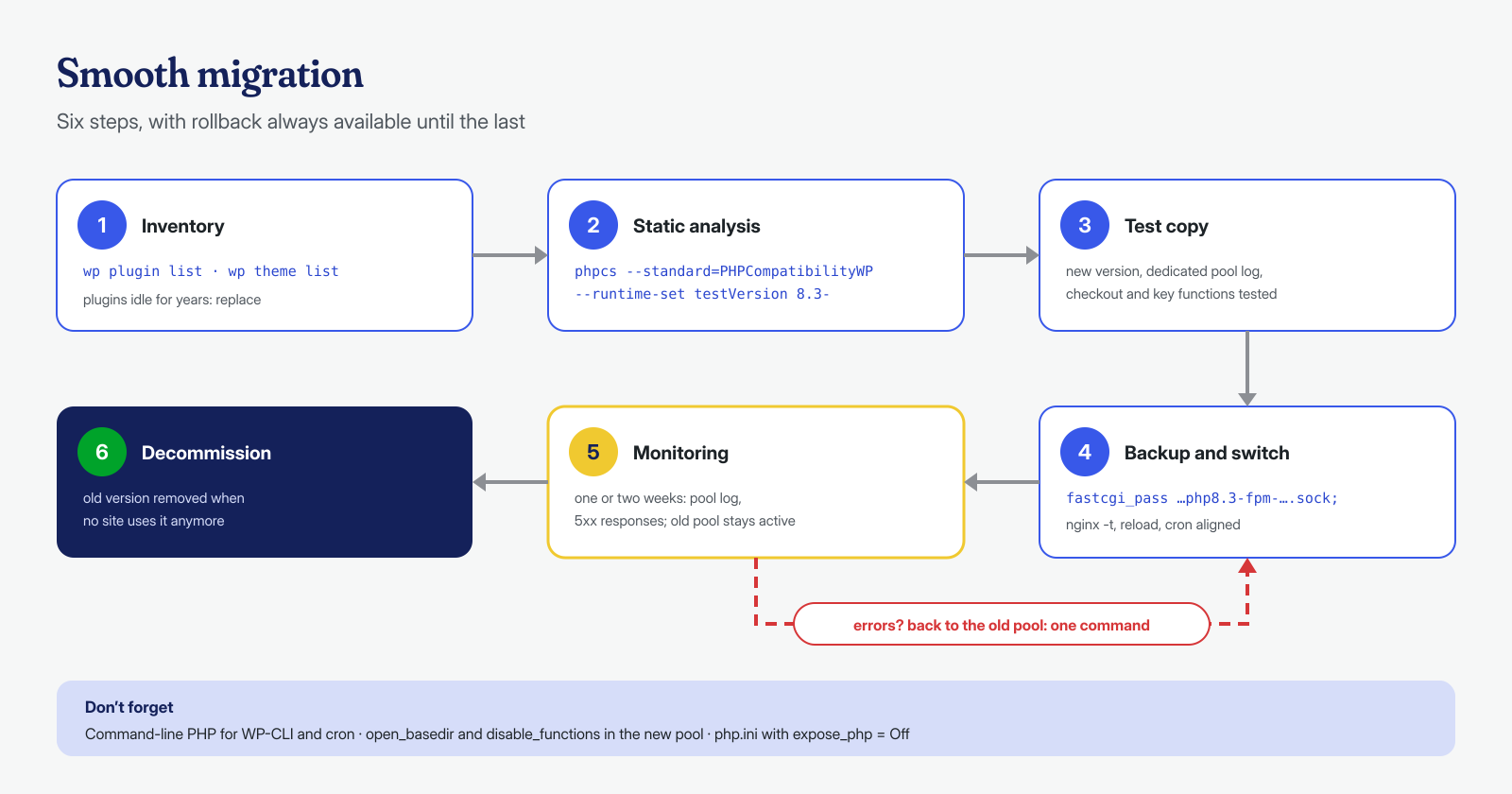
After the migration
When the new pool’s log is clean and no site uses the old version anymore, its package should be removed: a PHP version installed and forgotten is a risk even if no site uses it, because it remains executable from the command line and from any configurations left behind. From then on, mark the next deadline on the calendar, a few months ahead: compared with the last-days rush, a planned migration costs far less.
If the site has been stuck for years on an obsolete version, it’s likely not the only problem: it’s worth checking that the outdated plugins haven’t already opened the door to someone. If you find signs of compromise, or want to tackle the upgrade on a site that has already been infected, write to us: we clean files, database, and system, cron jobs and processes included, with a guaranteed cleanup in 6, 12, or 24 hours per WordPress installation, and we leave the site on a supported PHP version.
