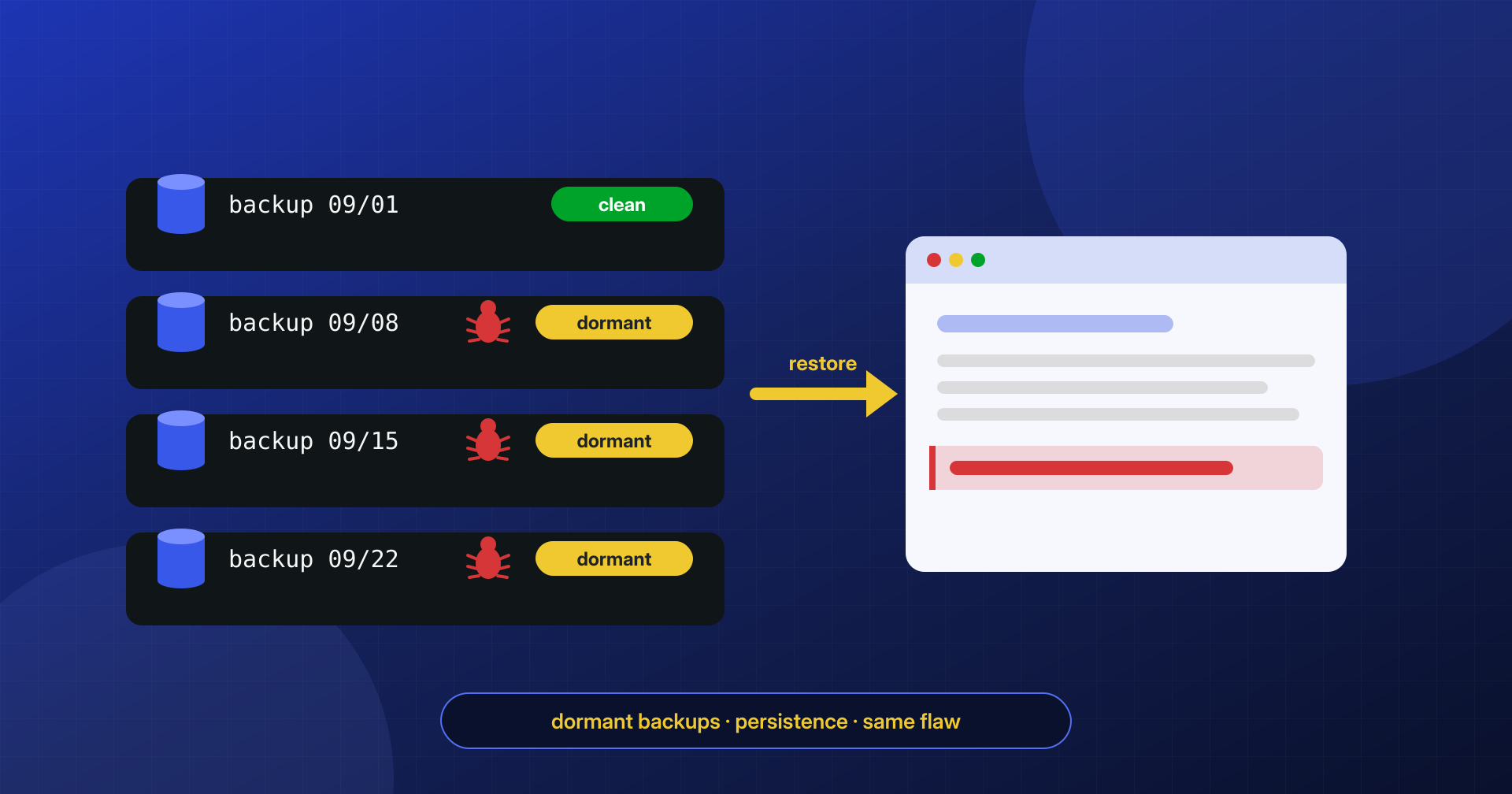
When a WordPress site gets infected, almost everyone’s first idea is the same: “We have a backup, let’s restore yesterday’s.” It is an understandable reaction: restoring is fast, any hosting panel offers it, and it feels like one click will wipe out the problem. Sometimes it works. Much more often the site comes back clean for a few days, then the redirects, the spam, or the Google warning reappear, and by then you have also lost the chance to understand what happened.
A backup takes the site back to how it was at a given moment. It does not tell you whether the site was already compromised at that moment, and it does not close the door the attack came in through.
In this article we look at the technical reasons malware survives a restore, and at how to use backups the right way: not as a cure, but as an analysis tool and as the basis for a controlled rebuild.
The backup may already be infected
The first problem is dates. The day you notice the infection is not the day it happened. An automated attack that exploits a vulnerable plugin usually leaves a backdoor first: a small, often obfuscated file that does nothing visible and exists only to get back in. The real payload, meaning the spam, the redirect, or the skimmer on the payment page, can arrive days or weeks later, when whoever controls the backdoor decides to use it or sells it on.
Meanwhile backups keep running every night, and each one contains the dormant backdoor. Anyone who restores “the last backup where the site was working fine” almost always picks a copy that looks clean only because the payload had not been activated yet. After the restore the backdoor is back in place, and whoever installed it can put the payload back whenever they want: from their point of view, the restore changed nothing.
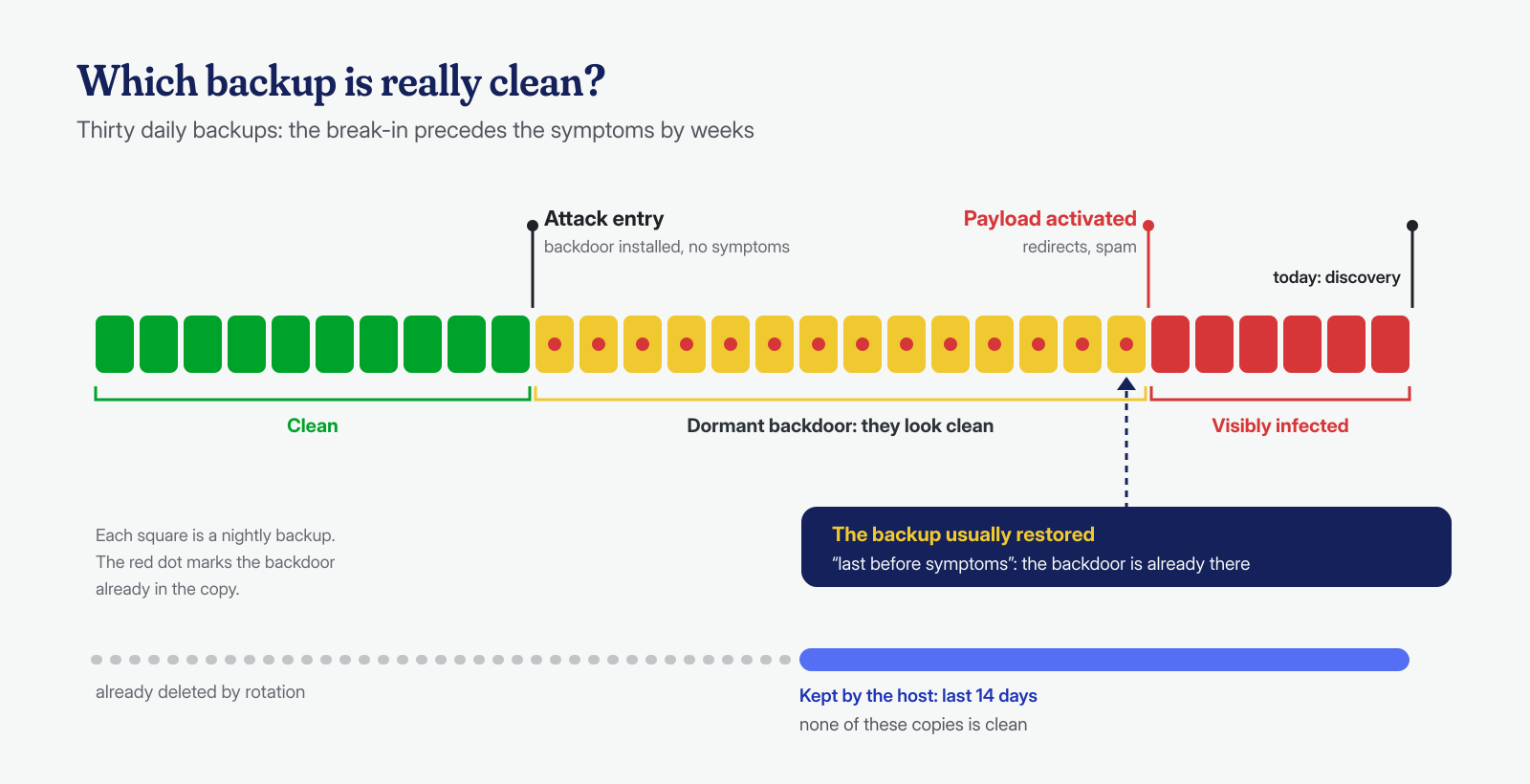
On top of that, retention is limited. Many hosts keep seven, fourteen, or thirty days of copies. If the entry happened two months ago, there may be no truly clean backup left, and then restoring is not an option: you have to clean the current version or rebuild from trusted sources, meaning core and plugins freshly downloaded from their authors, plus verified content.
A backup is clean only once it has been verified, not because it predates the symptoms: we cover how further down.
Files without the database, database without the files
A WordPress site has two parts that live in different places: the files on disk (core, themes, plugins, uploads, wp-config.php) and the database. Many backup systems save and restore them separately, and hosting panels often offer to restore only the files or only the database. Under pressure, it is easy to restore just one.
Malware, however, uses both. If you restore only the files, every form of persistence that does not live on disk stays in the database:
- administrator users created by the attack, sometimes hidden from the user list by a filter in the code;
- scripts injected into posts, widgets, or theme options, which produce redirects and spam without touching a single file;
- WP-Cron events registered under plausible names, ready to run code as soon as something hooks back in;
- SQL triggers that reinsert the malicious code every time a piece of content is saved.
The opposite case is just as common: you restore the database to remove spam from posts and leave the files untouched, with backdoors in wp-content/uploads, in the theme, or in mu-plugins and drop-ins. The site looks fine until the backdoor rewrites the content.
There is also a consistency problem: files and database from different points in time may not match. A plugin updated in the files but not in the database, or the other way around, can leave the site in an inconsistent state, with errors that get mistaken for effects of the malware and muddy the analysis even further.
Persistence that lives outside the site folder
A WordPress backup contains, by definition, the site: the public folder and the database. Everything outside it is not saved and, above all, is not overwritten by the restore. That is exactly where the most resilient infections put their persistence.
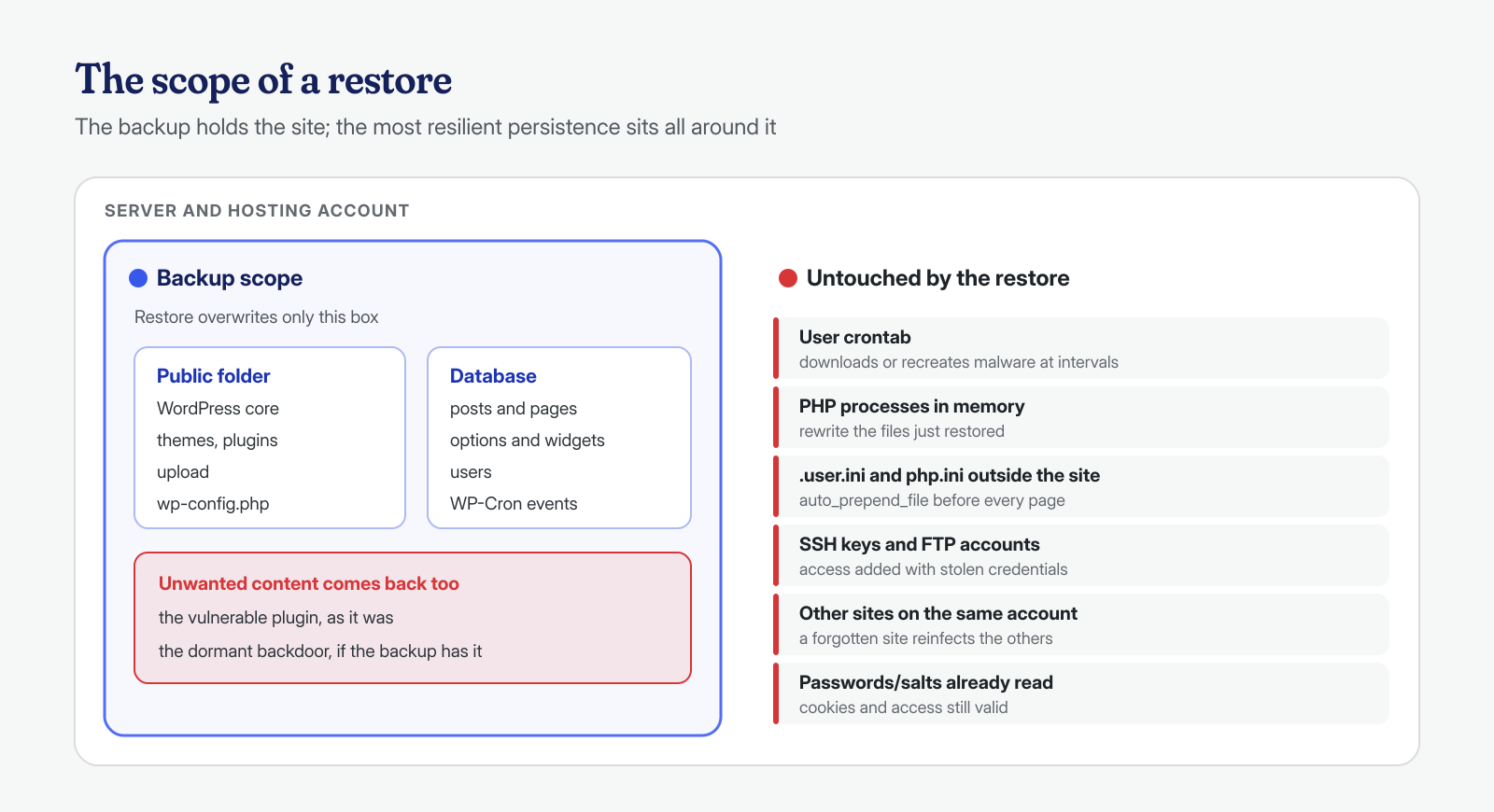
These are the cases we run into most often:
- the system user’s crontab, with a line that every few minutes downloads the malware from an external server or rebuilds it from a hidden copy: we covered this in the article on cron job backdoors;
- PHP processes left in memory, started by the attack and still running even though the file they were launched from has been deleted: restoring files does not stop them, and they overwrite the freshly restored files (see “deleted” PHP processes in memory);
- the other sites on the same account: on shared hosting, or on a server with several installations running as the same user, an old, forgotten site can reinfect all the others, because it has permission to write into their folders;
- PHP configuration files such as
.user.iniorphp.iniin the parent folder, with anauto_prepend_filedirective that makes a file run before every page; - access added to the system, such as a key in
~/.ssh/authorized_keysor an FTP account created from the control panel with stolen credentials.
A few quick checks, run as the site user or as root, give you a first idea:
# Scheduled tasks of the site user
crontab -l -u utente-sito

# User processes whose executable or directory no longer exists
ls -l /proc/[0-9]*/exe /proc/[0-9]*/cwd 2>/dev/null | grep '(deleted)'

# PHP configuration and SSH keys in the home directory, outside the public folder
find ~utente-sito -maxdepth 3 \( -name '.user.ini' -o -name 'php.ini' \) -ls
cat ~utente-sito/.ssh/authorized_keys

# Other WordPress installations in the same account
find ~utente-sito -maxdepth 4 -name wp-config.php
If even one of these is compromised, the restore is useless: the restored site gets reinfected the first time the cron job runs or the in-memory process makes its next pass.
The entry point is still open
Suppose you have a truly clean backup from before the entry and no external persistence. The restore takes the site back exactly as it was before the attack, which also means with the same vulnerable plugin version that made the attack possible. Attacks on WordPress sites are largely automated: the same tools that found the site the first time will find it again, often within hours or days.
That the entry point is almost always an extension is not just an impression. According to Patchstack’s State of WordPress Security in 2025 report, 7,966 new vulnerabilities were disclosed in the WordPress ecosystem in 2024, 96% of them in plugins, and 43% were exploitable without authentication. Restoring a site without updating or removing the vulnerable component means reopening the same door.
The same goes for credentials. If the attack read wp-config.php, it knows the database password and the keys WordPress uses to sign login cookies; if it got in with a stolen password, that password still works. The backup contains the same salts and the same password hashes as before: after the restore they must be changed, as described in the article on wp-config.php hardening.
# Update status of plugins and themes after the restore
wp plugin list --fields=name,status,version,update_version
wp theme list --fields=name,status,version,update_version

# New keys and salts: all sessions are invalidated
wp config shuffle-salts

# Administrators and application passwords to re-check
wp user list --role=administrator --fields=ID,user_login,user_email,user_registered
wp user application-password list 1
What you lose between the backup and today
A full restore does not erase only the malware: it erases everything that happened on the site after the backup date. For a blog updated once a month that may be little. For an e-commerce store it means orders, registered customers, shipping statuses, and reviews; for a news portal, articles, comments, and the editorial team’s edits; for a site with contact forms, requests nobody has read yet.
If the chosen backup is three weeks old because the later ones contain the backdoor, the loss becomes serious. And recovering that data from the infected database and reinserting it by hand is delicate work: you need to bring the content into the restored site, not the malicious code that may be hiding in it. Before restoring, it is therefore worth extracting from the current database whatever changed after the backup date, so you can examine it and reimport it selectively:
# Content created or modified after the backup date
wp db query "SELECT ID, post_type, post_status, post_modified, post_title
  FROM wp_posts
  WHERE post_modified > '2026-09-01' AND post_type NOT IN ('revision')
  ORDER BY post_modified"

# Users registered after the same date
wp user list --fields=ID,user_login,user_email,user_registered \
  --orderby=registered --order=DESC
With WooCommerce and High-Performance Order Storage (HPOS) enabled, orders no longer live in wp_posts but in dedicated tables such as wp_wc_orders, and must be exported from there. Every recovered item must be checked before it is reinserted: a post modified by the attack contains the same script you were trying to get rid of, and a user registered after the backup date may be the very administrator added by whoever broke in.
Use backups as evidence, not as a cure
Backups are enormously valuable in a forensic analysis, as long as you use them to compare rather than to overwrite. A series of daily copies is a record of how the site evolved: by comparing them you can tell when the first foreign file appeared, which files were modified and in what order, and therefore which backup is the last truly clean one.
First of all, though, you must save the current state of the infected site, outside the public folder. The restore overwrites it, and with it the malicious files, the modification dates, and the database content needed to reconstruct the attack:
# Copy of the current state, before any intervention
mkdir -p /root/evidenze
tar -czpf /root/evidenze/sito-$(date +%F).tar.gz -C /var/www/esempio.it .
wp db export /root/evidenze/db-$(date +%F).sql --path=/var/www/esempio.it
Comparing files
The most useful comparison is between two backups extracted into separate folders, or between a backup and the current site. For core and for plugins published on WordPress.org there are also official checksums, which flag every file modified or added compared with the original version:
# Extract two backups and compare them
mkdir -p /root/confronto/0801 /root/confronto/0901
tar -xzf backup-2026-08-01.tar.gz -C /root/confronto/0801
tar -xzf backup-2026-09-01.tar.gz -C /root/confronto/0901
diff -rq --exclude=cache /root/confronto/0801 /root/confronto/0901

# Verify an extracted backup against the official checksums
cd /root/confronto/0801
wp core verify-checksums --skip-plugins --skip-themes
wp plugin verify-checksums --all --skip-plugins --skip-themes

# PHP files in the backup's uploads: there should be none
find /root/confronto/0801/wp-content/uploads -type f -iname '*.php*'
wp core verify-checksums reads the version from the files and also works without a database; wp plugin verify-checksums, on the other hand, loads WordPress and needs a reachable database with the credentials from the extracted wp-config.php, for example by importing the backup’s dump into a test database on another machine. The --skip-plugins and --skip-themes options avoid loading potentially infected code. Checksums do not cover commercial plugins and themes, which must be compared against a fresh copy downloaded from the vendor, nor uploads and wp-config.php, which must be read by hand.
Comparing the database
Database dumps can be compared too, provided you export them with one row per record: that way diff shows exactly which options, users, or content changed between two dates. The most interesting tables are wp_options, wp_users, and wp_usermeta; triggers are exported by default, stored procedures only with --routines:
# Dump with one INSERT per row, no date, for a readable comparison
mysqldump --skip-extended-insert --skip-dump-date --routines \
  -u utente -p nome_db wp_options wp_users wp_usermeta > oggi.sql

diff backup-0801.sql oggi.sql | less

# Typical signatures of injected code in the dump
grep -nE 'eval\(|base64_decode|gzinflate|<script|String\.fromCharCode' oggi.sql
File modification dates help narrow the window, with one caveat: the modification time (mtime) can be forged with a simple touch, while the inode change time (ctime) cannot, at least not without elevated privileges. If a core file’s ctime is much more recent than its mtime, someone touched it after installation. To cross-reference these dates with suspicious requests you need the web server logs, a topic we explored in the article on log analysis with local AI models.
The right sequence: restore, clean, close
The backup remains a valuable tool, as long as it is one of the steps and not the only one. The sequence we follow, with small variations from case to case, is this:
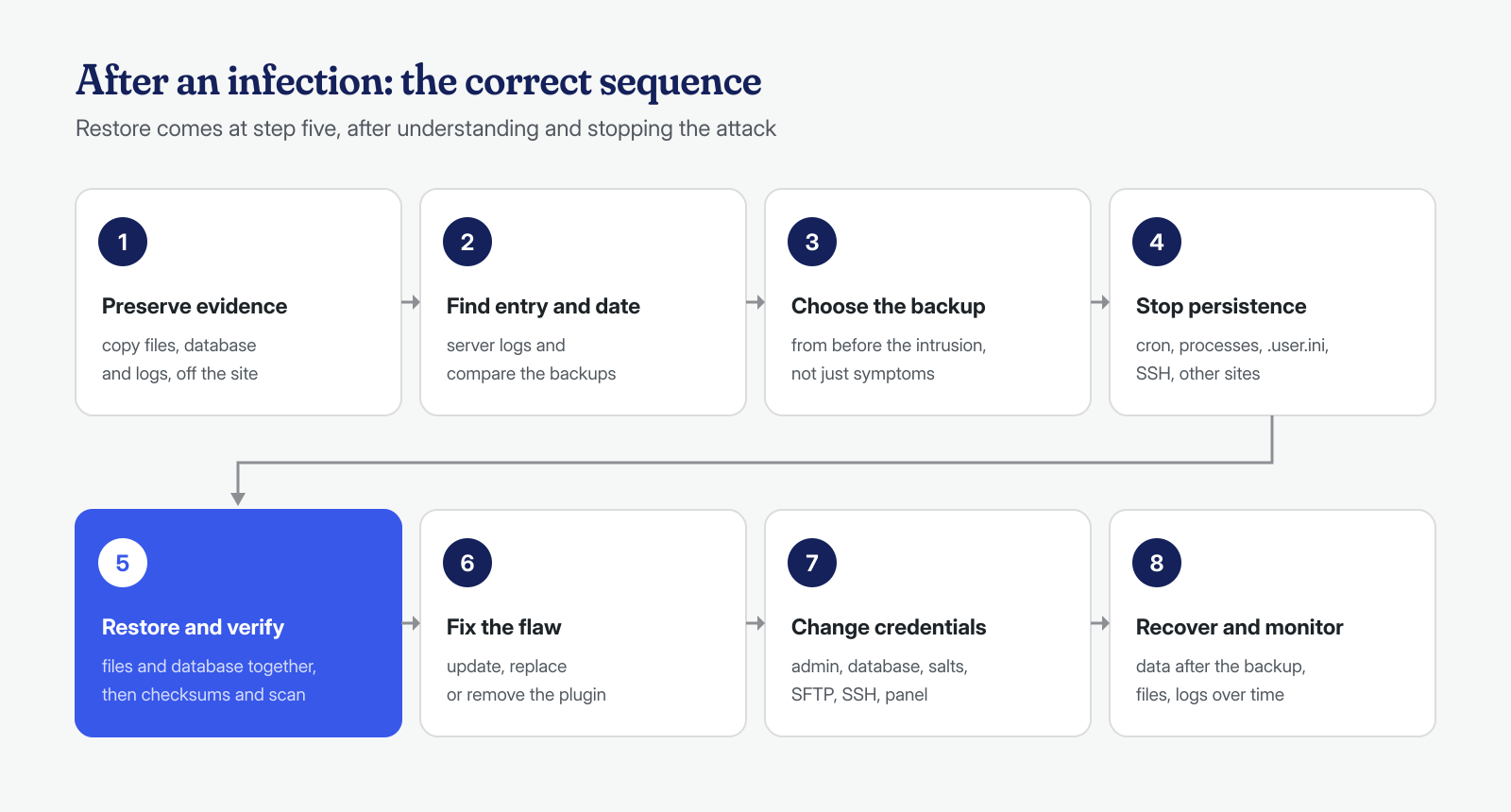
- Preserve the evidence: copy files, database, and logs of the current state, outside the public folder.
- Find the entry point and the date: from the logs and from comparing backups, work out which component was exploited and when.
- Choose a verified backup, from before the entry and not just before the symptoms; if none exists, rebuild from clean sources.
- Remove the external persistence: cron jobs, in-memory processes, PHP configuration, SSH keys, other sites on the same account.
- Restore files and database together, then re-check the result with checksums and a scan.
- Fix the vulnerability: update, replace, or remove the exploited component before putting the site back online.
- Change all credentials: administrators, database, salts, SFTP and SSH, hosting panel, API keys stored in options.
- Recover lost data and monitor: selectively reimport content created after the backup and watch files and logs over the following weeks.
Step 4 comes before step 5 for a practical reason: an in-memory process or an active cron job would overwrite the files the moment they are restored. And step 6 comes before putting the site back online, because a site restored with the same vulnerability is simply a site waiting for the next scan.
Finally, the backups themselves need a review. Copies stored on the same server and writable by the site user can be deleted or altered by whoever took control; longer retention, at least one copy off the server and not modifiable by the site’s account, and a periodic integrity check make the next incident much easier to handle.
If the site has already been restored once or more and the infection keeps coming back, that is a sign something sits outside the backup’s perimeter. It is the kind of case we handle routinely, at the application and system level together, with guaranteed cleanup times of 6, 12, or 24 hours per installation: if you want a second opinion before another restore, get in touch and we will look together at what to keep and where to start.
