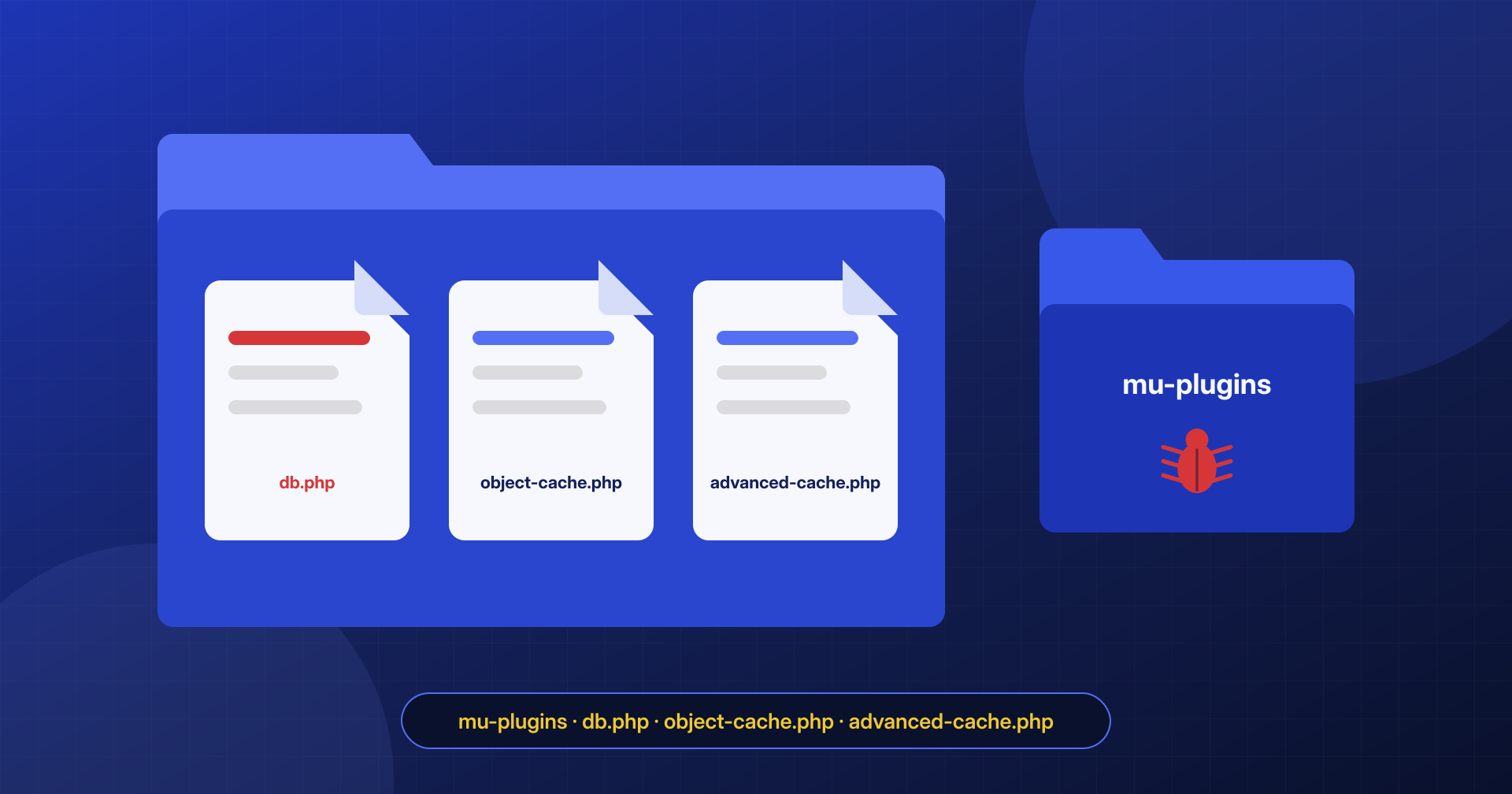
WordPress loads certain files automatically, without anyone activating them from the dashboard: “must-use” plugins and so-called drop-ins. They are useful, legitimate features, used by hosting providers and caching plugins, but precisely because they load on their own and cannot be deactivated from the admin area, they are also among the favorite hiding places for backdoors.
Must-use plugins
Every PHP file placed directly in the wp-content/mu-plugins folder is loaded on every request, before the regular plugins. You cannot activate or deactivate it: if it is there, it runs. WordPress shows these files in a separate “Must-Use” tab of the plugin list that few people ever open, and a malicious file can even remove itself from that list with a filter.
Subfolders of mu-plugins are not loaded automatically: that is why legitimate multi-file must-use plugins use a small loader file in the main folder that includes the rest. Attackers often do the same, with a loader file that has a reassuring name, such as cache-loader.php or health-check.php, which includes obfuscated code from a subfolder or from a database option.
Drop-ins
Drop-ins are files with predefined names in the wp-content folder that replace or extend parts of how WordPress works:
advanced-cache.php, loaded very early when theWP_CACHEconstant is enabled and used by page caching plugins;object-cache.php, which replaces the object cache and is used, for example, by Redis or Memcached plugins;db.php, which replaces the database access class and is used by some diagnostic and multi-database tools;- less common ones such as
maintenance.php,db-error.php,fatal-error-handler.phpand, on multisite,sunrise.php.
These files are especially attractive to attackers: they run before the plugins, and therefore before many security checks, and db.php sees every query go by, including those carrying credentials and user data.
How to check them
A legitimate drop-in belongs to a specific plugin, which usually creates it by copying one of its own files or with a symbolic link. The check consists of tracing each file back to its plugin:
ls -la wp-content/mu-plugins/ wp-content/*.php

# Does the drop-in match the file of the plugin that should have created it?
diff wp-content/object-cache.php \
     wp-content/plugins/redis-cache/includes/object-cache.php
If the plugin that should have created it is not installed, if the content differs from the original, or if there is obfuscated code at the end of an otherwise normal file, treat the drop-in as compromised. From WP-CLI, wp plugin list --status=must-use and wp plugin list --status=dropin list them, but remember that WP-CLI also loads WordPress: for a check that is independent of filters, it is better to look at the files directly.
Cleanup and prevention
A compromised drop-in is replaced with the original copy from the plugin that manages it, or deleted, knowing that the related feature, such as the object cache, will stop working until the plugin is reinstalled. A file in mu-plugins that nobody can explain should be saved as evidence and then removed. After the cleanup, monitoring changes in these folders is one of the most effective measures: these files rarely change, so every change deserves attention. We also cover this in the article on backdoors in cron jobs, where must-use plugins are often the target of reinfection.
