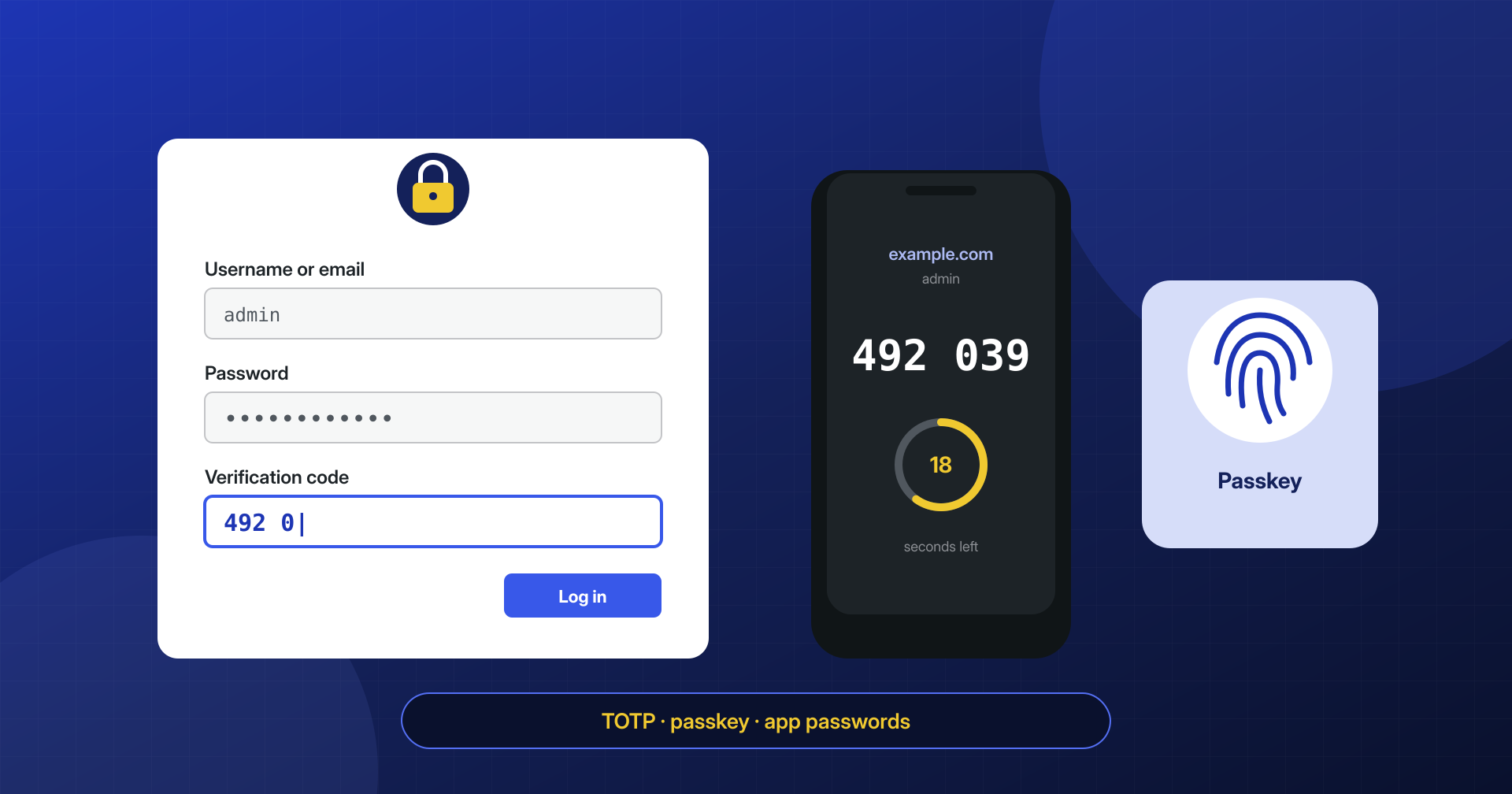
Among the sites we clean up, a significant share were not breached through a vulnerable plugin but through the front door: someone logged in at wp-login.php with the right password. A password reused elsewhere and leaked in a credential dump, or stolen by an infostealer on a collaborator’s computer. From WordPress’s point of view that login is perfectly legitimate, and it leaves nothing unusual in the logs.
A second factor does not make a password stronger: it makes it insufficient. Whoever stole it holds half of what is needed, and the missing half is not in the same data dump.
In this article we look at how the methods available on WordPress work, namely TOTP codes, passkeys, email codes, and recovery codes; which plugin we use and why; the point almost everyone overlooks, which is that application passwords by design do not go through the second factor; and how to use WP-CLI to check who is really protected.
Why a password alone is no longer enough
Attacks on WordPress credentials follow two paths. The first is credential stuffing: email and password pairs leaked from other services are tried automatically on thousands of sites, counting on the fact that many people reuse the same password. It is not a brute-force attack: attempts per site are few and targeted, and a login attempt limit barely slows them down. The second is infostealers, malware that collects passwords saved in the browser, session cookies, and FTP client configurations from the victim’s computer, as we described in the article on credentials stolen from the developer’s PC.
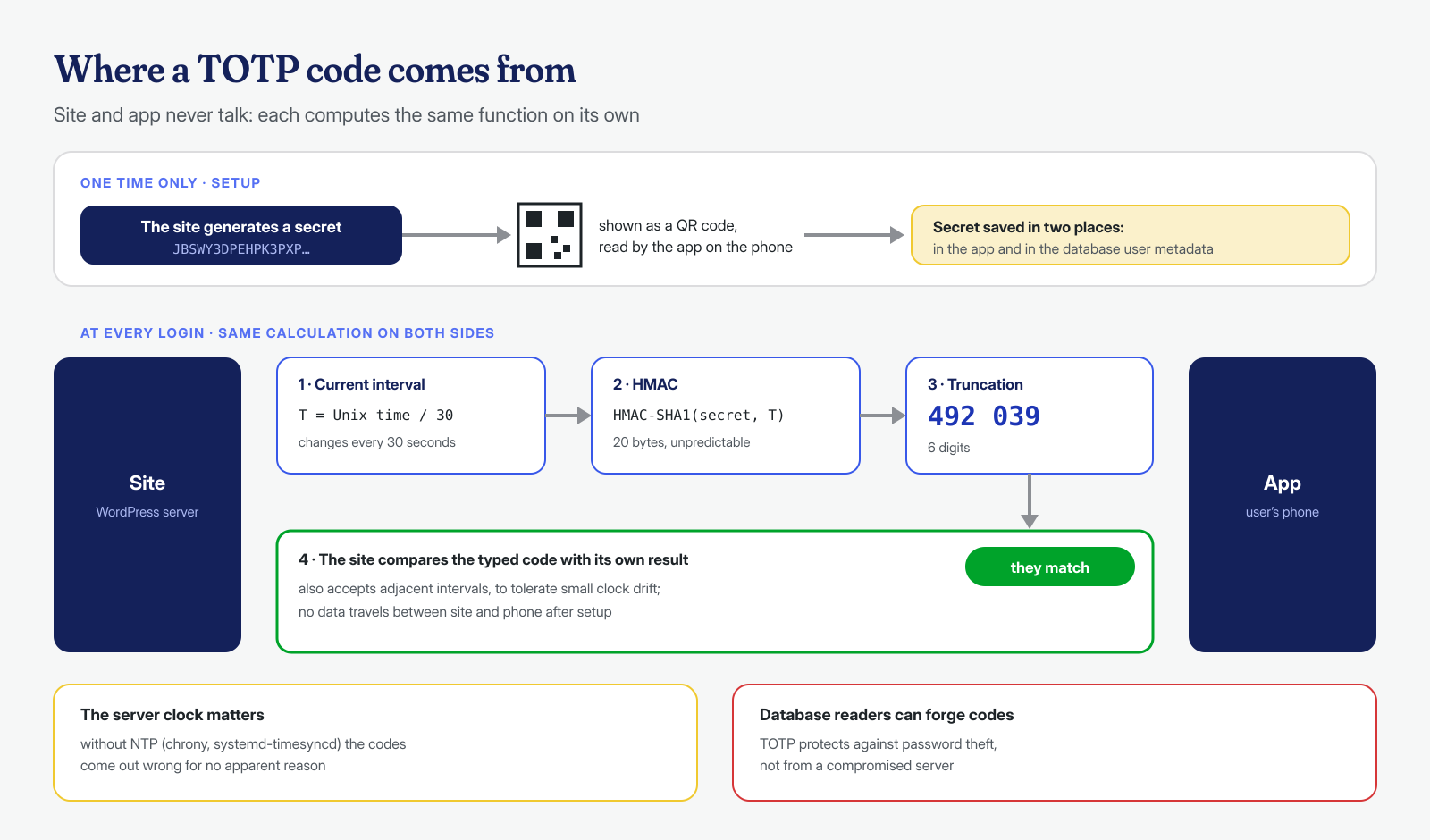
In both cases the password is correct, and no complexity rule would have helped. The second factor is effective precisely because it introduces something that is not in the same place as the password: a secret on a phone, a cryptographic key tied to the device. It must be said right away, though, that it does not cover everything. If an infostealer steals the cookie of an already authenticated session, the attacker gets in without going through the login, and therefore without going through the second factor. That is why 2FA is always paired with sessions of reasonable length and with revoking sessions when theft is suspected.
TOTP: the code that changes every thirty seconds
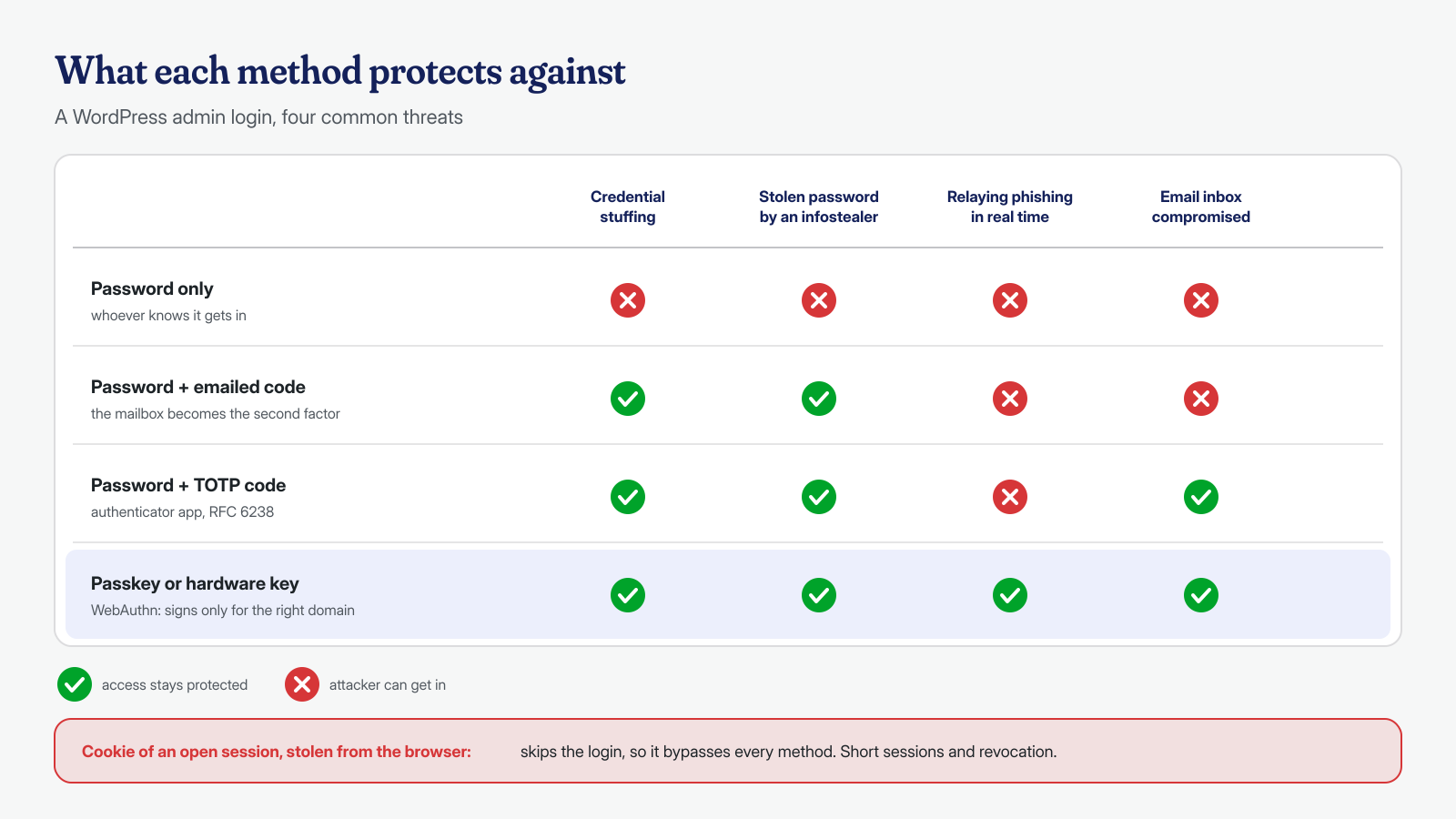
The most common method is the time-based code generated by an authenticator app, standardized in RFC 6238. During setup the site generates a random secret and shows it as a QR code; the app stores it. From then on, the site and the app each compute an HMAC of the secret and the current time divided into thirty-second intervals, and extract six digits from it. If the two results match, the person logging in holds the secret. Nothing is transmitted between the site and the phone after setup, which is why TOTP works even without a network.
Two practical consequences. First: the secret is stored in the site’s database, in the user’s metadata. Anyone with access to the database, for example through SQL injection or an exposed backup, can generate the codes; TOTP protects against password theft, not against compromise of the server. Second: the server’s clock must be synchronized, otherwise codes come out wrong for reasons nobody figures out at first. An active NTP service, such as chrony or systemd-timesyncd, fixes it.
The app deserves some thought too. Many authenticator apps offer to back up secrets to a cloud account, convenient when you change phones: in that case the security of the second factor becomes that of the cloud account, which in turn should be protected by a different second factor. And the secret shown in the QR code should be treated like a password: a screenshot sent in a chat to a colleague to “set up their access too” is as good as the key.
Passkeys and WebAuthn: the factor phishing cannot steal
TOTP has a limitation worth knowing: the code is typed by hand, and a well-made phishing page can ask for it and relay it to the real site within its thirty seconds of validity. Passkeys eliminate the problem at the root. They are based on the W3C WebAuthn standard: the device creates a key pair for each site, keeps the private key, and signs a server challenge only if the page’s domain matches the one the key was created for. On a phishing domain the signature simply does not happen. The NIST SP 800-63B guidelines explicitly recognize WebAuthn as phishing-resistant, and just as explicitly exclude from this category codes that are typed by hand, TOTP included.
Passkeys are WebAuthn credentials that can be synchronized across a user’s devices through the operating system’s or a third-party password manager, and are unlocked with a fingerprint, face, or PIN. Hardware keys, such as USB or NFC ones, are the non-syncable variant: less convenient, but tied to a physical object. For a WordPress administrator both are a step up from TOTP, and the server stores only public keys, which are useless to anyone who reads the database.
Email codes and recovery codes
The code sent by email is the easiest method to enable, because it requires no app, and it is better than nothing against credential stuffing. But it has a structural flaw: the email inbox is often protected by the same password, or is the one used to reset the site password. Whoever controls the inbox controls both factors. Not by chance, the NIST guidelines state that email should not be used as an out-of-band authentication channel. We consider it acceptable for low-privilege users, not for administrators.
Recovery codes are the opposite: they are not for logging in every day, but for not being locked out when the phone breaks or is lost. They are a handful of single-use codes, generated once and kept away from the main computer, in a password manager or printed and stored somewhere safe. An administrator without recovery codes, and without a second administrator who can step in, is an urgent support request just waiting to happen.
The Two Factor plugin and its limits
There are many plugins for the second factor, often included in broader security suites. The one we prefer to install is Two Factor, developed by the WordPress community as a feature plugin: it does one thing, has readable code, and adds no panels or external services. It supports TOTP authenticator apps, email codes, and recovery codes; the old FIDO U2F support was removed because browsers no longer support it. For passkeys, a separate extension is used alongside it, Two-Factor Provider: WebAuthn, which adds hardware keys and platform authenticators such as Windows Hello and Touch ID.
Two Factor’s main limitation is that it enforces nothing: each user chooses whether to enable it from their own profile, and an administrator who does not stays protected by the password alone. The plugin exposes filters, such as two_factor_providers to restrict the available methods, but the requirement by role has to be added, with a plugin that provides it or with a few lines of code, as we will see below. Two Factor also introduces an increasing delay after each wrong code, which doubles with every error up to a default maximum of fifteen minutes, so that trying all the six-digit combinations is not practical. Whichever you choose, check three things: that 2FA also applies to XML-RPC, that recovery codes exist, and that there is a limit on attempts at the second factor.
Application passwords: the door 2FA does not close
Since version 5.6 WordPress includes application passwords: credentials generated from the user profile to let external applications, such as a mobile app or a publishing service, access the REST API and XML-RPC. They do not work in the login form, can be revoked one by one, and by default are available only on HTTPS sites. Above all, by design, they do not go through the second factor: they are meant for programs that cannot read a code from a phone.
This is correct and useful, but it has a consequence we often see in cleanups: an application password created by an attacker during the compromise survives the user’s password change and the activation of 2FA, and keeps giving full REST API access with that user’s privileges. The same goes for ones forgotten by integrations decommissioned years ago. Then there is XML-RPC: in core it also accepts the normal password, and a serious 2FA plugin must block it and allow only application passwords. Two Factor does this by default for users who have enabled the second factor, but it is one of the first things to check with any plugin.
# All the site's application passwords, with last use and IP
for u in $(wp user list --field=ID); do
  wp user application-password list "$u" --fields=uuid,name,created,last_used,last_ip --format=csv \
    | sed "1d; s/^/$u,/"
done

# Revoke one, or all of a user's
wp user application-password delete 12 6633824d-c1d7-4f79-9dd5-4586f734d69e
wp user application-password delete 12 --all
If the site has no integrations that use them, the simplest choice is to disable them entirely with a filter in an mu-plugin; if only a technical user needs them, you can restrict them to that user:
<?php
// wp-content/mu-plugins/password-applicative.php

// Disable them everywhere:
add_filter( 'wp_is_application_passwords_available', '__return_false' );

// Or allow them only for an integration user:
// add_filter( 'wp_is_application_passwords_available_for_user', function ( $available, $user ) {
// 	return 'integrazione-gestionale' === $user->user_login;
// }, 10, 2 );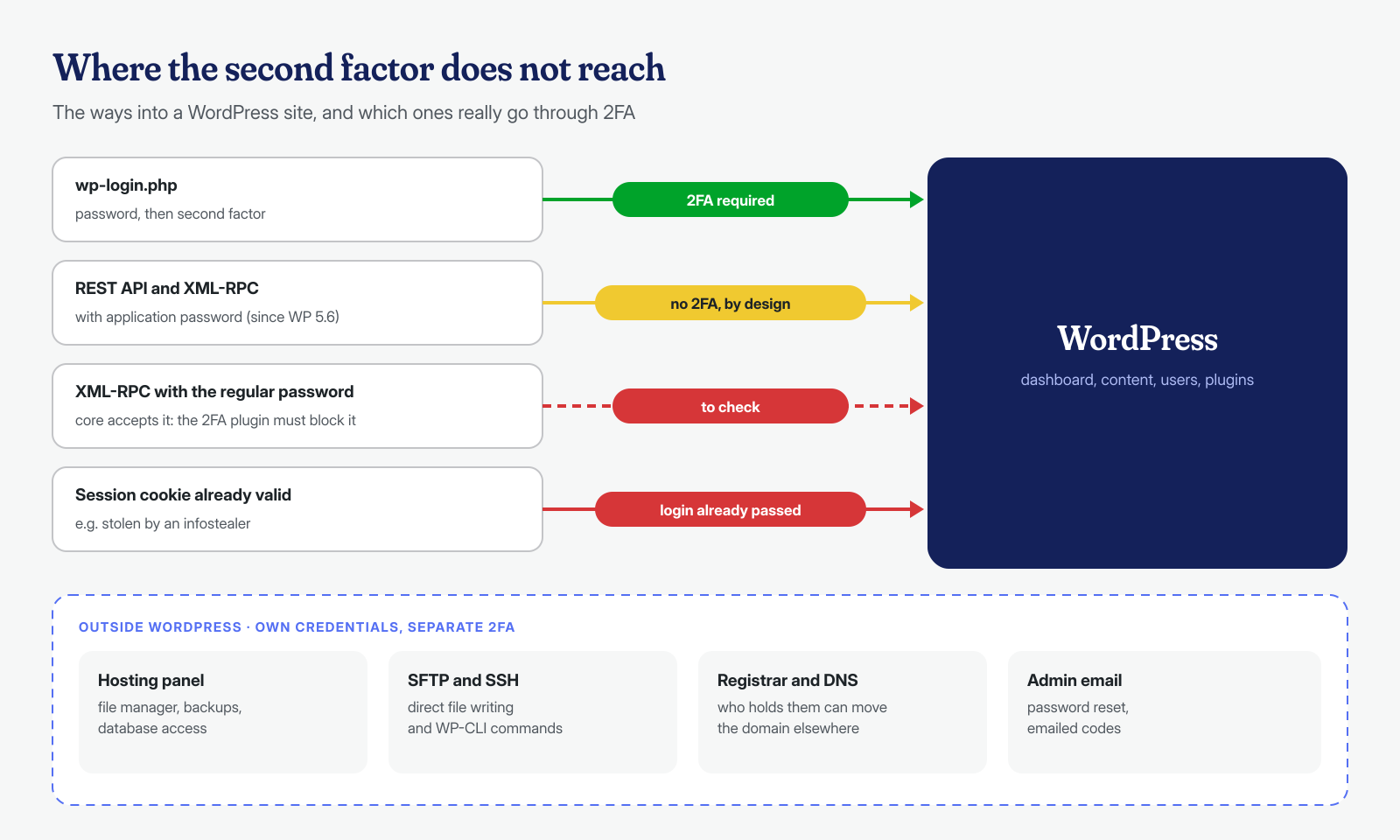
Making 2FA mandatory and verifying it with WP-CLI
Optional 2FA protects those who are already careful. For administrators, and for anyone who can install plugins or edit files, it must be mandatory. With Two Factor, all it takes is an mu-plugin that, until a user with administration privileges has configured a method, sends them back to their own profile on every dashboard page:
<?php
// wp-content/mu-plugins/2fa-obbligatorio.php
add_action( 'admin_init', function () {
	if ( ! class_exists( 'Two_Factor_Core' ) || wp_doing_ajax() ) {
		return;
	}
	$user = wp_get_current_user();
	if ( ! user_can( $user, 'manage_options' ) || Two_Factor_Core::is_user_using_two_factor( $user ) ) {
		return;
	}
	global $pagenow;
	if ( 'profile.php' !== $pagenow ) {
		wp_safe_redirect( admin_url( 'profile.php#two-factor-options' ) );
		exit;
	}
} );
This is not a block at login, which would be risky to improvise, but it prevents using the dashboard without configuring the second factor. The periodic check is done from the command line: Two Factor records each user’s primary method in the _two_factor_provider metadata, and an administrator user without that value is an administrator without 2FA. In the same check it is worth closing the open sessions of anyone who has just been brought into compliance, so that no earlier cookie stays valid:
# Administrators and editors, with the primary 2FA method (empty = none)
for id in $(wp user list --role=administrator --field=ID) $(wp user list --role=editor --field=ID); do
  login=$(wp user get "$id" --field=user_login)
  metodo=$(wp user meta get "$id" _two_factor_provider 2>/dev/null)
  echo "$id $login ${metodo:-NESSUN 2FA}"
done

# Close all of a user's sessions (requires a new login, and therefore 2FA)
wp user session destroy mario.rossi --all
The list of administrators is also a chance to ask whether they all need to be administrators: an account belonging to an agency that no longer works on the site, or a user created for a one-off job, is a risk with or without 2FA. If names nobody recognizes show up in the list, the problem is a different one, and we cover it in the article on hidden administrators.
Recovery, hosting, and registrar: the rest of the chain
Before making 2FA mandatory, write down the recovery procedure, because it will be used. If an administrator loses their phone and has no recovery codes, another administrator can disable their 2FA from the profile; if there is only one administrator, there is the command line, which can remove the primary method metadata or temporarily deactivate the plugin. Both operations should be done only after verifying the identity of the requester, through a channel other than email, and logged: an urgent request to “remove 2FA” is also a classic social engineering technique.
Finally, 2FA on WordPress protects WordPress. Anyone who gets into the hosting panel, SFTP, or the database does not go through the site’s login, and anyone who gets into the registrar’s panel can move the whole domain, and with it the site and the email, to servers controlled by others. The same second factor, preferably a passkey or hardware key, should be enabled everywhere there is a credential able to modify the site: hosting, registrar, code repository, the administrator’s email inbox. It is one of the items in our post-cleanup checklist, along with revoking application passwords and sessions.
If you enabled 2FA after a suspicious login, remember that the attacker may have left something else behind: application passwords, hidden users, mu-plugins or cron jobs that the second factor does not touch. In these cases we can check the site for you, at the application and system level, with a guaranteed cleanup in 6, 12, or 24 hours for every WordPress installation.
