The site gets cleaned, the backdoors removed, the plugins updated. Three days later a PHP file reappears in the theme folder, with a modification date from that very night. No known vulnerability, no suspicious plugin, no unusual requests in the access logs before the file appeared. In cases like this the right question is not “which hole in the site did they get in through,” but “who had the keys”: often the attacker forced nothing, and simply used FTP credentials stolen from the computer of whoever manages the site.
When credentials leak from an infected PC, changing them from that same PC means handing them to the attacker all over again.
In this article we look at how infostealers collect credentials saved in FTP clients, browsers, and SSH keys, how FTP server logs let you recognize a login with valid credentials but from an unknown address, why cleaning the site alone isn’t enough, and in what order to secure the client, the credentials, and the server.
An infection that doesn’t start from the site
In most WordPress compromises the entry point is at the application level: a vulnerable plugin, an upload form with no checks, a weak administrator password. But there is a category of cases in which the site, as far as the code is concerned, was in order. The attacker came in through the front door, with the correct username and password, through the same channel the developer uses to publish changes: FTP, SFTP, or SSH.
The typical symptom is reinfection with no explanation. The site is cleaned, perhaps even carefully, and after a few days new files reappear, often across several installations managed by the same person or the same agency. A strong clue is exactly this: if sites on different hosting, with different CMSs, are infected at the same time, and the only thing they have in common is who administers them, the common factor to investigate is that person’s computer.
In the access logs, in these cases, the expected step is missing: no POST request to a vulnerable file before the backdoor appeared. As we saw in the article on how to read access logs, the first request to the webshell arrives without anything having created it over HTTP: the file arrived through another channel, which has its own logs.
What infostealers take from the PC of whoever manages the sites
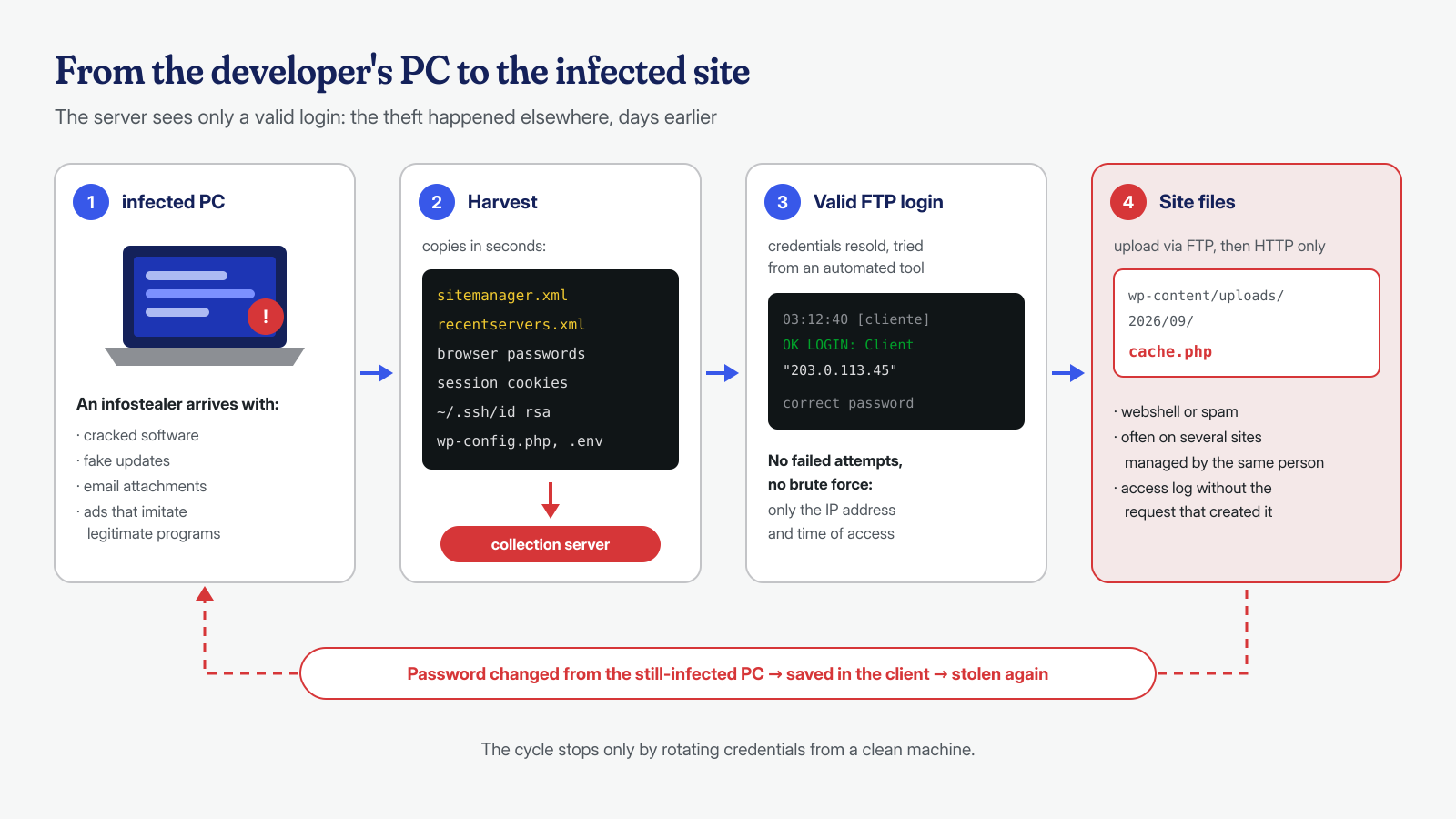
Infostealers are desktop malware, almost always for Windows, that collect everything of value on the computer within seconds and send it to the attacker. They arrive with cracked software, fake updates, email attachments, or ads imitating legitimate programs, and often delete themselves right after collecting.
For people who manage websites, the haul is especially rich. Technical analyses of widespread families such as RedLine explicitly list, alongside browser passwords and cookies, the FTP client configuration files: CloudSEK’s analysis describes how the malware looks for FileZilla’s sitemanager.xml and recentservers.xml in the AppData folder. In concrete terms, an infostealer on a developer’s PC can carry off:
- the sites saved in the FTP client, with the host, port, user, and password of each;
- the passwords stored in the browser, including those for the hosting panel,
wp-admin, and phpMyAdmin; - session cookies, which let an attacker into an already authenticated panel without knowing the password and without going through two-factor authentication;
- private SSH keys in
~/.sshor in PuTTY files, usable immediately if they aren’t protected by a passphrase; - project files on the desktop or in local repositories:
wp-config.php,.envfiles, deploy scripts with credentials written inside.
This data ends up in archives that are sold or traded in bulk. Buyers use automated tools that try every FTP credential, upload a webshell wherever the login succeeds, and move on. That is why weeks can pass between the theft and the use, and why the infection of the site does not coincide with the compromise of the PC.
FileZilla and passwords saved in plain text
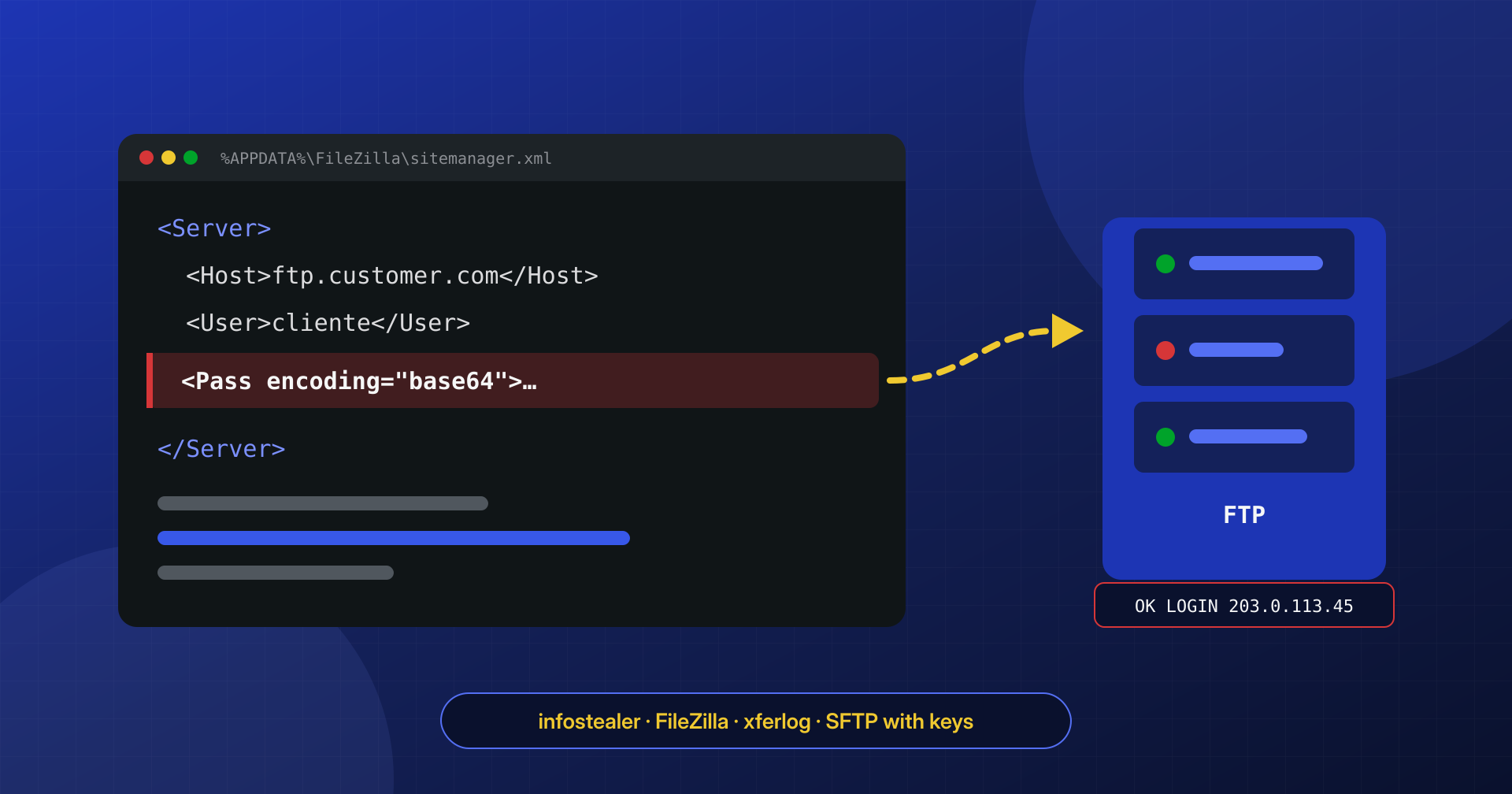
FileZilla is the most widespread FTP client and also the most frequently cited target, for a simple reason: for many years it saved passwords in readable XML files. The Site Manager writes to sitemanager.xml, the quick-connect history to recentservers.xml; on Windows the two files are in %APPDATA%\FileZilla\, on Linux in ~/.config/filezilla/. Without protection, the password appears in a <Pass> element encoded in base64, which is not encryption but a simple reversible transformation.
Since version 3.26.0 FileZilla can protect saved passwords with a master password, but as BleepingComputer reported when the feature arrived, the option is not enabled automatically: it has to be turned on in the settings. To check how passwords are stored on your own computer, just look at the file:
# Linux and macOS: does the Site Manager configuration exist?
ls -l ~/.config/filezilla/sitemanager.xml ~/.config/filezilla/recentservers.xml

# How passwords are stored (base64 = readable by anyone who reads the file)
grep -o '<Pass encoding="[^"]*"' ~/.config/filezilla/sitemanager.xml | sort | uniq -c

# Windows (PowerShell)
Select-String -Path "$env:APPDATA\FileZilla\sitemanager.xml" -Pattern '<Pass encoding'
If the result shows encoding="base64", anyone who has read that file knows the passwords. With the master password enabled, the attribute changes and the password is encrypted: an infostealer that copies the file does not get the credentials in plain text, although a keylogger remains a problem anyway. And browser password managers are decrypted by stealers directly on the victim’s computer, where the necessary keys are available.
What FTP logs tell you
On the server, the evidence of a login with stolen credentials is in the logs of the FTP or SSH daemon. The format depends on the software: Pure-FTPd, common in panels such as cPanel, writes through syslog to /var/log/messages or /var/log/syslog; vsftpd uses /var/log/vsftpd.log and, with xferlog_enable=YES, the transfer log /var/log/xferlog; ProFTPD generally writes to /var/log/proftpd/proftpd.log and has its own xferlog. SFTP logins, on the other hand, are SSH logins and appear in /var/log/auth.log (Debian and Ubuntu) or /var/log/secure (RHEL and derivatives).
The first thing to do is list the addresses from which each FTP user authenticated, and compare them with the known ones of the developer, the agency, and the client:
# Pure-FTPd: successful logins, grouped by IP and user
zgrep -h "is now logged in" /var/log/messages* \
  | sed -E 's/.*\(\?@([^)]+)\).* ([^ ]+) is now logged in.*/\1 \2/' \
  | sort | uniq -c | sort -rn

# vsftpd: successful logins and uploads
grep -E "OK LOGIN|OK UPLOAD" /var/log/vsftpd.log

# ProFTPD
grep "Login successful" /var/log/proftpd/proftpd.log

# SFTP and SSH: password or key logins
grep -E "Accepted (password|publickey)" /var/log/auth.log /var/log/secure 2>/dev/null
The most useful record for reconstruction, though, is xferlog, because it has a standard format in which each line is a transfer. The space-separated fields are the date (five words), the duration, the remote address, the size, the file name, the transfer type, a flag, the direction (i for uploads, o for downloads), the access mode, the user name, and, at the end, the completion status. Filtering PHP file uploads is therefore immediate:
# Uploads (direction i) of .php files: date, IP, user, file
awk '$12 == "i" && $9 ~ /\.php$/ {print $1,$2,$3,$4,$5, $7, $14, $9}' /var/log/xferlog

# All transfers from a suspicious address
grep " 203.0.113.45 " /var/log/xferlog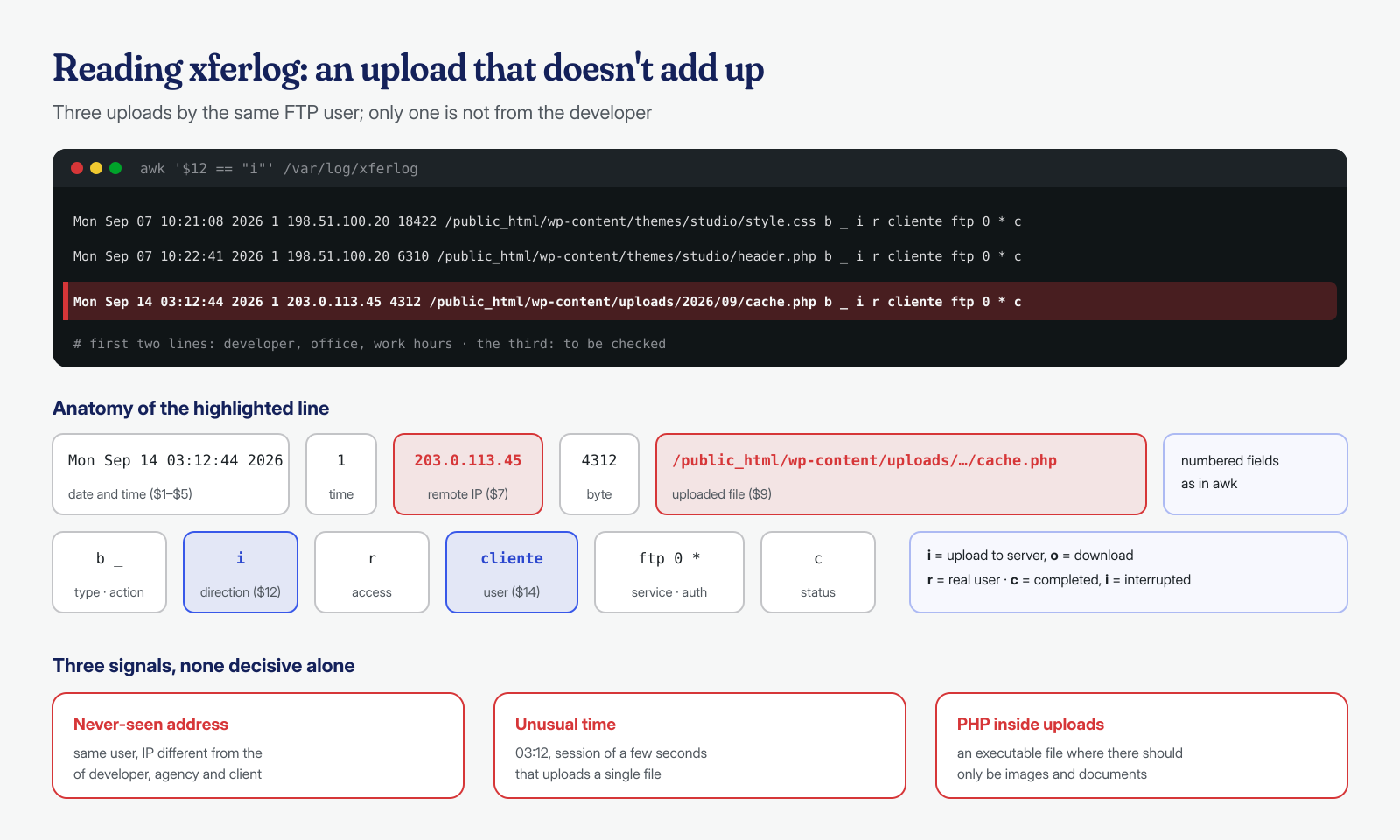
The recurring patterns are recognizable: logins from data-center addresses or residential networks in countries where nobody on the team works, very short sessions that upload a single file and close, nighttime uploads, and above all the same address logging in to several different FTP accounts on the same server within the same minute. The latter is the sign of an automated tool working through an archive of stolen credentials. If the theft is old, the useful lines may already be in rotated, compressed logs, to be read with zgrep.
Telling an FTP login from a site vulnerability
The decisive step is correlating the date the infected file appeared with the logs. Start from the file: its modification date (stat also shows the inode change date, harder to forge) gives a time window. Within that window, look on one side for an HTTP request that could have created it and on the other for an FTP transfer or an SFTP session.
# Dates of the suspicious file (Modify and Change)
stat wp-content/uploads/2026/09/cache.php

# HTTP requests in the same minute
grep "14/Sep/2026:03:1[0-4]" /var/log/nginx/access.log

# FTP transfers in the same interval
grep "Sep 14 03:1[0-4]" /var/log/xferlog
If the line in xferlog is there and the access log shows nothing relevant, the vector is clear. If instead the file is owned by the web server user and not by the FTP user, it is much more likely that a PHP process wrote it, meaning the entry was at the application level. The two hypotheses don’t exclude each other: often the attacker enters via FTP just once, uploads a webshell, and then works only over HTTP; the FTP logs show the origin, the access logs everything else.
Why cleaning only the site isn’t enough
When the vector is a credential theft, cleaning the site, even perfectly, leaves the cause intact. The credentials are still in the hands of whoever bought them, and the cycle repeats until someone changes them. And often the developer changes them from their own PC, saving the new password in the FTP client: if the malware is still active, the new password follows the same road as the old one.
Then there is the perimeter. Credentials stolen from a single computer almost always concern many sites: all those saved in the FTP client, all the panels in the browser. Cleaning the site that raised the alarm and ignoring the others means postponing the problem. On a shared server, moreover, an FTP login with a user that has permissions on multiple document roots can infect several sites at once, as described in the article on cross-site contamination on shared hosting. Finally, a login with valid credentials often leaves traces that go beyond files: administrators created in the database, SSH keys added to authorized_keys, entries in the crontab. All of them must be hunted down, because changing the FTP password doesn’t close an SSH key added by the attacker.
# Authorized keys: compare with the known ones, line by line
cat ~/.ssh/authorized_keys
ssh-keygen -lf ~/.ssh/authorized_keys

# Crontab of the site user
crontab -l -u cliente
The right order: client, credentials, site
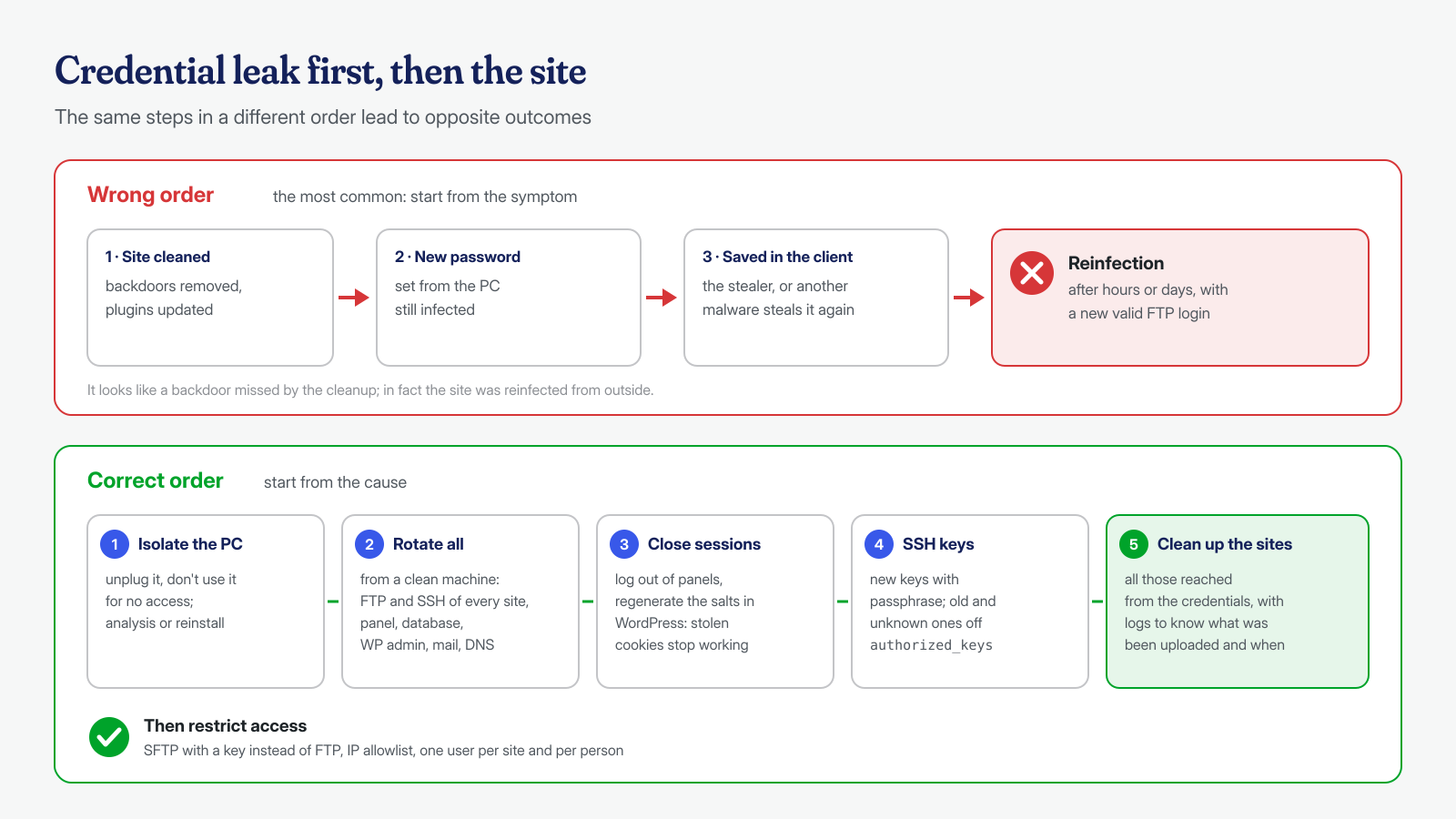
The sequence matters more than the individual operations. The principle is the same one described for the first hours after an attack: you don’t change a credential from a device you don’t trust.
- Set the suspect PC aside. Disconnect it from the network, don’t use it to access any service, and have it analyzed or reinstalled. An antivirus that finds nothing is no guarantee, because many stealers delete themselves after collecting.
- Rotate all credentials from a clean machine. Not just the FTP for the affected site: hosting panel, FTP and SSH accounts for all the sites you manage, WordPress administrator passwords, the database user (updating
wp-config.php), mailboxes, the domain registrar, the DNS provider account. - Invalidate sessions. Stolen cookies remain valid until the session expires: log out the active sessions in the panels and regenerate the WordPress salts, as explained in the guide to wp-config.php hardening.
- Revoke and regenerate the SSH keys that were on the PC, removing the old public keys from all servers.
- Only then clean up the sites, all those reached by the credentials, and check the logs to understand what was uploaded and when.
Swapping steps 2 and 5 is the most frequent mistake: the site is cleaned while the old credentials are still active, and a few hours later the same automated tool reuploads the same files. The site looks reinfected by a backdoor that escaped the cleanup, when in fact it was simply reinfected from the outside.
Reducing the attack surface: SFTP with keys, allowlists, and no FTP
After the cleanup, the goal is to make a stolen credential worth as little as possible. Plain FTP should be eliminated altogether: it transmits username and password unencrypted and, in most panels, accepts logins from any address. If the developer really needs file access, SFTP with key authentication is the reasonable choice, with a key protected by a passphrase and loaded into an agent, so that the key file alone isn’t enough.
# /etc/ssh/sshd_config.d/10-sftp.conf
PasswordAuthentication no
KbdInteractiveAuthentication no

Match User cliente
    ForceCommand internal-sftp -l INFO
    ChrootDirectory /srv/chroot/cliente
    AllowTcpForwarding no
    X11Forwarding no

# Check the syntax and reload
sshd -t && systemctl reload ssh    # on RHEL and derivatives: systemctl reload sshd
The -l INFO option of internal-sftp makes the system log record file opens and closes, with the bytes written: it is the equivalent of xferlog for SFTP, and without it, in case of an incident, you only know who connected, not what they uploaded. The directory given in ChrootDirectory must be owned by root and not writable by other users, otherwise sshd refuses the connection; the site files therefore go in a subfolder.
The second layer is limiting where connections can come from. An allowlist of the developer’s or agency’s addresses, applied on the firewall or in the panel, makes a credential used from another country useless; where addresses aren’t fixed, a VPN with a known exit address achieves the same result. The third is separation: one user per site and per person, with access only to their own document root, so that a contractor’s credentials don’t open the whole server. On the client side: no saved passwords without a master password, no cracked software on the computer you administer sites from, two-factor authentication on panels, registrars, and email. Many of these measures are collected in the post-cleanup hardening checklist.
Recognizing a credential theft requires looking beyond the site’s files: FTP and SSH logs, file owners, authorized keys, crontabs, open sessions in the panels. It is work that explains many “impossible” reinfections. In our engagements, correlating system logs with access logs is part of the analysis, and when volumes are large we get help from artificial intelligence models run locally, which group anomalous logins and transfers without the logs leaving our infrastructure.
If your site keeps getting reinfected or you suspect your login credentials have been stolen, our guaranteed cleanup in 6, 12, or 24 hours per WordPress installation includes identifying the vector and guidance on which credentials to rotate and in what order. You can contact us, preferably from a device other than the suspect one.
