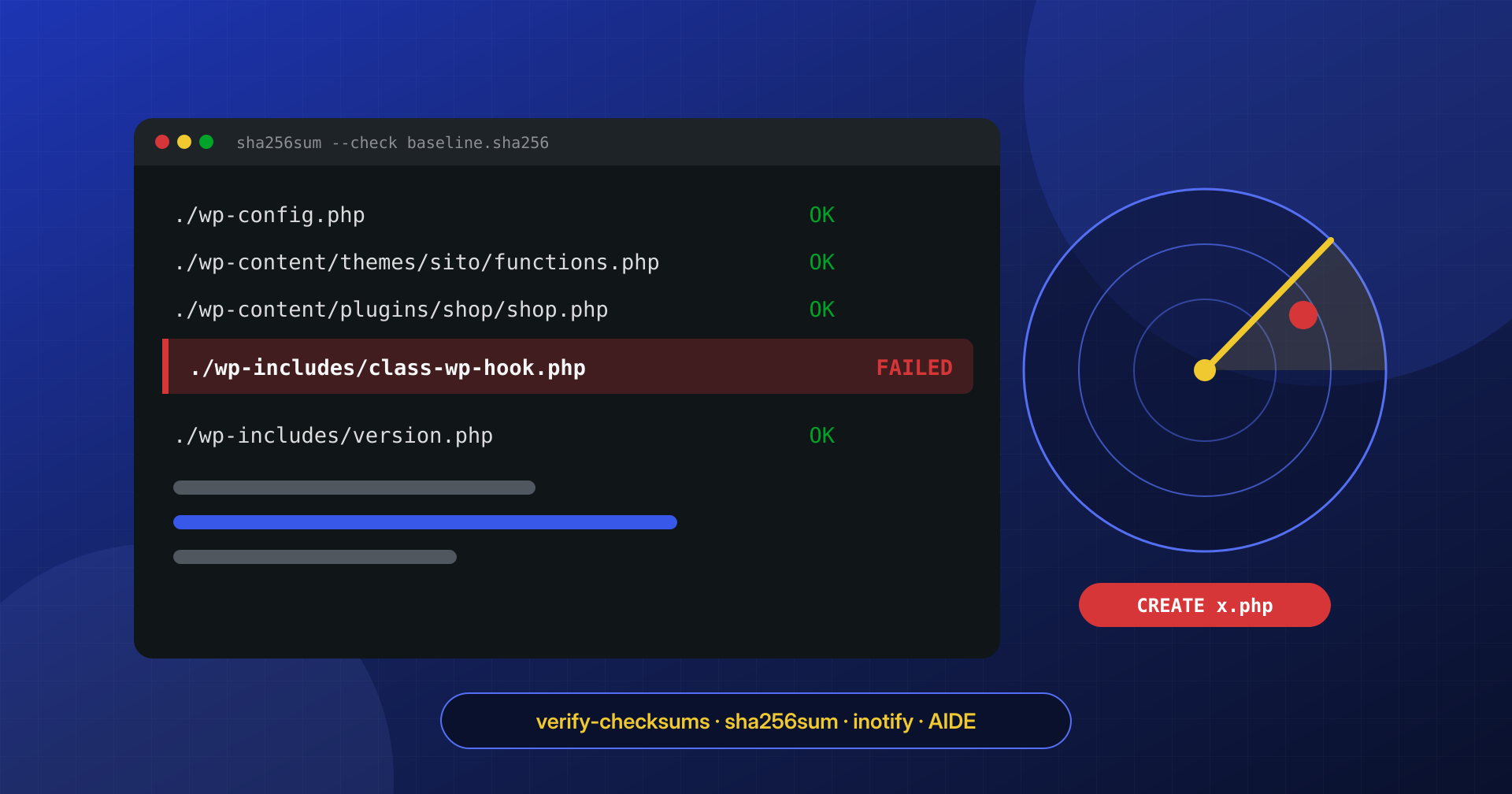
Almost every infection we clean up has one thing in common: at some point a file changed, or appeared where it shouldn’t be, and nobody noticed for days or months. A webshell in the uploads folder, three lines at the bottom of functions.php, a file with a name similar to the core’s in the site root. The site keeps working and the change stays invisible until it produces an effect: spam, redirects, a Google warning.
Integrity monitoring does not prevent the attack. It shortens the time between a file being modified and someone noticing, and that time decides how costly the cleanup will be.
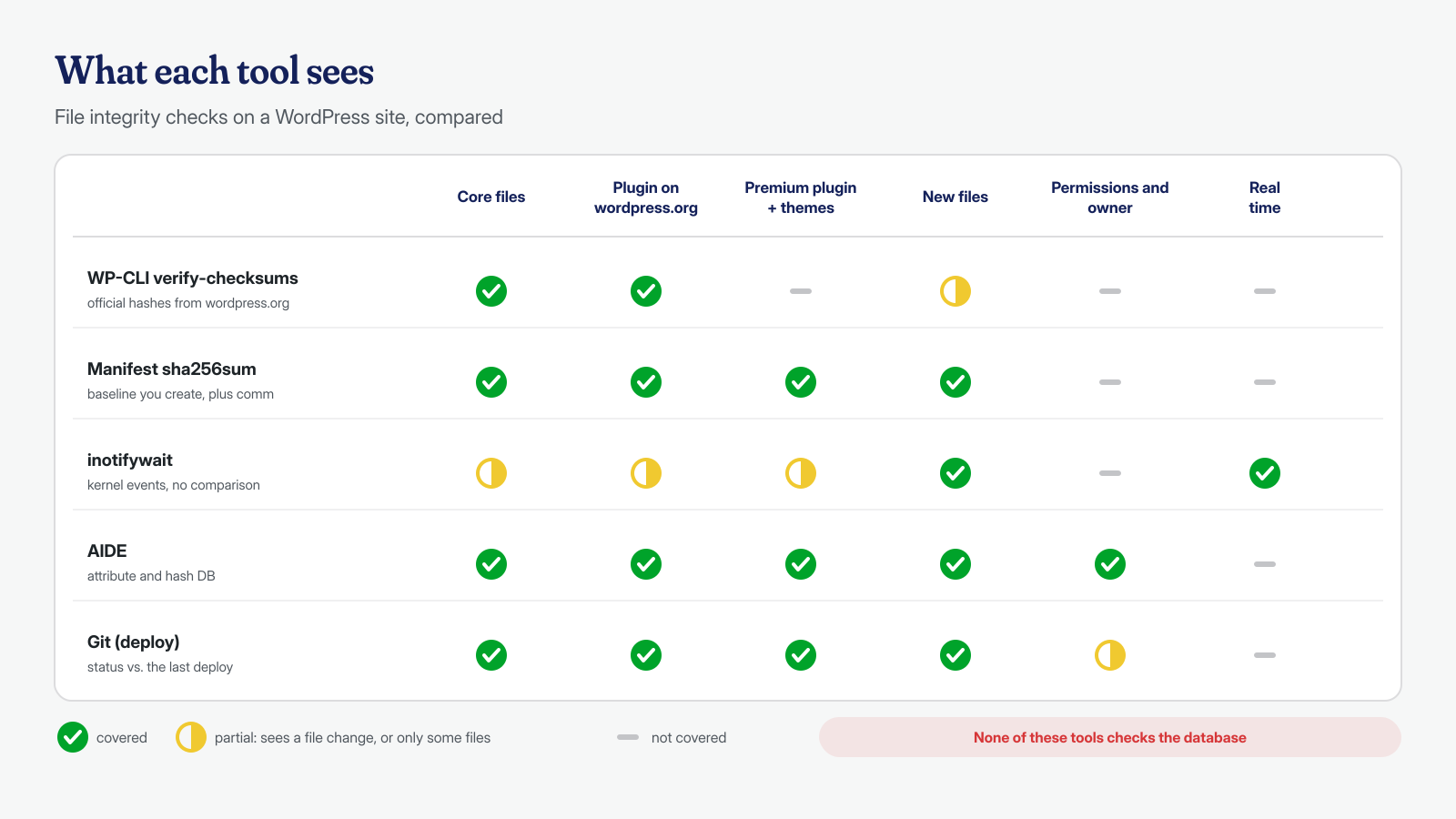
In this article we put together the tools we use, from the simplest to the most complete: verifying the official checksums with WP-CLI, a hash manifest for the files wordpress.org doesn’t know about, real-time monitoring with inotify, an integrity database with AIDE, and Git-based deploys. None is enough on its own; combined, they cover almost every way a file can change under the nose of whoever runs the site.
What integrity means for a WordPress site
Checking integrity means comparing the current state of the files with a reference state considered healthy, the baseline, and flagging every difference. The problem on WordPress is that the files are not all alike. The core and the plugins in the official directory have a public baseline: wordpress.org publishes the hash of every file for every version. Premium plugins, custom themes and code written for the client don’t have one, and the baseline must be built by whoever manages the site. The uploads folder, finally, changes by definition every time someone uploads an image, and cache folders change on every visit.
There are also two ways of checking: periodically, comparing everything against the baseline once a day or once an hour, and in real time, getting notified by the kernel at the moment a file is created or modified. The first is complete but slow to react; the second is immediate but only sees events that happen while it is running. A sensible setup uses both, and keeps the baseline where the site’s code cannot modify it.
Official checksums with WP-CLI, every night
The first level takes a few minutes to set up. WP-CLI compares the files of the core and of the directory plugins with the hashes published by wordpress.org for the installed version, and reports both modified files and files that should not exist in the core. With --include-root the check extends to the files in the site root, where malware likes to leave files with plausible names. Placed in a cron job of the site’s user, with an alert only when there is something to report, it becomes a daily check that nobody has to remember to do:
#!/bin/bash
# /usr/local/bin/wp-verifica-checksum.sh — to be run as the site's user, not as root
SITO=/var/www/esempio.it/public_html
DEST=sicurezza@esempio.it
OUT=$(mktemp)

{
  wp --path="$SITO" core verify-checksums --include-root
  # premium plugins have no checksums on wordpress.org: exclude them by name
  wp --path="$SITO" plugin verify-checksums --all --exclude=plugin-premium-1,plugin-premium-2
} > "$OUT" 2>&1

if grep -qE '^(Warning|Error):' "$OUT"; then
  mail -s "Checksum WordPress non validi su $(hostname)" "$DEST" < "$OUT"
fi
rm -f "$OUT"
# crontab -e of the site's user: every night at 3:15
15 3 * * * /usr/local/bin/wp-verifica-checksum.shThere are two messages to read carefully. “File doesn’t verify against checksum” indicates a core file whose contents don’t match the original: it may be a manual change made by a developer, which is still bad practice, or injected code. “File should not exist” indicates a file that is not in the official distribution: a file with a plausible name in the root or in wp-includes, such as a wp-login-cache.php, which no WordPress version contains, is almost always a backdoor. When in doubt, comparing it with the original file of the same version settles it in a few seconds.
Two limits should be kept in mind. The first is that the check runs with the same PHP and the same WordPress that are being checked: malware that intercepts WP-CLI, or a mu-plugin that is also loaded from the command line, can in theory falsify its result, as we explain when discussing the limits of scanners. The second is that in a supply chain attack, like those described in the article on malicious plugin updates, the official version is the compromised one, and the checksums match. The check remains valuable, but it cannot be the only one.
A sha256 manifest for everything else
For themes, premium plugins and custom code, you build the baseline yourself, with tools present on any Linux system. Right after a cleanup, a deploy or a verified update, you compute the hash of every file and save the list outside the site folder, in a path the PHP user cannot write to:
cd /var/www/esempio.it/public_html
BASE=/root/baseline/esempio.it

# Baseline: all files except cache and uploads, in stable order
find . \( -path ./wp-content/cache -o -path ./wp-content/uploads \) -prune -o -type f -print0 \
  | LC_ALL=C sort -z | xargs -0 sha256sum > "$BASE.sha256"

# Check: files modified or missing compared with the baseline
sha256sum --check --quiet "$BASE.sha256"

# New files, which sha256sum --check cannot see
find . \( -path ./wp-content/cache -o -path ./wp-content/uploads \) -prune -o -type f -print \
  | LC_ALL=C sort > /tmp/elenco-attuale
cut -c67- "$BASE.sha256" | LC_ALL=C sort > /tmp/elenco-baseline
comm -13 /tmp/elenco-baseline /tmp/elenco-attuale
The last step is the one many people forget: sha256sum --check only verifies the files listed in the manifest, and a PHP file that appeared after the baseline would go unnoticed. Comparing the lists with comm fills the gap. The uploads folder is excluded because it changes constantly, but it should not be ignored: no executable file should exist inside it, and a simple find wp-content/uploads -type f -iname '*.php*' in cron is the natural complement, along with the PHP execution block described in the article on webshells in uploads.
The manifest is only as good as its protection. If the site’s user can rewrite it, an attacker who has taken control of that user can also regenerate it after adding their backdoor, and the next check will come out clean. That is why the file should be kept in a root-owned folder, or better still copied to another system as well, and the check should be run from a root cron job or from a monitoring machine that reads the files read-only. The same principle applies to all the tools that follow.
inotify: noticing the moment a file appears
Periodic checks tell you what has changed since the last time; inotify tells you what is changing right now. It is a Linux kernel subsystem that notifies file events, and inotifywait, from the inotify-tools package, lets you use it from a script. For a WordPress site the event that matters most is the creation of a PHP file inside wp-content: under normal conditions it only happens during an update or an installation, that is, at known times.
#!/bin/bash
# /usr/local/bin/wp-sorveglia-php.sh — new executable files in wp-content
DIR=/var/www/esempio.it/public_html/wp-content

inotifywait -m -r -q -e create -e moved_to -e close_write \
  --format '%T|%e|%w%f' --timefmt '%F %T' "$DIR" |
while IFS='|' read -r quando evento file; do
  case "$file" in
    "$DIR"/cache/*) continue ;;
    *.php|*.php[0-9]|*.phtml|*.phar|*.inc) ;;
    *) continue ;;
  esac
  logger -t wp-integrita "$evento $file"
  printf '%s %s %s\n' "$quando" "$evento" "$file" \
    | mail -s "File PHP in wp-content: $file" sicurezza@esempio.it
done
The script should run as a system service, with a systemd unit that restarts it if it stops, and as a user different from the site’s: if the process belonged to the PHP user, a webshell could simply kill it. Three practical points. On sites with many folders the kernel’s per-user watch limit can run out, and must be raised with sysctl fs.inotify.max_user_watches. During updates the script generates dozens of legitimate alerts, so it is best suspended in maintenance windows, or to collect events into a summary instead of sending an email for each one. Finally, inotify only sees changes made through the local kernel: on a network filesystem shared among several servers, changes made by another node generate no events.
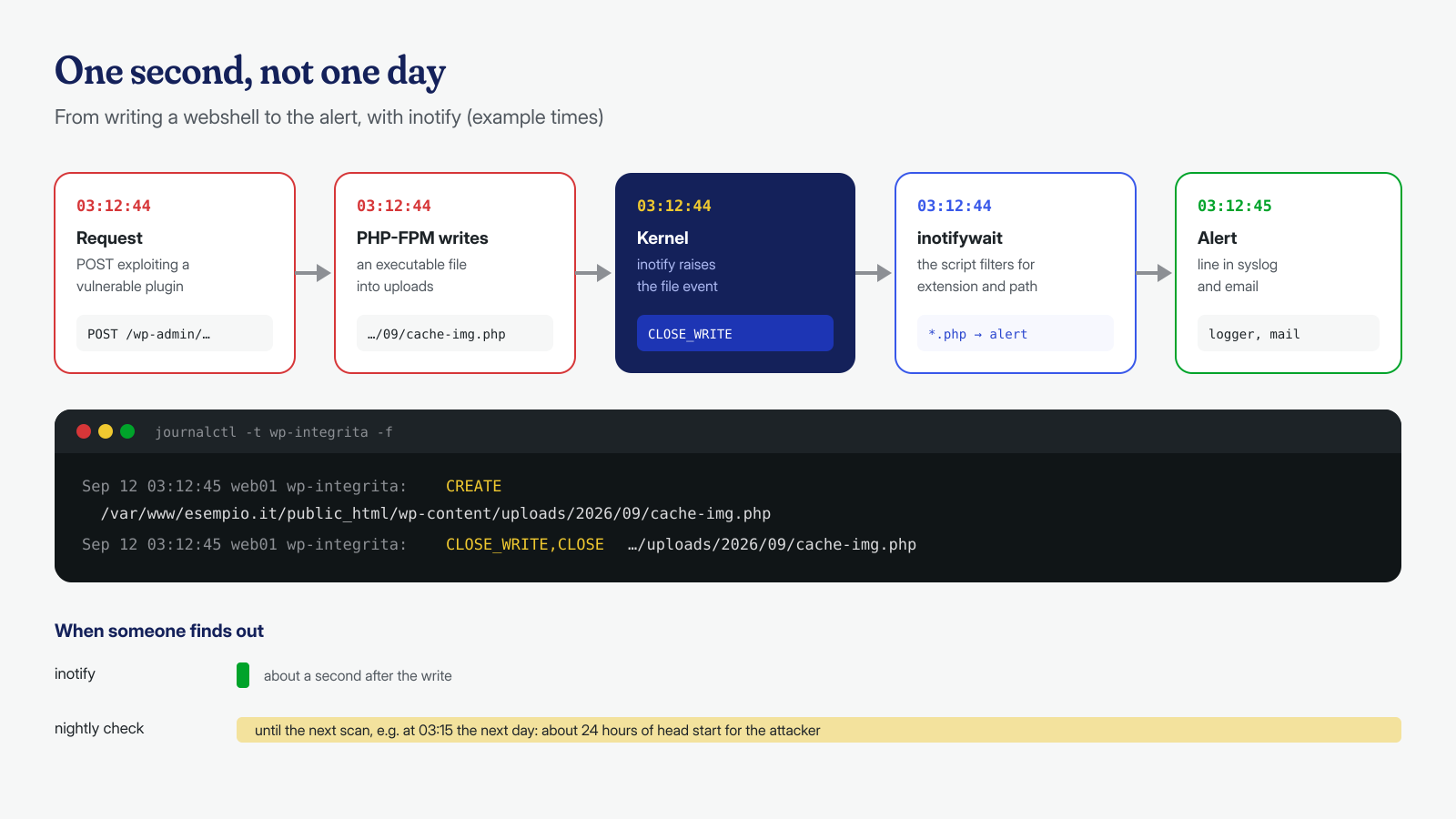
inotify tells you which file changed, but not who wrote it. When you need that information too, for example to tell whether the file was written by the PHP-FPM pool, by a process launched from cron, or by an SFTP login, the kernel’s audit subsystem is the right tool. A rule on wp-content records, for every write, the process, its path and the user:
# Record writes and attribute changes under wp-content (non-persistent rule)
auditctl -w /var/www/esempio.it/public_html/wp-content/ -p wa -k wp-scrittura

# Read the events with user and process names resolved
ausearch -k wp-scrittura -i --start today | grep -E 'name=|exe=|auid='
On sites with a lot of write traffic, such as disk caches or frequent uploads, audit rules generate large volumes of logs: it is best to limit them to the folders where code shouldn’t change, such as plugins, themes and mu-plugins, and to make them persistent in /etc/audit/rules.d/ only after measuring their impact.
AIDE: an integrity database for the docroot
AIDE (Advanced Intrusion Detection Environment) does in a structured way what the manifest does by hand: it builds a database with the hashes, permissions, owner, sizes and dates of every selected file, and at each check it reports added, removed and modified files, attribute by attribute. Compared with sha256sum it also sees permission and owner changes, which often accompany an infection. It is in the repositories of all the main distributions; the system configuration checks binaries and libraries, and for the site a separate file is best:
# /etc/aide/aide-wordpress.conf
# (with AIDE 0.16 use "database=" instead of "database_in=")
database_in=file:/var/lib/aide/wordpress.db
database_out=file:/var/lib/aide/wordpress.db.new
report_url=stdout

# permissions, inode, links, user, group, size, mtime, ctime, hash
WP = p+i+n+u+g+s+m+c+sha256

/var/www/esempio.it/public_html WP
!/var/www/esempio.it/public_html/wp-content/cache
!/var/www/esempio.it/public_html/wp-content/uploads
!/var/www/esempio.it/public_html/wp-content/upgrade
# First baseline, right after a cleanup or a verified deploy
aide --config=/etc/aide/aide-wordpress.conf --init
mv /var/lib/aide/wordpress.db.new /var/lib/aide/wordpress.db
# Check: the exit code is non-zero if there are differences
aide --config=/etc/aide/aide-wordpress.conf --check
# After a verified update: new database with the accepted differences
aide --config=/etc/aide/aide-wordpress.conf --update
mv /var/lib/aide/wordpress.db.new /var/lib/aide/wordpress.dbAIDE’s weak point, like that of every tool of this kind, is the protection of the baseline. If the database and the configuration sit on the same server and the attacker gains root privileges, they can update them and erase their own tracks. That is why the database should be copied to an external system after every update, or to read-only media, and the most reliable check is the one that compares the server with that copy. On the servers we manage, it is also one of the data points we compare during incident analysis.
The noise: cache, uploads and updates
An integrity system that sends ten alerts a day gets ignored within a week. The difference between a useful tool and an annoying one lies almost entirely in the exclusions. The folders to exclude from hash comparison are those that change in normal operation: wp-content/cache and the folders of cache plugins, wp-content/uploads, wp-content/upgrade used during updates, and the log or temporary-file folders that some plugins create inside wp-content. Excluding, however, doesn’t mean ceasing to watch: for these folders the check becomes “no executable files”, as seen for uploads.
The second measure is tying updates to the baseline. If the site updates itself automatically at night, the morning check will always find differences. It is best for the same process that updates, a WP-CLI script or the deploy system, to verify the checksums right afterward, regenerate the manifest and AIDE database, and note it in the log. A change with a recorded explanation raises no alarms; one without does.
Git as the deploy baseline
On custom-built sites the cleanest way to have a baseline is never to modify files in production except through a deploy. The code lives in a Git repository; the server receives only what has been approved; dependencies are pinned with Composer. At that point the integrity check is one command:
# Repository outside the docroot, not writable by the PHP user
git --git-dir=/srv/deploy/esempio.it.git --work-tree=/var/www/esempio.it/public_html \
  status --porcelain --untracked-files=all

# In the project's .gitignore: wp-content/uploads/, wp-content/cache/, wp-config.php
Empty output means every file matches the last deploy; any line is a change made outside the process, and must be explained. Keeping the .git folder outside the docroot has two advantages: it isn’t exposed on the web by mistake, and an attacker who controls the PHP user cannot commit their own changes to hide them. The limit is that it only works if the workflow is respected: a single direct intervention on the server, even a well-meaning one, makes the baseline unreliable.
When the alarm goes off
The value of all this is decided in the minutes after an alert. The first question is whether the change was expected: an update, a deploy, a logged intervention. If the answer is yes, you verify the checksums, update the baseline and close it. If it is no, the instinct is to delete the file, and that is the most common mistake. First it must be preserved, with its metadata:
# Copy with permissions and dates, outside the docroot
cd /var/www/esempio.it/public_html
mkdir -p /root/incidente-$(date +%F)
cp -a --parents wp-content/uploads/2026/09/cache-img.php /root/incidente-$(date +%F)/

# Modification and status-change dates: ctime cannot be forged with touch
stat wp-content/uploads/2026/09/cache-img.php

# What happened in that minute, in the access logs
grep '12/Sep/2026:03:12' /var/log/nginx/access.log
The modification date (mtime) can be altered with touch, and malware often does so to blend in with old files; the status change date (ctime) cannot, and it is the one to cross-reference with the access logs to find the request that wrote the file and therefore the entry point. From there you proceed as in any incident, following the first two hours of response: contain, change credentials, look for persistence, that is the cron jobs, in-memory processes and the database, which none of the tools we’ve seen checks.
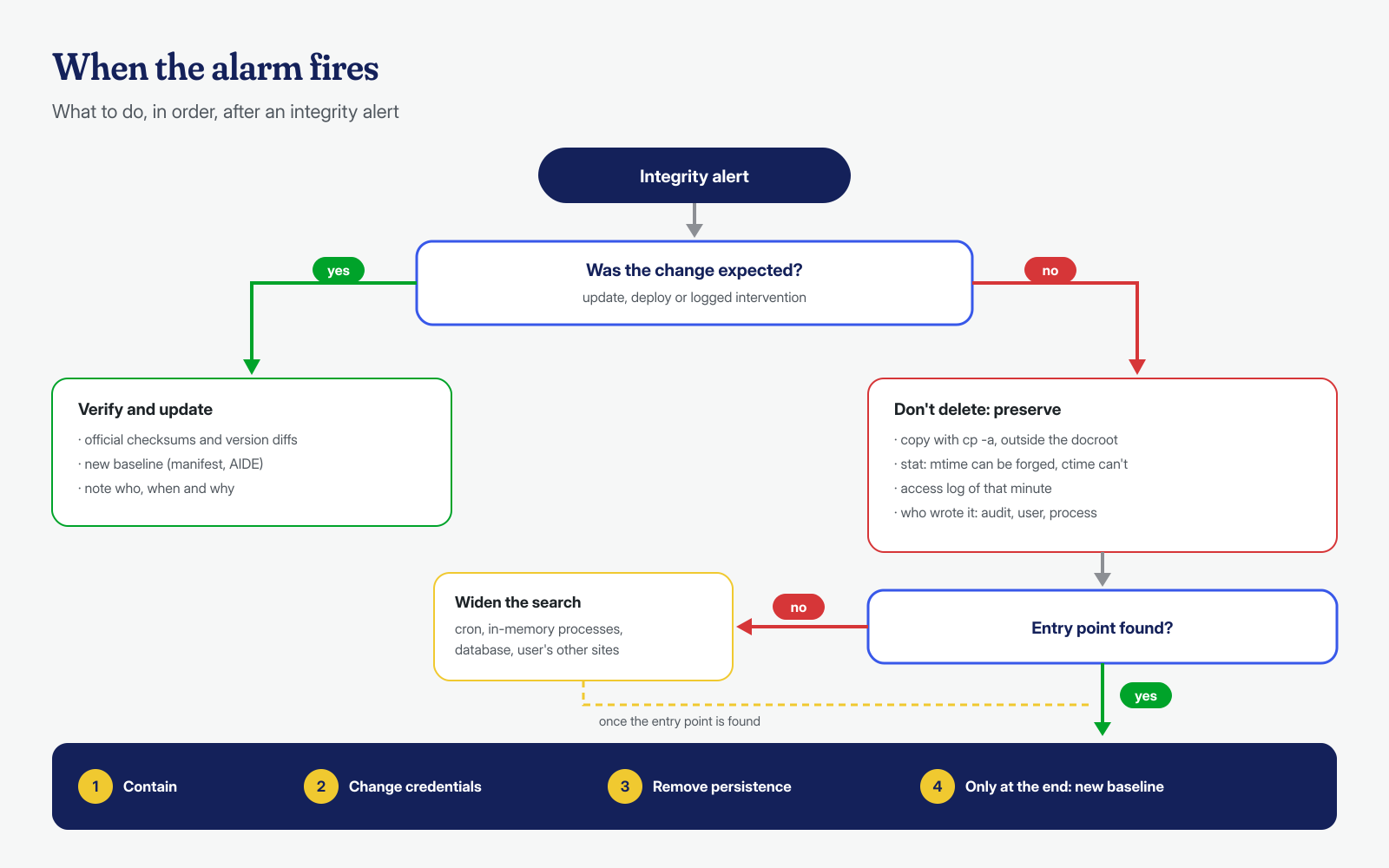
The new baseline is built only at the end, once the cleanup is complete: regenerating it earlier would mean declaring healthy a site that still has a backdoor. If an alert has led you to a file you can’t explain, or if you want to set up these checks on a freshly cleaned site, write to us: we work at both the application and system level, with a guaranteed cleanup in 6, 12 or 24 hours for each WordPress installation, and we leave the site with a baseline to restart from.
