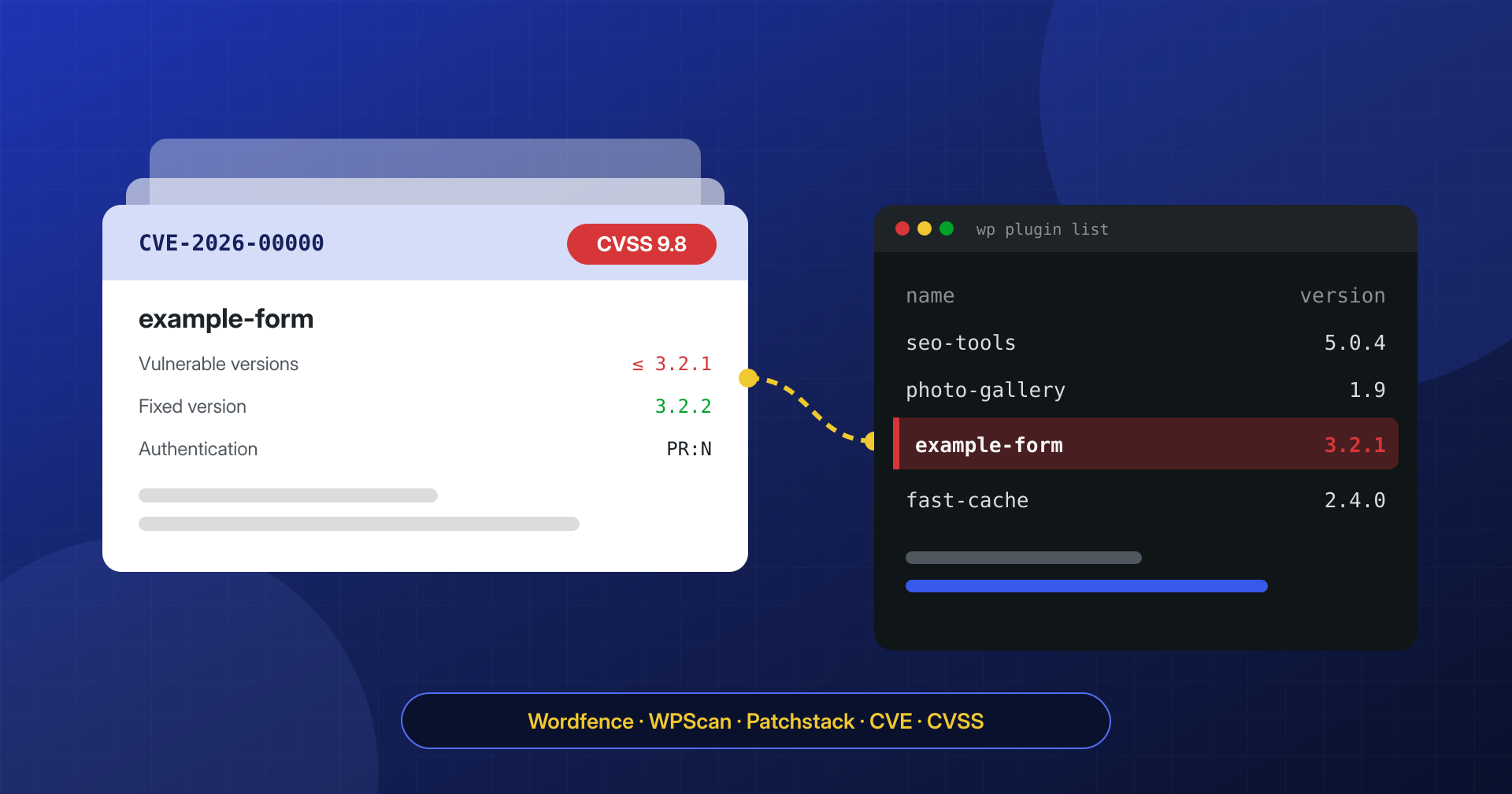
When we reconstruct how a WordPress site was compromised, the most common answer is not a sophisticated attack. It’s a plugin with a known vulnerability, fixed weeks or months earlier, that stayed on the old version because nobody noticed that this update was different from the others. The advisory existed, it was public, and it often even had a CVE number. It simply never reached the people running the site.
A security advisory has one job: to shorten the time between a vulnerability being published and your site no longer being exposed to it. Everything else is background.
In this article we line up the sources we use every day: the Wordfence Intelligence, WPScan and Patchstack databases, the CVE system with NVD and CVSS, WordPress.org announcements and CISA’s KEV catalog. We also explain how to read an advisory without being fooled by the score, how to automatically cross-check a feed against your installed plugins, and how to keep alerts from turning into noise nobody reads anymore.
Where an advisory comes from
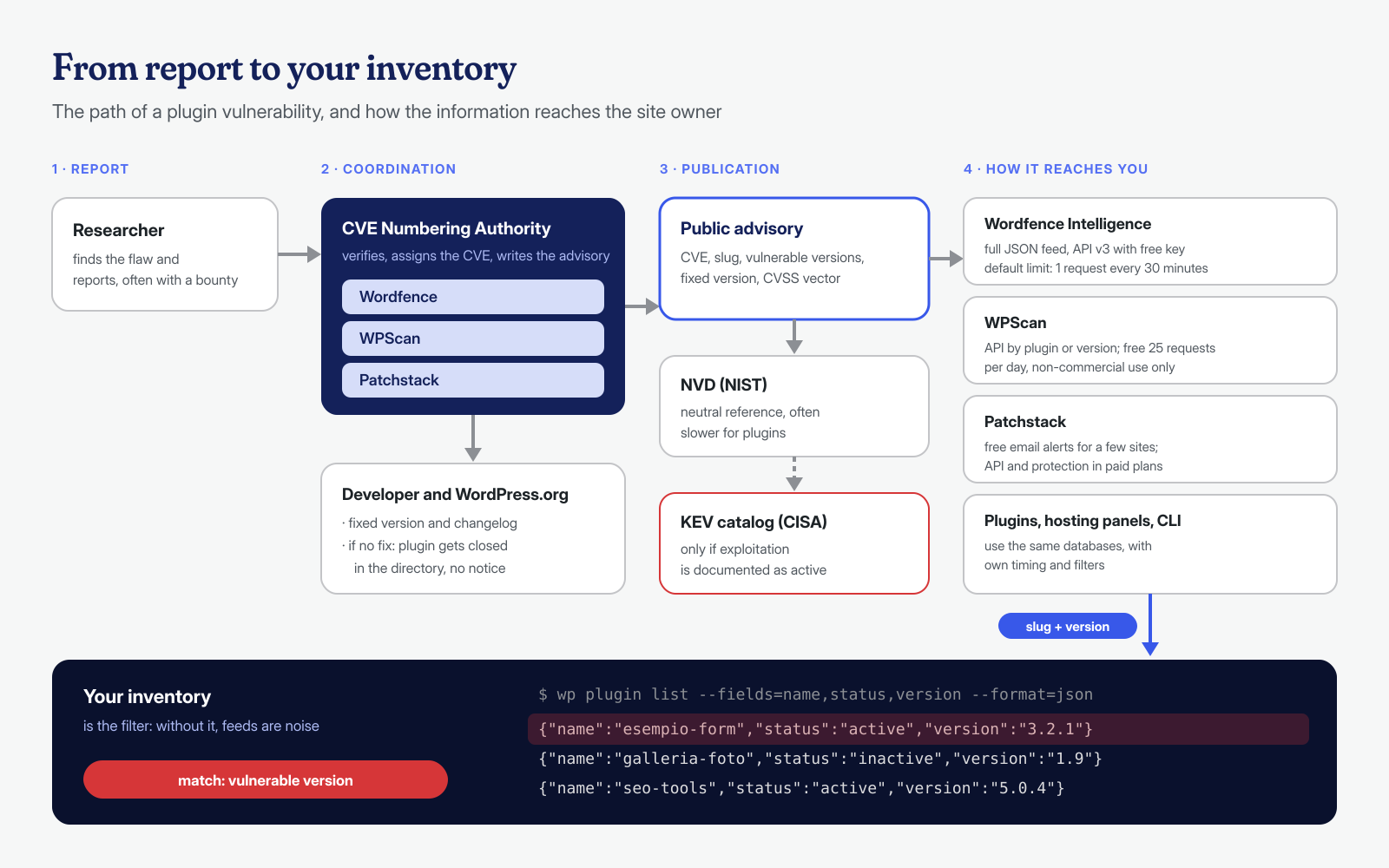
The typical path of a plugin vulnerability goes like this: a researcher finds and reports it, often through the bug bounty program of one of the companies that maintain a database; the company verifies the report, contacts the developer and, if needed, the WordPress.org plugins team; the developer releases a fixed version; at that point the vulnerability is made public with a CVE identifier and appears in the databases and feeds. Wordfence, WPScan and Patchstack are all three CVE Numbering Authorities, meaning organizations authorized to assign CVE numbers directly, as shown on the CVE program’s partner pages for Wordfence, WPScan and Patchstack.
This has a practical consequence: for the WordPress ecosystem, the specialized databases are almost always faster and more precise than general-purpose ones, because the same organization that assigns the CVE also writes the entry, with the exact plugin slug and version ranges. The three sources overlap largely but not completely, and the same vulnerability can have slightly different descriptions or version ranges depending on who published it. That’s why it pays to know all of them.
Wordfence Intelligence, WPScan and Patchstack
Wordfence Intelligence offers a database you can browse on the web and a complete JSON feed in two variants: production, with analyzed entries complete with CVSS, CWE and remediation, and scanner, leaner and designed for automated matching. With version 3 of the API, access requires a key, generated for free from your wordfence.com account; in the announcement of the change Wordfence confirmed that access remains free and introduced a default limit of one request every thirty minutes, since the full feed weighs over a hundred megabytes. For a daily check that’s more than enough, as long as you download it once and reuse the local copy.
WPScan, owned by Automattic, is the ecosystem’s long-standing database and also the command-line tool many people know for external scans. According to the pricing page, free API access is reserved for researchers and non-commercial use, capped at 25 requests per day, while commercial use requires a paid license; the same data powers the Jetpack Protect plugin. The v3 API answers per plugin or per version, with an Authorization: Token token=… header, which makes it suited to targeted checks rather than bulk matching.
Patchstack publishes a freely searchable database and runs vulnerability disclosure programs on behalf of developers. Its free version detects vulnerabilities in the plugins, themes and core of a limited number of sites, three according to the current documentation, and sends email alerts; API integrations and active protection with virtual rules are in the paid plans. Many managed hosts build Patchstack into their dashboards, so you may already be receiving its alerts without knowing it.
Terms change over time: before building an integration, especially one for clients and therefore commercial, reread the current terms of use.
CVE, NVD and CVSS: the common vocabulary
A CVE number is an identifier, not an assessment: it tells you that two sources are talking about the same vulnerability, nothing more. NIST’s National Vulnerability Database collects CVEs and enriches them with metadata and scores, but for WordPress plugins it often lags behind the specialized databases, both in timing and in the precision of version ranges. It remains useful as a neutral reference and as a source for general-purpose tools.
CVSS is the 0-to-10 scoring system that accompanies almost every advisory. The FIRST specification is explicit: the base score measures the technical severity of a vulnerability, not the risk to a specific organization, and anyone using it should supplement it with threat and environmental metrics. In WordPress advisories you almost always find only the base score, with its vector, the string that explains how it was calculated. Learning to read the vector is more useful than looking at the number: AV:N means exploitable over the network, PR:N with no privileges at all, PR:L with a low-level account, UI:R with user interaction, for example an administrator clicking a link.
How to read an advisory without being fooled by the score
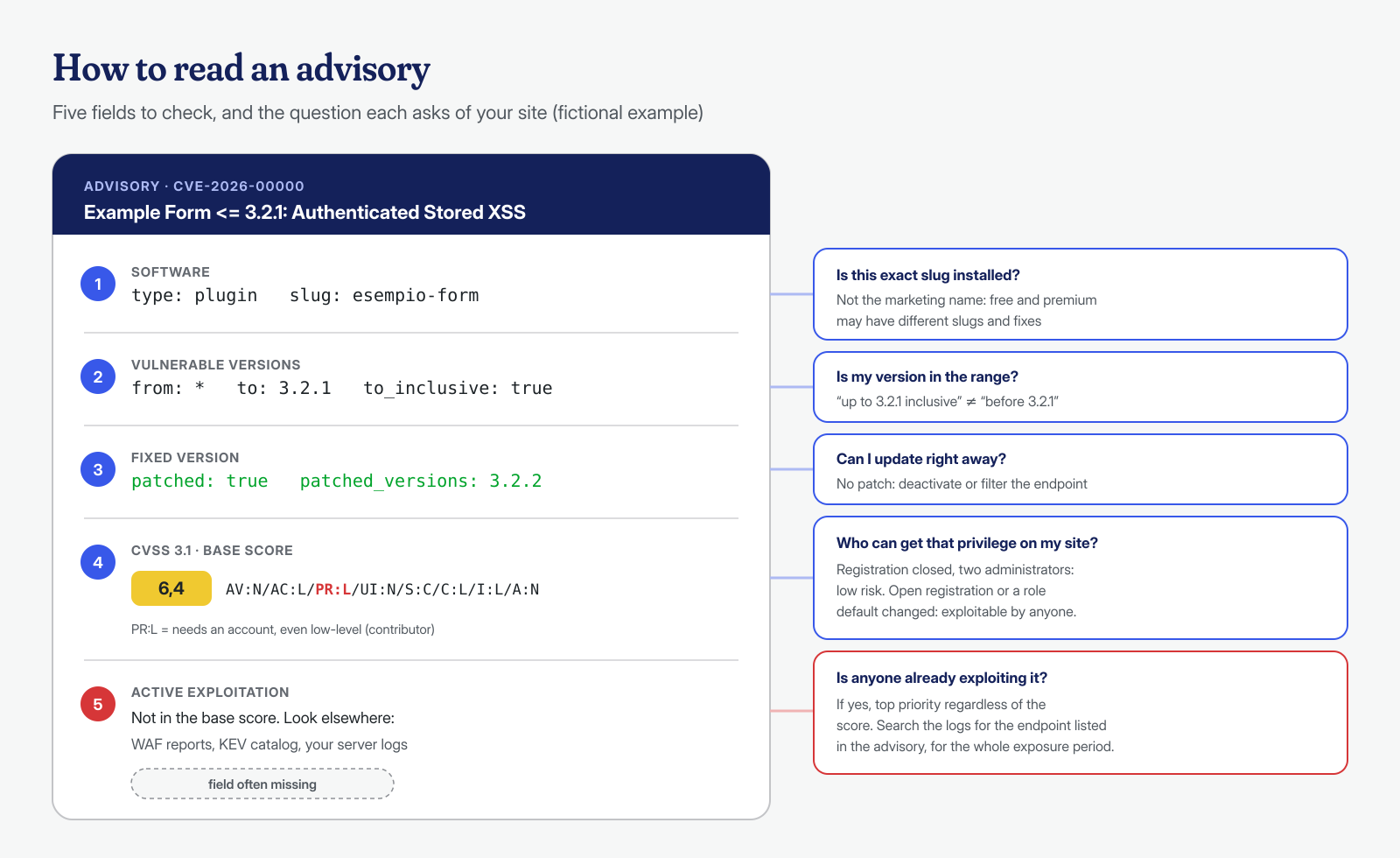
A well-written advisory answers five questions, and it helps to read them in this order:
- Which software, exactly? The plugin slug, not the commercial name. Plugins with similar names are common, and the free and premium versions of the same product sometimes have different slugs and fixes released on different dates.
- Which versions are vulnerable? The range, paying attention to the endpoints: “up to and including 3.2.1” and “before 3.2.1” are not the same thing.
- Is there a fixed version? If not, the only mitigation is to deactivate the plugin or filter its endpoints, and the advisory is urgent by definition.
- Is authentication required, and at what level? This is the question that most often downgrades or aggravates a score.
- Is it being actively exploited? Information the base CVSS doesn’t contain, and that has to be found elsewhere.
The fourth question deserves an example. A stored XSS that requires an account with the Contributor role usually has a medium score, around 6; on a corporate site with only two administrators it hardly matters. On the same site, though, if registration is open and the default role for new users was changed to suit a membership plugin, that same vulnerability becomes exploitable by anyone. Conversely, a 9.8 on a plugin that is installed but deactivated is almost always less urgent than a 7.5 on an active plugin that exposes a REST endpoint without authentication. The score is a starting point; the site’s context sets the priority.
WordPress.org, changelogs and the KEV catalog
Alongside the databases there are three sources that complete the picture. The first is the WordPress.org security announcements for core: maintenance and security releases are installed automatically by default, but only if automatic updates haven’t been turned off, which on the sites we inherit happens more often than you’d think.
The second is plugin closures in the official directory. When a security issue is reported, the WordPress.org plugins team normally closes the plugin to prevent new downloads until it is fixed. The plugin page then shows a closure notice, sometimes with the reason, but sites that already have it installed receive no notification. A closed plugin that is never updated again is a permanent risk, and a periodic check of the pages of your installed plugins, or of the errors returned by the wordpress.org API, will surface it.
The third is CISA’s KEV catalog. CISA is the US cybersecurity and infrastructure agency, and the catalog lists vulnerabilities with documented active exploitation and is also available as JSON. It contains few entries about WordPress plugins, because it is oriented toward enterprise and infrastructure software, but when a vulnerability in your stack appears there, there’s no debate about priority. For plugins, information about active exploitation more often comes from WAF vendors’ articles and their periodic reports on blocked attacks, and from your own server’s logs, as we explain in the article on 0-day vulnerabilities in plugins.
Finally, the developer’s changelog. Many security updates are announced with generic phrases like “security improvements”, and the diff between the two versions, both downloadable from wordpress.org, says far more than the text: a current_user_can() added in an AJAX callback, a permission_callback that no longer returns __return_true, an esc_sql() where there wasn’t one before. It’s also the only way to evaluate an update before the advisory comes out, or when, as in supply chain attacks, the update itself is the problem.
Cross-checking your plugin inventory against a feed
Reading advisories by hand works for one site. With ten or a hundred sites you need an automated comparison between what’s installed and what’s vulnerable. The first ingredient is the inventory, which WP-CLI produces as JSON:
# Inventory of plugins and themes, with status and version
wp --path=/var/www/esempio.it/public_html plugin list --fields=name,status,version,update_version --format=json > plugin.json
wp --path=/var/www/esempio.it/public_html theme list --fields=name,status,version --format=json > temi.json

# Wordfence Intelligence production feed (v3, free key): once a day
curl -sf -H "Authorization: Bearer $WF_API_KEY" \
  -o /var/cache/vuln/wordfence.json \
  https://www.wordfence.com/api/intelligence/v3/vulnerabilities/production
The feed is a JSON object in which each vulnerability has a list of software entries, each with type, slug, the affected_versions ranges (with from_version, to_version and the flags for whether the endpoints are inclusive, where the asterisk means “any”) and the patched_versions. Comparing versions is the delicate part, and it’s best left to PHP, which already has version_compare() and is available on any WordPress server:
<?php
// confronta-feed.php — usage: php confronta-feed.php wordfence.json plugin.json
$feed       = json_decode( file_get_contents( $argv[1] ), true );
$installati = array_column( json_decode( file_get_contents( $argv[2] ), true ), null, 'name' );

$nel_range = function ( $v, $r ) {
	$da = '*' === $r['from_version'] || version_compare( $v, $r['from_version'], $r['from_inclusive'] ? '>=' : '>' );
	$a  = '*' === $r['to_version'] || version_compare( $v, $r['to_version'], $r['to_inclusive'] ? '<=' : '<' );
	return $da && $a;
};

foreach ( $feed as $vuln ) {
	foreach ( $vuln['software'] as $sw ) {
		$p = $installati[ $sw['slug'] ] ?? null;
		if ( 'plugin' !== $sw['type'] || ! $p ) {
			continue;
		}
		foreach ( $sw['affected_versions'] as $r ) {
			if ( $nel_range( $p['version'], $r ) ) {
				printf( "%s\t%s\t%s\t%s\tCVSS %s\tcorretto in: %s\t%s\n",
					$p['status'], $sw['slug'], $p['version'], $vuln['cve'] ?? '-',
					$vuln['cvss']['score'] ?? '?',
					implode( ',', $sw['patched_versions'] ) ?: 'NESSUNA PATCH',
					$vuln['title'] );
				break;
			}
		}
	}
}
The output is one line per match, with the plugin’s status in the first column: an inactive one can be removed right away, while an active one marked NESSUNA PATCH (“no patch”) calls for an immediate decision. The same pattern works for themes, by changing the type and the inventory file. Two caveats. First: premium plugins not distributed through wordpress.org may have slugs that differ from the ones used in the databases, and need to be checked by hand the first time. Second: the script reads a file you downloaded from an external source, so it should run as a service user, not as the site’s user and never as root.
If you prefer a ready-made tool, Wordfence CLI has a vulnerability scan command that does the same comparison on the site’s files, while the wpscan client analyzes a site from the outside, as an attacker would, and with an API token reports the known vulnerabilities of the components it manages to identify:
# External scan: detects visible plugins and versions and compares them with the WPScan database
wpscan --url https://www.esempio.it --api-token "$WPSCAN_API_TOKEN" --enumerate vp,vt --plugins-detection mixed
An external scan only sees what the site exposes, so it can miss plugins that don’t load public resources; the internal comparison against the inventory is more complete. The two checks are complementary.
Noise and signal: who to alert, and when
Wordfence’s full feed contains tens of thousands of vulnerabilities, and new ones are added every week. Subscribing to everything means you stop reading after a few days. The filter has to be your inventory, and the alert should arrive only when something changes: a new match, not the same one repeated every night. All it takes is saving the previous day’s output and sending the difference:
php confronta-feed.php /var/cache/vuln/wordfence.json plugin.json | sort > oggi.tsv
comm -13 ieri.tsv oggi.tsv > nuove.tsv
[ -s nuove.tsv ] && mail -s "Nuove vulnerabilità su esempio.it" sicurezza@esempio.it < nuove.tsv
mv oggi.tsv ieri.tsv
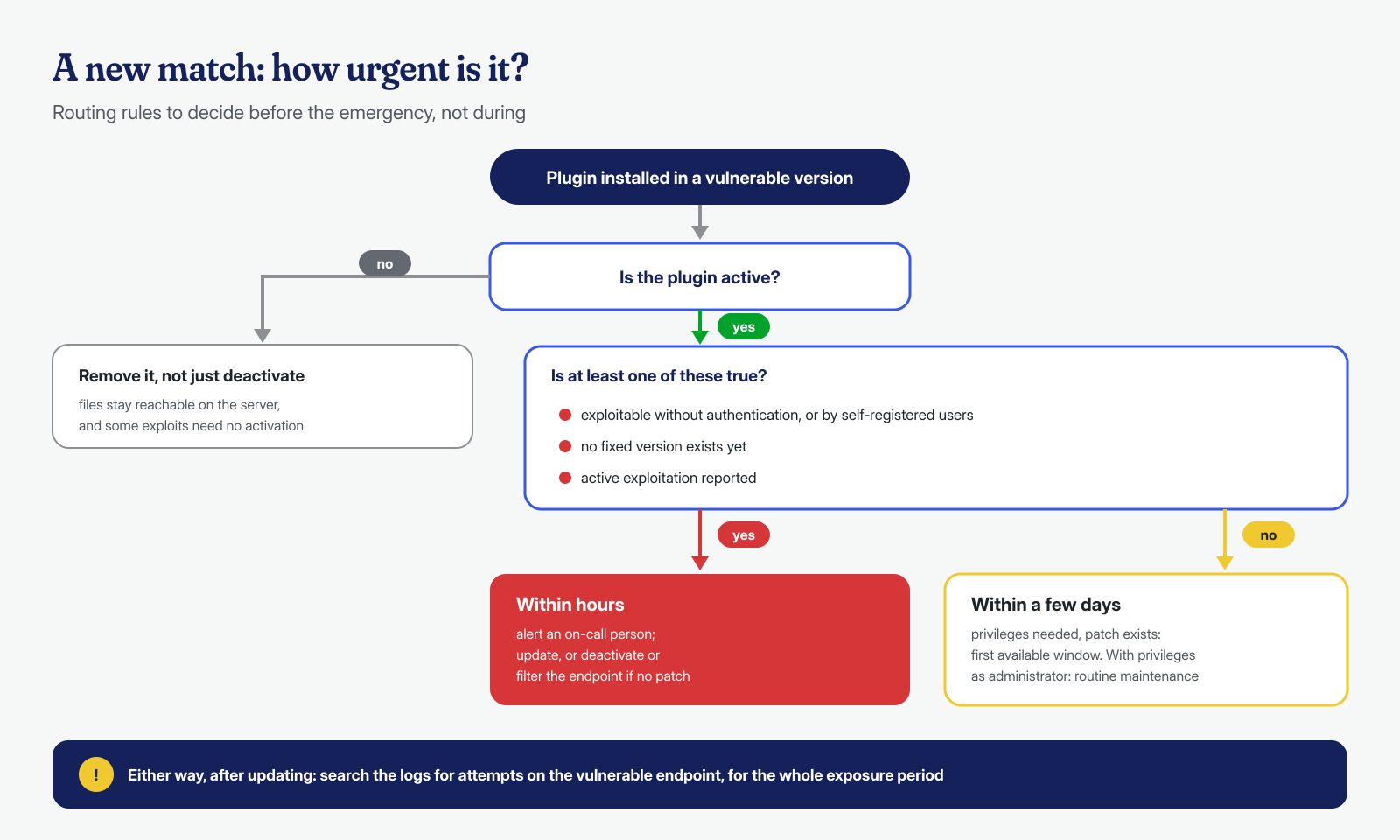
Then comes routing. A match on an active plugin, exploitable without authentication and without a patch, goes to a person, immediately, through a channel that gets read outside office hours. A match with a patch available and elevated privileges required can wait for the week’s maintenance window. A deactivated plugin simply gets removed. Writing these rules before the emergency avoids arguing about them during it.
When the advisory arrives after the attack
Updating closes the door, but it doesn’t tell you whether someone has already come in. Whenever an advisory concerns a plugin that stayed vulnerable for days, and especially if it was exploitable without authentication, the next question is whether it was exploited. The entry usually names the endpoint or parameter involved, and that’s enough for a targeted search of the access logs for the exposure period: requests to that AJAX action, that REST route, that plugin file. If the logs show successful attempts, or if new files, administrators nobody remembers or modified options turn up, it’s no longer an update but an incident, to be handled as described in the article on the first two hours.
This is where advisories show their structural limit: they describe known vulnerabilities, not those someone is already exploiting without having reported them, and they say nothing about what an attacker left on the server after getting in. In our analysis pipeline the feeds are the first filter; for vectors that match no entry we use AI models run locally, as we describe in the article on log analysis with Qwen and DeepSeek, followed by a hunt for persistence at the system level, from cron jobs to processes in memory. If an advisory has made you realize you were exposed and the logs don’t reassure you, write to us: we check the site at the application and system level, with a guaranteed cleanup in 6, 12 or 24 hours for every WordPress installation.
