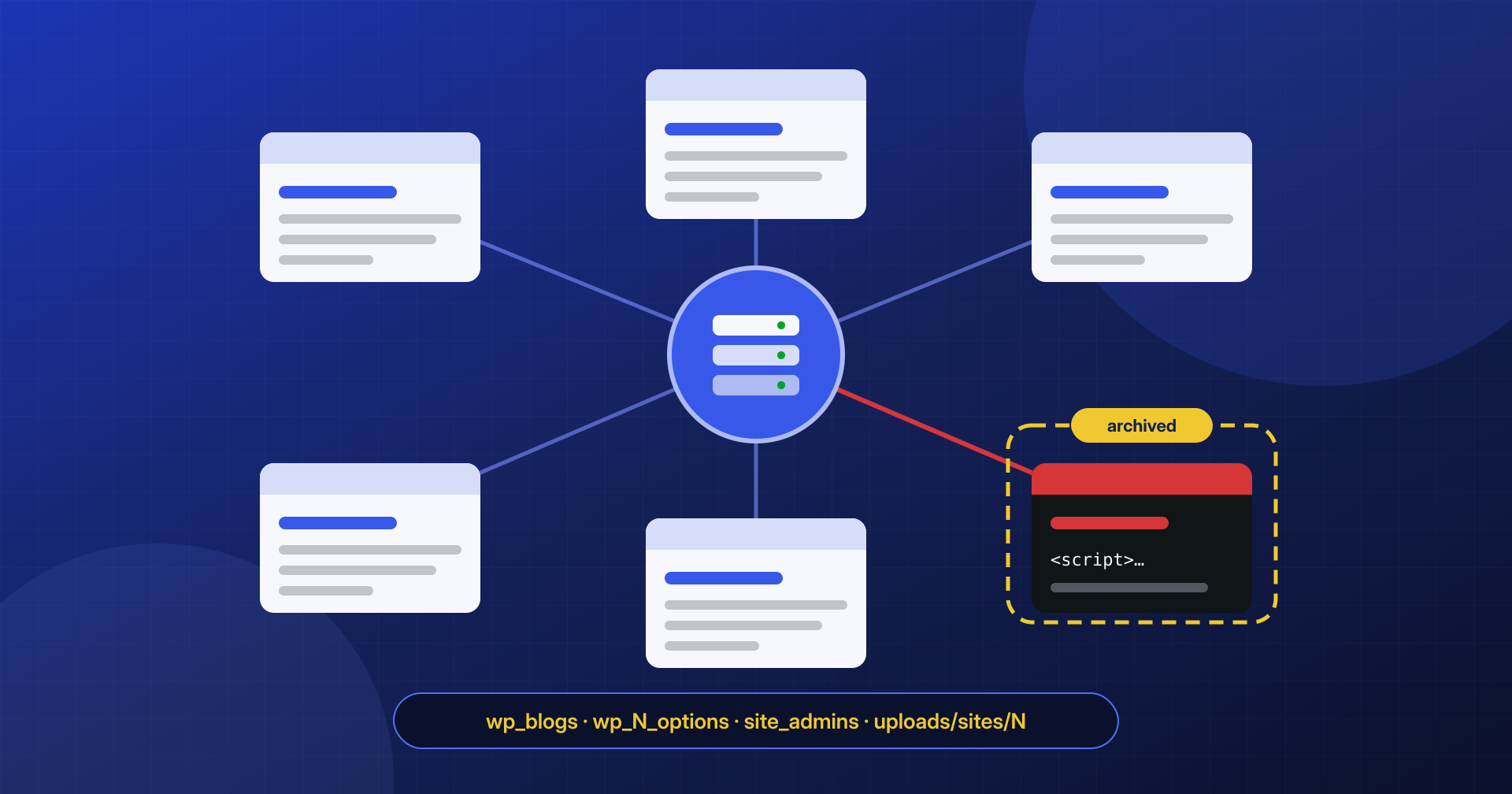
A WordPress Multisite network is convenient to administer: one core, one set of plugins and themes, one dashboard to manage dozens or hundreds of sites. It is the typical choice for universities, publishing groups, retail chains and agent networks. The same architecture that simplifies management, however, radically changes how an infection spreads and how it is removed.
On a single installation the perimeter is clear. On a network, the subsite showing the redirect may not be the one the attack came in through, the backdoor may sit in a plugin activated across the whole network or in a table nobody looks at, and shutting everything down to clean up means stopping the work of dozens of editorial teams or stores. In this article we look at how a network is built from the point of view of whoever has to clean it, how to inventory it with WP-CLI, how to contain a compromised site without blocking the others, and in what order to proceed.
How a multisite network is built
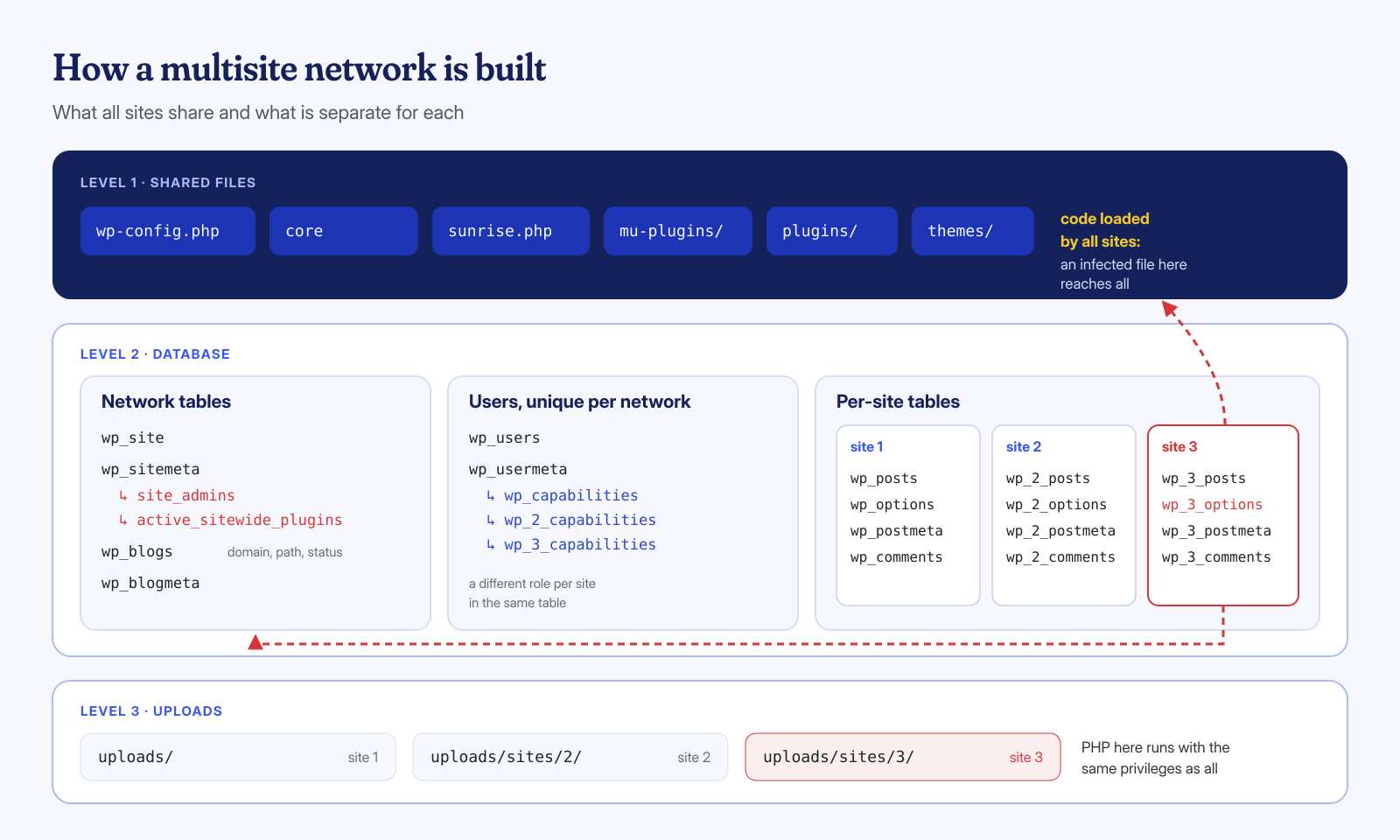
All the sites in a network share the same WordPress folder on disk: the same wp-config.php, the same core, the same wp-content/plugins and wp-content/themes folders. What sets them apart lives almost entirely in the database, which has three groups of tables.
- Network tables:
wp_sitedescribes the network,wp_sitemetaholds its settings (including the list of super admins and of network-activated plugins),wp_blogslists the sites with domain, path and status,wp_blogmetastores metadata for individual sites, andwp_signupsandwp_registration_logtrack registrations. - User tables:
wp_usersandwp_usermetaare shared by the whole network. A user exists only once, and their role on each site is stored under a different key:wp_capabilitiesfor the main site,wp_2_capabilitiesfor site 2, and so on. - Per-site tables: the main site uses the tables with the base prefix (
wp_posts,wp_options…), and every other site has its own with the number in the prefix:wp_2_posts,wp_2_options,wp_2_postmeta, up towp_N_*.
Uploaded files are separated too: those of the main site end up in wp-content/uploads, those of the other sites in wp-content/uploads/sites/N. Finally there is domain mapping: since version 4.5 WordPress lets you assign any domain to a subsite, stored in the domain column of wp_blogs. Older or more complex setups still use the wp-content/sunrise.php drop-in, loaded very early when the SUNRISE constant is defined in wp-config.php: a file to check carefully, because it runs before any plugin.
Why one infected subsite puts the whole network at risk
The idea that a site in the network is isolated from the others is the most dangerous misconception. The separation of tables is organizational, not a security boundary: all sites run as the same system user, in the same PHP-FPM pool, and connect to the database with the same wp-config.php credentials. An attacker who gets PHP code execution on any subsite, for example by exploiting a vulnerability in a plugin active only there, can read and modify the files of all the other sites and every table in the database, including the user and network settings tables.
The code, moreover, is shared by design. A plugin installed on the network is on disk for every site, even if it is activated on only one, and an infected PHP file inside it is reachable directly with an HTTP request from any domain in the network. A plugin network-activated, listed in the active_sitewide_plugins option of wp_sitemeta, is loaded on every site on every request; the same goes for files in mu-plugins, which we covered in the article on mu-plugins and drop-ins used as backdoors.
Finally there are privileges. In a network only super admins can install plugins and themes, edit their code, and insert unfiltered HTML into content: the administrator of a single site does not have the unfiltered_html capability. It is a useful protection, but it also means the goal of an attack is to become a super admin, and that a single row in wp_sitemeta is enough to get there. The problem is the same one seen on shared servers, in a more concentrated form: the compromise of one is the compromise of all.
Inventorying the network with WP-CLI
Before looking for malware you need to know what is there. After a forensic copy of files, database and logs, the first step is a complete inventory, which on a network with many sites can only be done from the command line. WP-CLI works on the main site by default; to act on a subsite you add the --url parameter.
# All sites, with status and dates
wp site list --fields=blog_id,url,registered,last_updated,archived,spam,deleted

# Network super admins
wp super-admin list

# Network-activated plugins and mu-plugins
wp plugin list --status=active-network
wp plugin list --status=must-use

# All network users, with registration date
wp user list --network --fields=ID,user_login,user_email,user_registered

# Integrity of core and of official-repository plugins
wp core verify-checksums
wp plugin verify-checksums --all
Recently registered sites, or sites with an unusual last-updated date, deserve attention: some campaigns create new subsites to use as containers for spam pages, exploiting the trust the main domain has with search engines. Likewise, a super admin nobody recognizes is a signal that is enough on its own to treat the entire network as compromised.
Plugins activated on individual sites do not appear in the network list: each site has its own active_plugins option in its own options table. To rebuild the full picture you have to query the sites one by one.
Checking sites one by one
The loop over wp site list --field=url is the main working tool. For each site you collect the same items and compare them: differences between sites that should be similar are often more telling than any signature.
for url in $(wp site list --field=url); do
  echo "== $url"
  # Site addresses: a home different from the expected one is a redirect
  wp option get home --url="$url"
  # Plugins active only on this site
  wp plugin list --status=active --field=name --url="$url"
  # Administrators of this single site
  wp user list --role=administrator --fields=user_login,user_registered --url="$url"
  # Content with scripts or iframes
  wp post list --post_type=any --post_status=any --s='<script' \
    --fields=ID,post_type,post_modified --url="$url"
done 2>&1 | tee inventario-siti.txt
For the database, a single search across all the options and content tables works better, since with many sites a loop would be slow. You get the list of tables from information_schema, then search for the typical indicators: <script tags, functions like eval( or base64_decode(, unknown domains. WP-CLI also offers a shortcut: wp search-replace with --network --dry-run and a search term shows which tables across the whole network contain it, without changing anything.
# Options tables of all sites
wp db query "SELECT table_name FROM information_schema.tables
  WHERE table_schema = DATABASE() AND table_name REGEXP '^wp_([0-9]+_)?options$'"

# Which tables in the network contain a suspicious domain
wp search-replace 'cdn-stat.example.invalid' 'x' --network --dry-run --report-changed-only

# Autoloaded options with suspicious code, site 7
wp db query "SELECT option_name, LENGTH(option_value) FROM wp_7_options
  WHERE option_value REGEXP 'eval[(]|base64_decode|<script'"
On disk, the uploads/sites/N folders must all be checked for PHP files, which should not exist in an uploads folder. A find wp-content/uploads -name '*.php' covers the main site and all subsites in one pass. The techniques for recognizing payloads hidden in options are the ones described in the article on serialized payloads in wp_options, with the only difference that here there are dozens of tables to examine.
Super admins and roles: the privileges that matter
The list of super admins is a serialized array of usernames stored in the site_admins key of wp_sitemeta. It does not depend on roles: a user with the “subscriber” role on every site is a super admin if their login appears in that list. This is easy to miss for anyone who checks only the administrators of individual sites, and an attacker with database access can change it with a single query.
# The raw value, to compare with wp super-admin list
wp db query "SELECT meta_value FROM wp_sitemeta WHERE meta_key = 'site_admins'"

# Who has a role on which sites: all the *_capabilities keys
wp db query "SELECT u.user_login, m.meta_key, m.meta_value
  FROM wp_usermeta m JOIN wp_users u ON u.ID = m.user_id
  WHERE m.meta_key REGEXP '^wp_([0-9]+_)?capabilities$'
    AND m.meta_value LIKE '%administrator%'"

# Remove an illegitimate super admin
wp super-admin remove utente-sospetto
As with single installations, ghost administrators should also be looked for among seemingly harmless users, in application passwords and in active sessions. On a network, though, removing a user needs care: wp user delete with --network deletes them from the entire network, and without --reassign the content they created on the sites may disappear with them.
Containing without stopping the network: archive or deactivate
When a subsite serves malware to visitors, the instinctive reaction is to shut everything down. On a network you can do better: WP-CLI and the network dashboard let you archive a site (wp site archive 7), deactivate it (wp site deactivate 7), or mark it as spam. In all three cases, visitors who are not super admins get a “site suspended” or “not available” message, and the other sites keep working.
You do need to know exactly what this measure blocks, though. The site status check, the ms_site_check() function, runs in wp-settings.php after the init action: by the time it steps in, the mu-plugins, network plugins, the site’s active plugins and the theme’s functions.php have already been loaded. Archiving a site stops its pages from being displayed, and therefore stops a script injected into content or options; it does not stop a PHP backdoor in a plugin or in the theme from responding to the requests that trigger it. And PHP files that can be reached directly, such as a webshell in uploads/sites/7, stay executable whatever the site’s status.
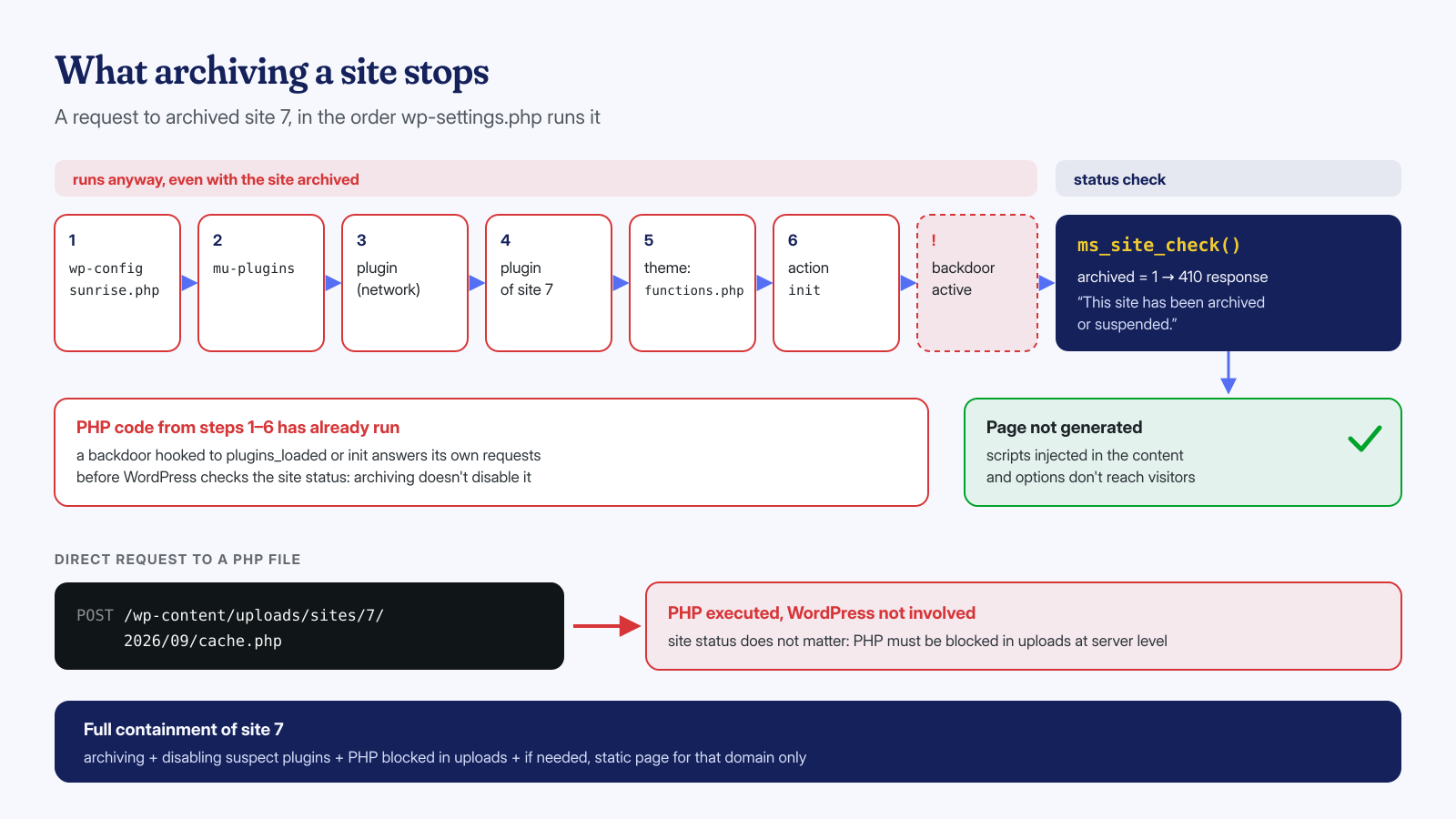
For real containment, archiving should therefore be paired with server-level measures: blocking PHP execution in the uploads folders, as explained in the article on webshells in uploads, deactivating suspicious plugins on the compromised site, and if needed a web server rule that responds with a static page for the affected domain only. The rest of the network stays online, and the harm to visitors stops.
The cleanup plan, in the right order
Once the problem is contained and the evidence collected, cleaning a network follows a precise order, designed to leave no point from which the infection can return while you work on the rest.
- The shared layer. Core reinstalled from the original files,
wp-config.phpandsunrise.phpchecked line by line,mu-pluginsemptied of anything without a known owner, plugins and themes replaced with clean copies downloaded from the official sources. This is the step that protects all the sites at once. - The network layer in the database.
site_adminsandactive_sitewide_pluginsinwp_sitemeta, the list of sites inwp_blogswith particular attention to recent sites and modified domains, the users inwp_usersand their capabilities. - The individual sites. For each one, options, content, widgets and uploads, starting with those where the inventory found anomalies but without skipping the seemingly clean ones. This is where the loop over the sites comes in handy to apply the same checks to all of them.
- The system. User cron jobs, running processes, database triggers: a large network has more tables in which to hide a trigger and more traffic in which to blend in a resident process.
- The credentials. Database password, keys and salts in
wp-config.php(which end the sessions on all sites at once), super admin passwords, and SSH and SFTP access.
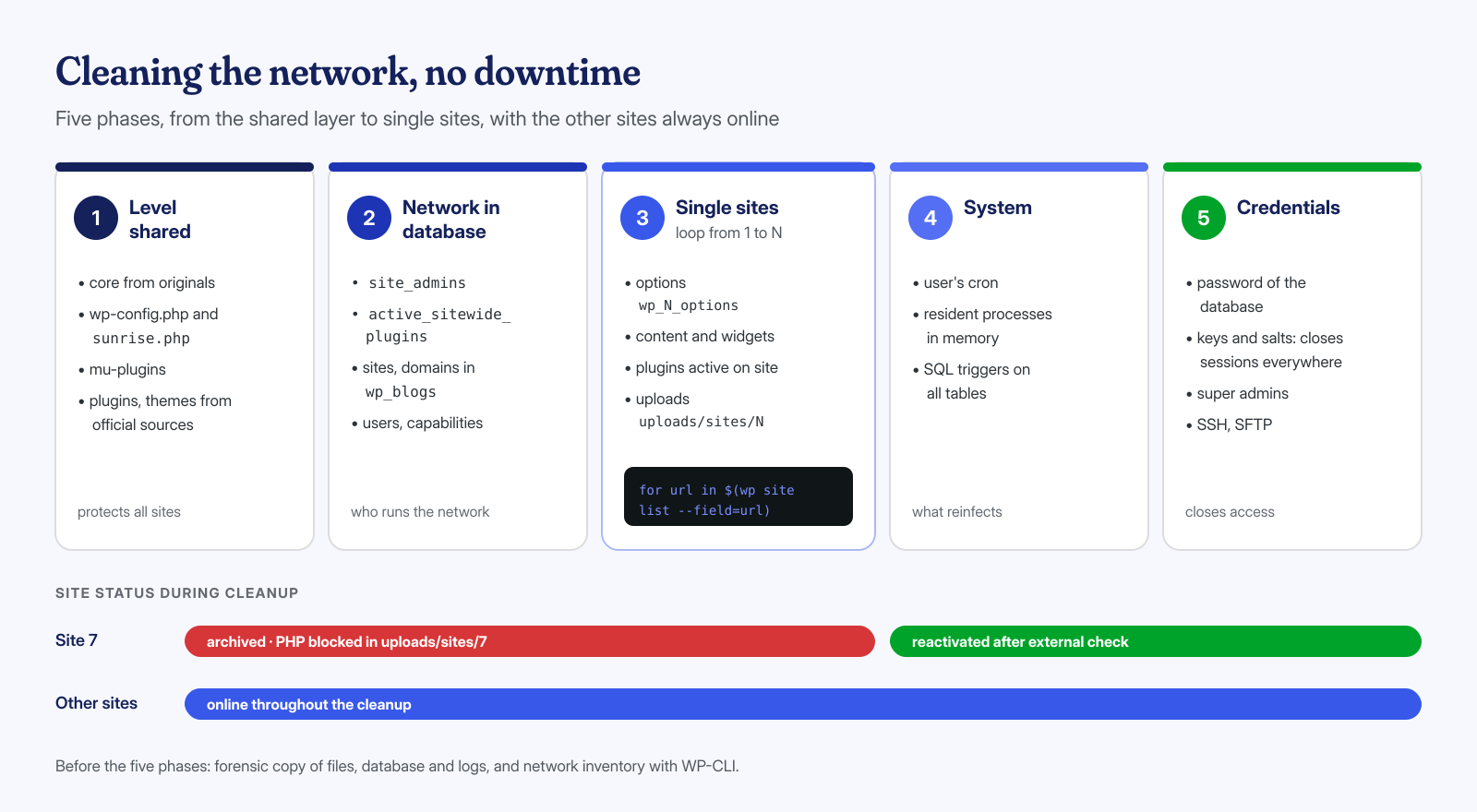
Only at the end does the archived site go back online with wp site unarchive or wp site activate, after a check from the outside with a browser that has no session. If any site in the network ended up on Google’s lists, the review request must be filed for every Search Console property involved, as explained in the article on blacklist removal.
After the cleanup: a network that is harder to hit
A network accumulates plugins over time: every editorial team or branch asks for one, and after a few years the folder holds dozens of components, many active on only one site or on none. Each is executable code reachable from every domain. The first measure is the simplest: remove from disk whatever is not active, and periodically review what is.
The number of super admins should be kept to a minimum, with two-factor authentication mandatory for all of them. In wp-config.php, DISALLOW_FILE_EDIT prevents code from being edited in the dashboard even by someone who obtains those privileges. On the server, file integrity monitoring and a periodic check of site_admins and of the site list flag changes before they become a widespread infection. The other measures are those in the post-cleanup hardening checklist, applied once for the whole network.
Multisite networks are among the most delicate jobs we handle, precisely because they require working at the application, database and system level at the same time, without interrupting sites that are not at fault. The guaranteed cleanup in 6, 12 or 24 hours covers all three levels, from the shared files to the individual site tables to the server processes. If your network shows signs of infection on one or more sites, contact us before shutting it down: in most cases the problem can be contained while everything else stays online.
