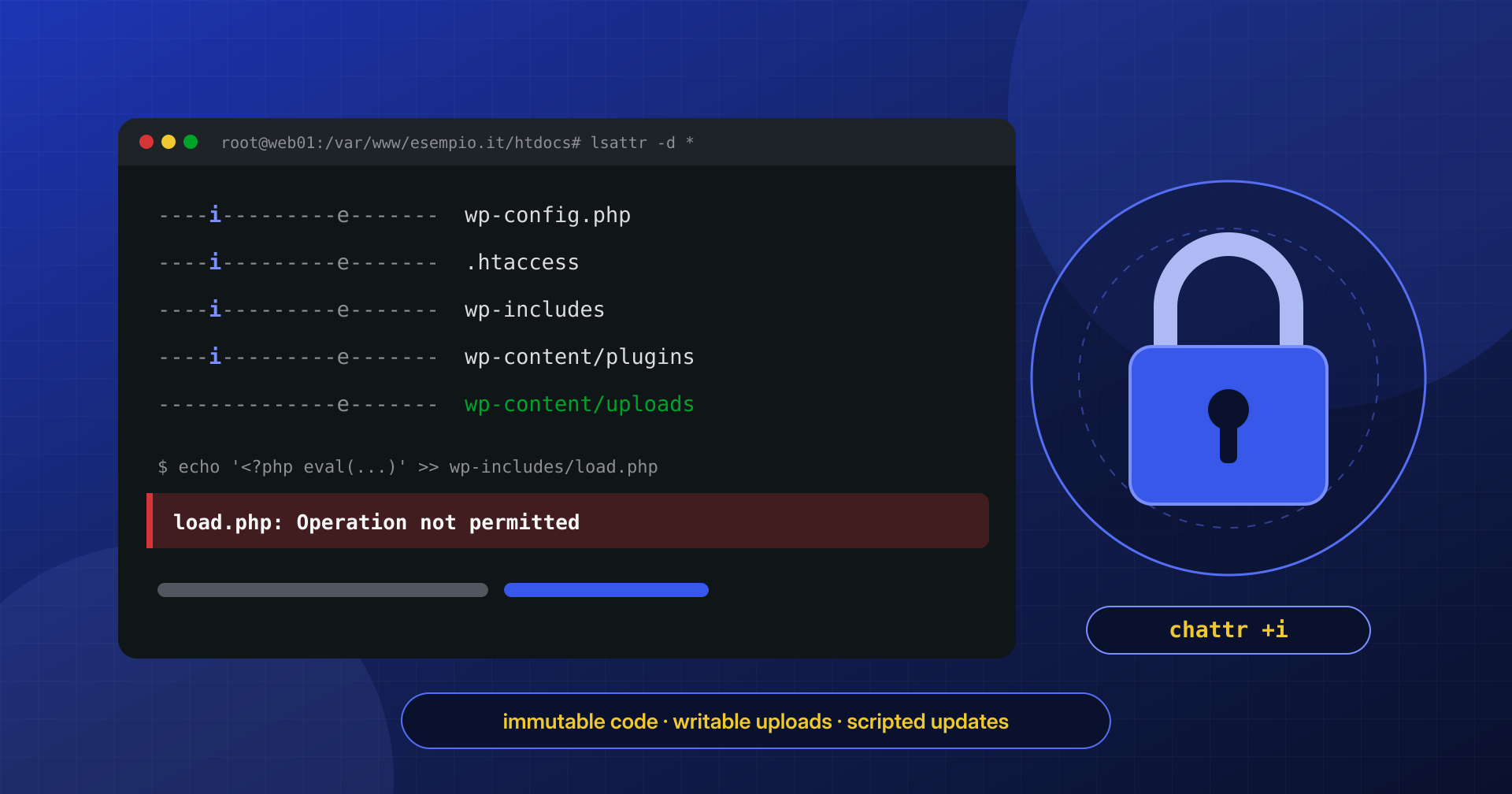
After a cleanup, the most common question is always the same: how do you keep it from happening again? Part of the answer lies in file permissions and ownership, which we covered in the post-cleanup hardening checklist. But there is a more drastic tool, rarely used on WordPress sites and very effective when applied with care: the immutable attribute of Linux filesystems, set with chattr +i, which makes a file untouchable even for its owner.
An immutable file cannot be modified, deleted, or renamed, whatever its permissions. For the code of a site that changes only during updates, that is exactly the behavior you want; for the folders WordPress must write to, it is a trap.
Let’s look at what the attribute does, which paths to lock and which to leave writable, how updates change, and above all what it does not protect against and what alternatives exist.
What the immutable attribute is
Besides the classic permissions (read, write, execute for owner, group, and others), the most common Linux filesystems, including ext4 and XFS, support a set of additional attributes tied to the inode. Two matter for security. According to the chattr manual page, a file with the i attribute cannot be modified, deleted, or renamed, no links can be created to it, and it cannot be opened for writing; a file with the a attribute can be opened for writing only in append mode, meaning it can be extended but not rewritten or truncated.
The decisive point is who can remove the attribute: only root or a process with the CAP_LINUX_IMMUTABLE capability. Unix permissions are irrelevant. Even if the file belongs to the site’s PHP user and has 777 permissions, a compromised PHP process cannot modify it, and cannot even remove the attribute, because it does not have that capability. For the same reason the command works only as root:
# Make a file immutable and verify it
chattr +i /var/www/esempio.it/htdocs/wp-config.php
lsattr /var/www/esempio.it/htdocs/wp-config.php
----i---------e------- /var/www/esempio.it/htdocs/wp-config.php

# On a directory: -d shows the attributes of the directory itself, not its contents
lsattr -d /var/www/esempio.it/htdocs/wp-includes

# An attempt to modify it fails even for the owner
sudo -u esempio sh -c 'echo test >> /var/www/esempio.it/htdocs/wp-config.php'
sh: 1: cannot create /var/www/esempio.it/htdocs/wp-config.php: Operation not permitted

# Remove the attribute
chattr -i /var/www/esempio.it/htdocs/wp-config.php
On a directory the attribute has a different and equally useful effect: it prevents creating, deleting, or renaming the entries inside it, but it does not protect the contents of the files it holds. To lock an entire tree you therefore have to apply it to both the directories, so no new files appear in them, and the individual files, so existing ones do not change.
The attribute does not work everywhere: it is not available on network filesystems such as NFS or CIFS, and in Docker containers the LINUX_IMMUTABLE capability is not granted by default. It is worth testing it first on a test file in the site’s real path.
What to lock and what to leave writable
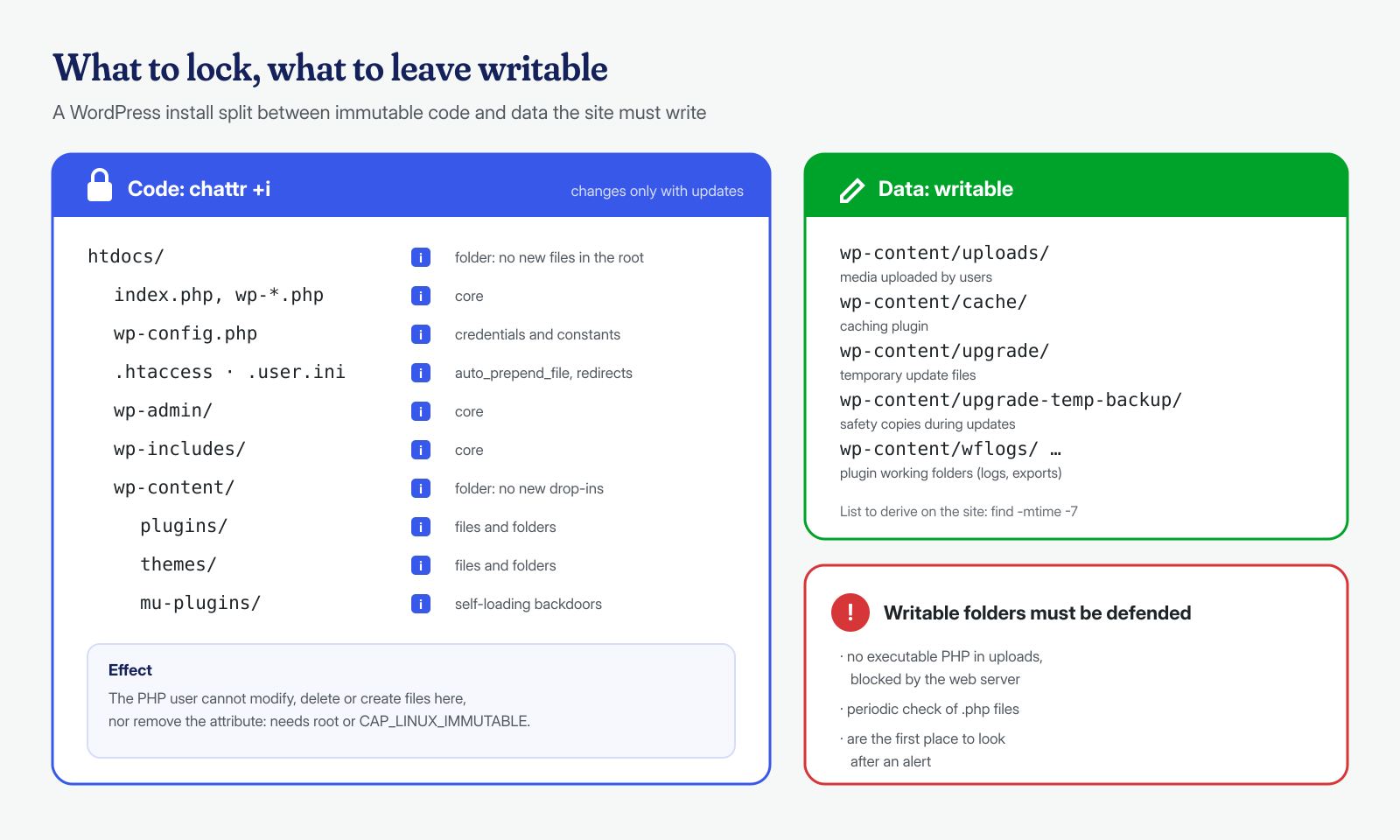
A WordPress installation contains two kinds of files. Code (core, plugins, themes, configuration) changes only when someone updates or installs something; data (uploads, cache, plugin working files) changes during normal operation. The immutable attribute belongs on the first group and never on the second.
Natural candidates for locking include the wp-admin and wp-includes folders and the PHP files in the root, wp-content/plugins, wp-content/themes, and wp-content/mu-plugins, which is the favorite spot for self-loading backdoors, as we explain in the article on mu-plugins and drop-ins. Then there are wp-config.php and the per-directory configuration files: .htaccess on Apache and LiteSpeed, .user.ini where PHP runs as FPM or CGI. These are the files malware modifies to gain persistence, for example with an auto_prepend_file. The wp-content folder itself and the site root should also be locked, so no one can create new files in them, such as the object-cache.php or advanced-cache.php drop-ins.
These must stay writable, on the other hand: wp-content/uploads, otherwise media uploads stop working; the cache folders of caching plugins, usually under wp-content/cache; wp-content/upgrade and wp-content/upgrade-temp-backup, which WordPress uses during updates; and the working folders some plugins create under wp-content, such as Wordfence’s wflogs or the log and export folders of backup, form, and e-commerce plugins. The exact list depends on the site, and you can work it out by looking at where files have changed in recent days.
# Directories with files modified in the last 7 days: these are the ones the site writes to
cd /var/www/esempio.it/htdocs
find . -type f -mtime -7 -printf '%h\n' | sort | uniq -c | sort -rn | head -20
The writable folders are exactly the ones to keep an eye on. The uploads folder must not contain any executable PHP file, and the web server rule that prevents it, described in the article on webshells in uploads, is the necessary complement to locking: without it the attacker simply moves their webshell to the only place left open to them.
Applying the lock without picking the wrong paths
Running chattr -R +i on the site root is the shortcut everyone tries first, and it is wrong: it also locks uploads and cache, and the site breaks in subtle ways. It is better to use a script that explicitly excludes the writable folders and serves both for locking and unlocking, so the two operations always touch the same paths:
#!/bin/bash
# /usr/local/sbin/wp-blocca.sh — run as root
# Usage: wp-blocca.sh +i (lock) | wp-blocca.sh -i (unlock)
set -euo pipefail
SITO=/var/www/esempio.it/htdocs
AZIONE=${1:?specificare +i oppure -i}

# Directories that WordPress and plugins must be able to write
mkdir -p "$SITO/wp-content/upgrade"
find "$SITO" \
  \( -path "$SITO/wp-content/uploads" \
  -o -path "$SITO/wp-content/cache" \
  -o -path "$SITO/wp-content/upgrade" \
  -o -path "$SITO/wp-content/upgrade-temp-backup" \
  -o -path "$SITO/wp-content/wflogs" \) -prune \
  -o \( -type f -o -type d \) -print0 \
  | xargs -0 chattr "$AZIONE"
The script works only on regular files and directories, because chattr does not apply to symbolic links, and it creates the upgrade folder in advance: with wp-content locked, WordPress could no longer create it on its own. After running it, a quick check confirms the exceptions have stayed writable:
# No locked files in uploads (expected output: empty)
lsattr -R /var/www/esempio.it/htdocs/wp-content/uploads 2>/dev/null | awk '$1 ~ /i/'

# No unlocked files in the code (expected output: empty)
lsattr -R /var/www/esempio.it/htdocs/wp-includes 2>/dev/null | awk 'NF==2 && $1 !~ /i/'

# Write test as the site user
sudo -u esempio touch /var/www/esempio.it/htdocs/wp-content/uploads/.prova && echo "upload scrivibili"
sudo -u esempio touch /var/www/esempio.it/htdocs/wp-content/plugins/.prova || echo "plugin bloccati"
A caution about the order of operations: the manual page points out that setting the attribute does not remove write access from a process that already has the file open. If a malicious process is running and holds a file open, it can keep writing to it even after the lock. That is why the lock is applied once the cleanup is complete, after terminating suspicious processes and restarting PHP-FPM, as described in the articles on PHP processes resident in memory and the hardening checklist.
Effects on updates and on malware
With the code locked, WordPress can no longer update itself. Before choosing the write method, core tries to create a temporary file in wp-content: if it cannot, it does not use direct writing and asks for FTP credentials in the dashboard, while automatic background updates are skipped. This is the intended behavior, because the same mechanism that prevents updating prevents a vulnerable plugin from rewriting core. To avoid confusion it is best to declare it in wp-config.php, before locking it, with define( 'DISALLOW_FILE_MODS', true );: the update and install buttons and the theme and plugin editor disappear.
The flip side is the most serious risk of the whole scheme: a locked site that nobody updates becomes, within a few weeks, a site with vulnerable plugins. The lock shifts responsibility for updates from WordPress to whoever manages the server, and it works only if some process applies them regularly, at least once a day for security patches.
On malware the effect is clear-cut. Many infections go through a PHP process that writes files: a webshell that copies itself into core, code appended to the end of functions.php, an .htaccess rewritten for conditional redirects. With immutable files these writes fail with “Operation not permitted”: the exploit may still succeed, but it does not take root in the code and leaves obvious errors in the PHP log. Attackers know this tool too: some cryptominers, when they get root privileges, use chattr +i on their own files and cron lines to make removal harder. An unexpected “Operation not permitted” during a cleanup should always be checked with lsattr.
A scripted update workflow
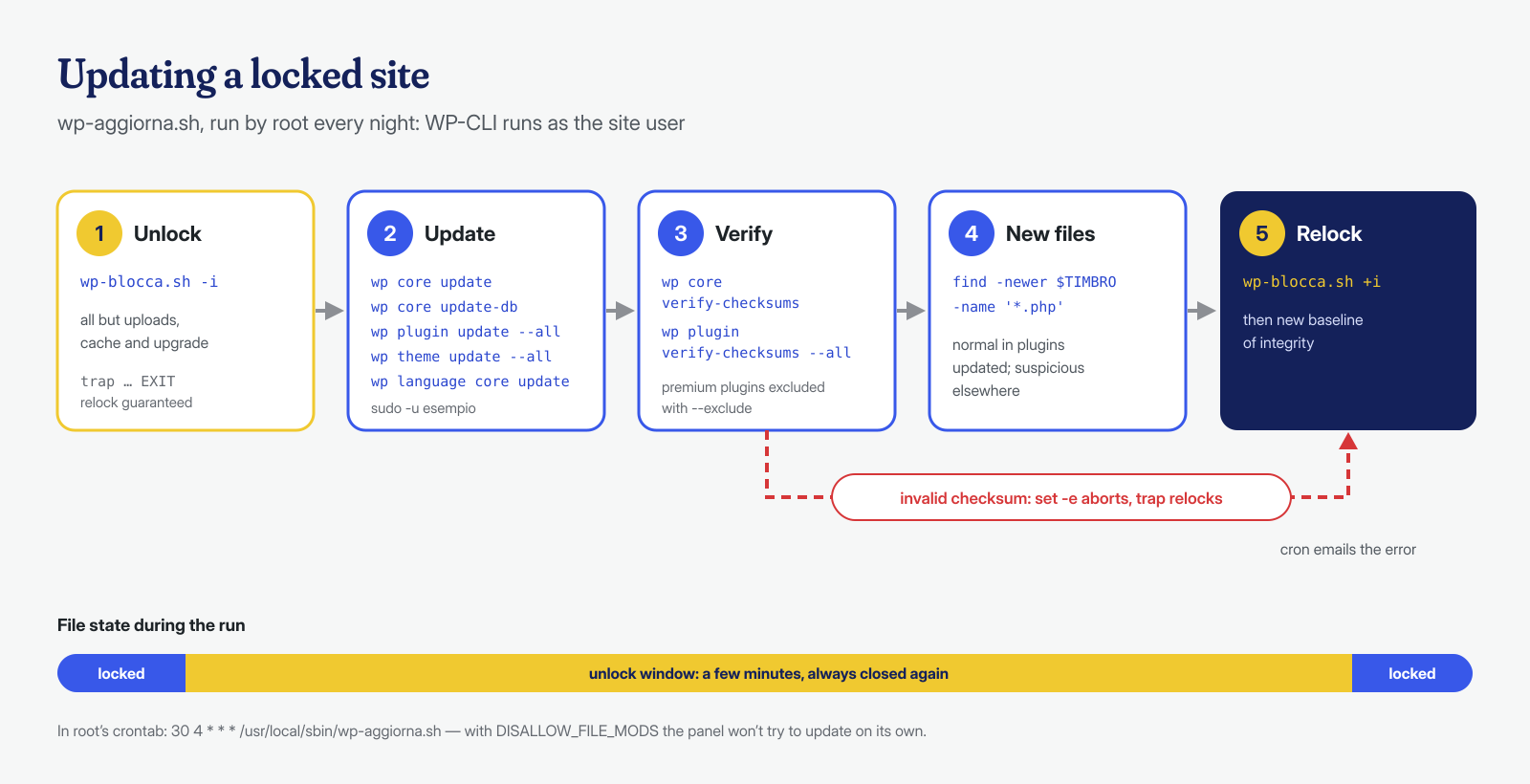
The workflow we use on locked sites has four steps: unlock, update, verify, lock again. The delicate point is verification, because the window in which files are writable is also the window in which an ongoing attack could take advantage, and a malicious update, like those described in the article on plugin supply chain attacks, comes in exactly there. The script runs as root, runs WP-CLI as the site user, and relocks the files in every case, even if a step fails:
#!/bin/bash
# /usr/local/sbin/wp-aggiorna.sh — unlock, update, verify, relock
set -euo pipefail
SITO=/var/www/esempio.it/htdocs
UTENTE=esempio
TIMBRO=$(mktemp)

wp_sito() { sudo -u "$UTENTE" -- wp --path="$SITO" "$@"; }

/usr/local/sbin/wp-blocca.sh -i
trap '/usr/local/sbin/wp-blocca.sh +i; rm -f "$TIMBRO"' EXIT

wp_sito core update
wp_sito core update-db
wp_sito plugin update --all
wp_sito theme update --all
wp_sito language core update

# Verification: premium plugins have no checksums on wordpress.org
wp_sito core verify-checksums --include-root
wp_sito plugin verify-checksums --all --exclude=plugin-premium

# PHP files that appeared or changed during the unlock window
find "$SITO" -newer "$TIMBRO" -type f -name '*.php' -not -path '*/wp-content/uploads/*'
# root's crontab: every day at 4:30, with the output emailed by cron
MAILTO=sistemi@esempio.it
30 4 * * * /usr/local/sbin/wp-aggiorna.shThanks to set -e, if a checksum check fails the script stops, the trap relocks the files anyway, and cron emails the output with the error: the site stays protected and the anomaly reaches a person, who has to work out whether it is a modified file or a plugin to add to the exclusions. The final list of recent PHP files is normal after an update; it becomes interesting when it contains files outside the updated plugins’ folders. After every successful run is the right time to regenerate the integrity baseline described in the article on file integrity monitoring.
The same goes for restores: restoring from a backup over a locked folder fails with permission errors even as root. You unlock, restore, verify, and relock, using the same script.
The limits: root, the database, and writable folders
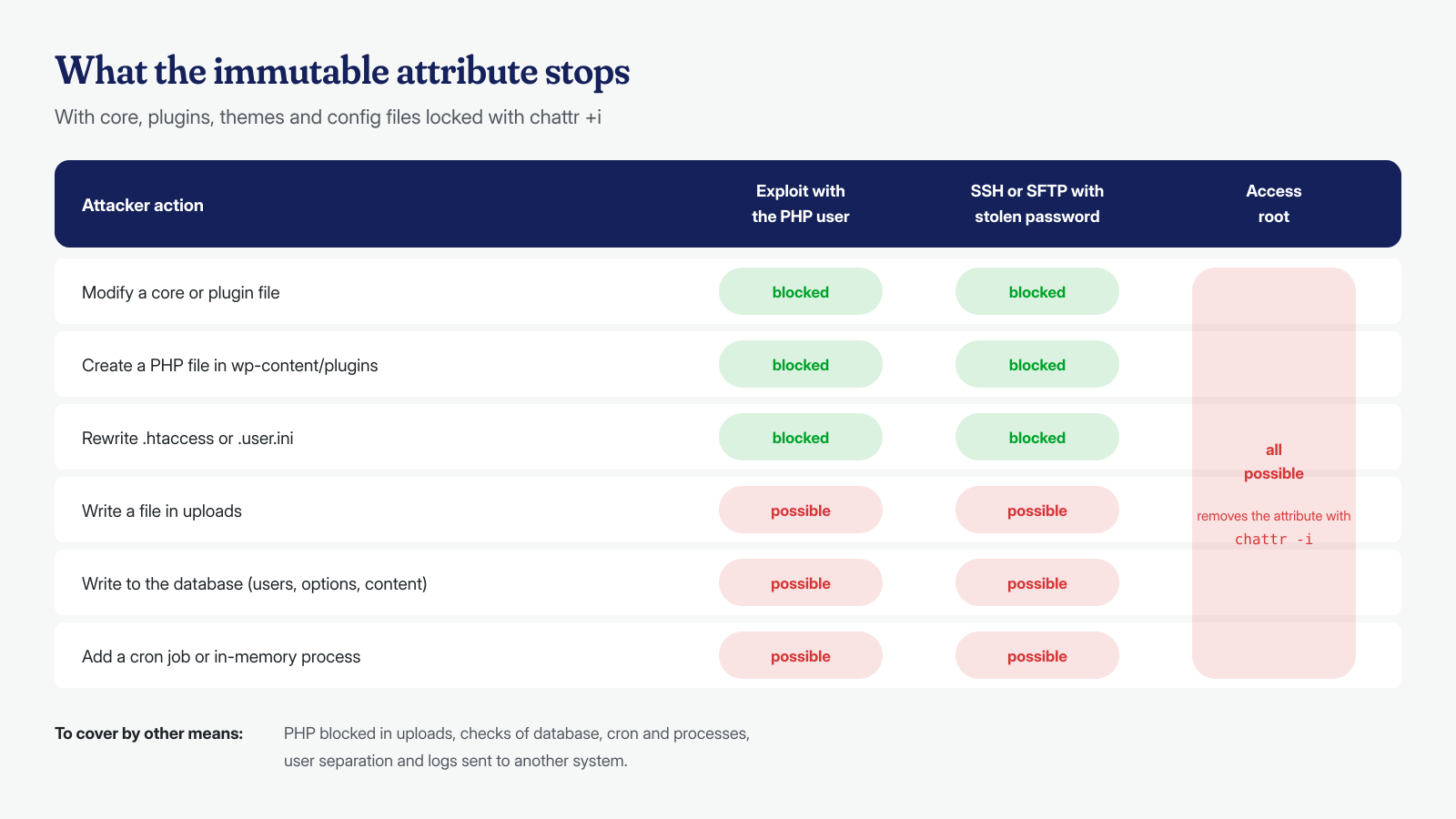
The immutable attribute protects against the PHP process and anyone acting as the site user, including someone who has stolen that user’s SFTP password, a frequent scenario we describe in the article on stolen FTP credentials. It does not protect against root: anyone who gets system administrator privileges removes the attribute with one command. It is a defense against escalation from the site to the code, not against compromise of the server.
It does not protect the database either. Administrator users, options, post content, and widgets live in MySQL, and an attacker exploiting a vulnerable plugin can still create a hidden administrator, inject JavaScript into content, or save a serialized payload in wp_options. Then there are SQL triggers that reinsert the code, the user’s cron jobs, which live in /var/spool/cron and not in the site folder, and processes that run in memory without touching the disk. Finally, the writable folders: if PHP execution in uploads is not blocked at the server level, the site remains vulnerable exactly as before.
chattr +a for logs: append yes, delete no
The a attribute is the lesser-known cousin of i, and finds its natural use in log files. An append-only file accepts new lines but cannot be truncated, rewritten, renamed, or deleted by anyone without the necessary capability. For an audit log written by the site user, like those described in the article on WordPress audit logs, this means an attacker can add false lines but cannot delete the ones that tell the story of their entry. The price is rotation: logrotate must remove the attribute before renaming the file and set it again after creating a new one.
# /etc/logrotate.d/wp-audit-esempio
/var/log/wp-audit/esempio.log {
    daily
    rotate 60
    compress
    delaycompress
    missingok
    create 0640 esempio adm
    sharedscripts
    prerotate
        chattr -a /var/log/wp-audit/esempio.log
    endscript
    postrotate
        chattr +a /var/log/wp-audit/esempio.log
    endscript
}
The root limitation remains: root can remove the attribute and rewrite the log. The logs that matter should also be sent in real time to another system, the only place an attacker with full privileges cannot tamper with.
Alternatives: read-only bind mounts and separate users
When chattr is not available, for example on NFS or in a container, or when you prefer a mechanism that is easier to manage, there are other routes to the same result. The most elegant, on systems with systemd, is to limit the filesystem view of the PHP-FPM service alone: with the ReadOnlyPaths and ReadWritePaths directives, PHP processes see the site code as read-only, while an administrator logged in over SSH and WP-CLI launched from a terminal keep writing normally. Nothing to unlock before an update run from the command line.
# systemctl edit php8.3-fpm
[Service]
ReadOnlyPaths=/var/www
ReadWritePaths=/var/www/esempio.it/htdocs/wp-content/uploads /var/www/esempio.it/htdocs/wp-content/cache

# Apply and verify
systemctl daemon-reload && systemctl restart php8.3-fpm
systemctl show php8.3-fpm -p ReadOnlyPaths -p ReadWritePaths
The restriction applies to all pools managed by that service, so each site’s exceptions must be listed together. Alternatively, a read-only bind mount (mount -o bind,ro) exposes the code at a non-writable path that the web server reads from, but it is harder to manage with backups and deployment tools.
Finally, the simplest and most portable solution, which we describe in the hardening checklist and in the article on wp-config.php permissions: files owned by a deploy user, different from the one PHP runs as, with write access granted to the pool only where needed. It does not require root for updates and works on any filesystem. The immutable attribute is added on top, as a second layer: if a configuration mistake made a file writable, the attribute would still protect it.
A read-only site works best on stable installations that rarely change plugins and have someone managing the server; it is less suited where new plugins are tried every week from the dashboard. In any case it is an extra layer, not a substitute for cleanup: locking a site that still contains a backdoor just means protecting the backdoor.
If your site keeps getting reinfected, or you want to apply this scheme to a freshly cleaned installation, write to us: we work at both the application and system level, from files to cron jobs, in-memory processes, and database triggers, with a guaranteed cleanup in 6, 12, or 24 hours for every WordPress installation, and we leave the site with an update workflow that does not require unlocking anything by hand.
