When people think about WordPress malware, they think of vulnerable plugins and the uploads folder. The theme, on the other hand, is treated as a container for graphics: stylesheets, images, a few templates. That is an expensive mistake, because a theme is PHP code like any other, it is loaded on every front-end request, and it contains files that almost nobody reads after the site is delivered. For someone who has just gained access to the server, it is one of the most convenient places to leave a backdoor or a JavaScript injection.
The theme is the one component of the site that, by design, contains custom code. That is exactly why it is the hardest to verify and the easiest to infect without anyone noticing.
In this article we look at where malicious code hides inside themes, why child themes and customizations make the “I’ll just reinstall the theme and I’m done” recipe useless, how to compare your files against the vendor’s originals, and how to close the chapter, including the part that is always forgotten: themes that are installed but not in use.
Why the theme is an ideal hiding place
The reasons are practical. The theme’s functions.php file runs on every WordPress load, on both the front end and the admin panel, as the official documentation for theme developers explains: anything added to it runs with WordPress’s privileges, can register hooks, read session cookies and print code into the page. Templates such as header.php and footer.php end up in every HTML page, so they are the perfect spot for a script that needs to reach every visitor.
Then there is the matter of verification. For core and for plugins in the official directory, WP-CLI can compare every file against the hashes published by wordpress.org, as we described when covering file integrity monitoring. For themes that command does not exist: wp core verify-checksums and wp plugin verify-checksums have no equivalent for the themes folder. A commercial or custom-built theme also has no public baseline, and signature-based scanners only see what resembles already-known malware, a limit we explored in the article on the limits of security scanners.
Finally, a theme is modified often and by many hands: the agency, the developer who adds a tracking pixel, the client who pastes a code snippet into the admin panel. Among so many legitimate changes, one more goes unnoticed.
functions.php and the files it includes
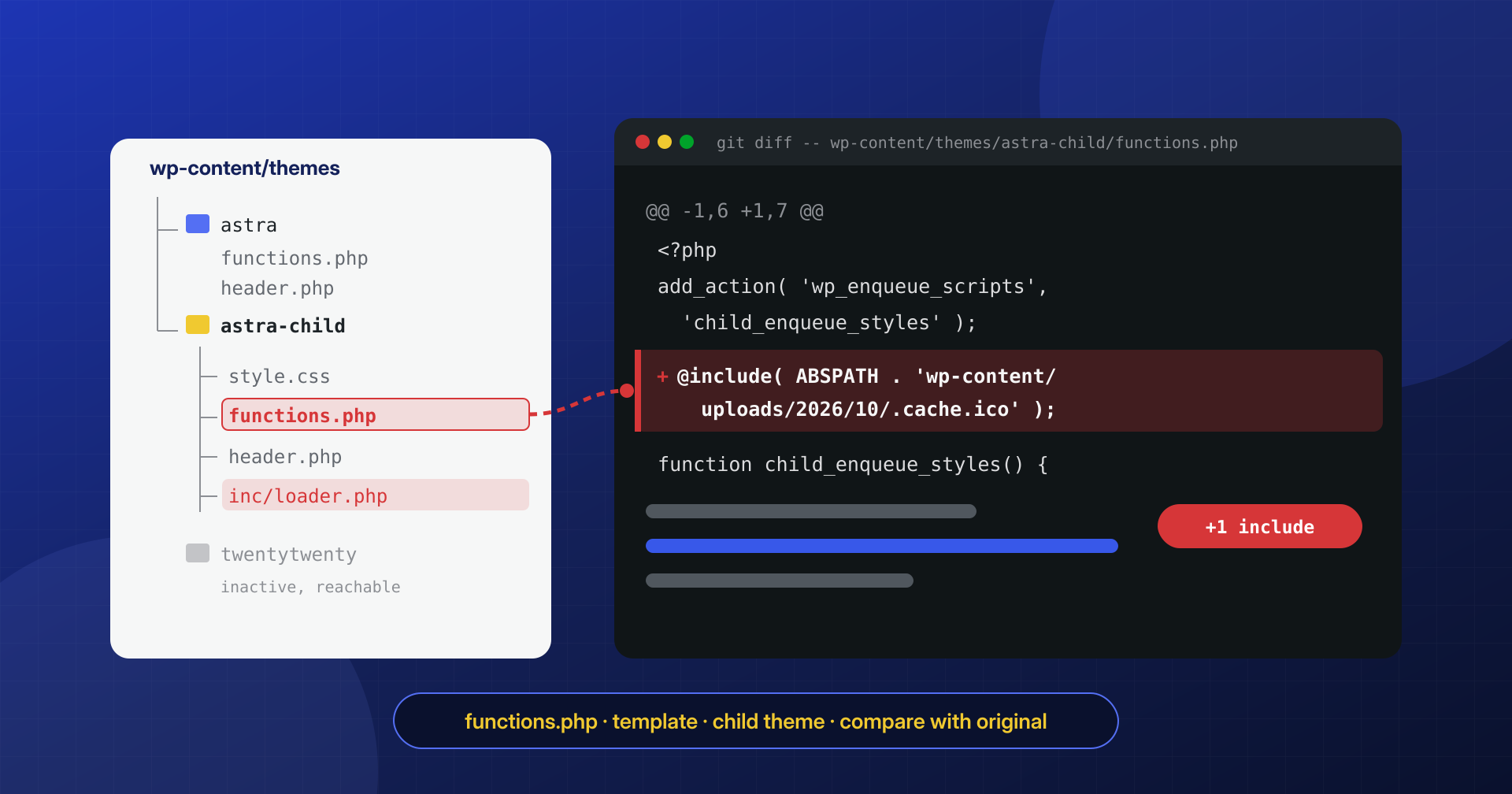
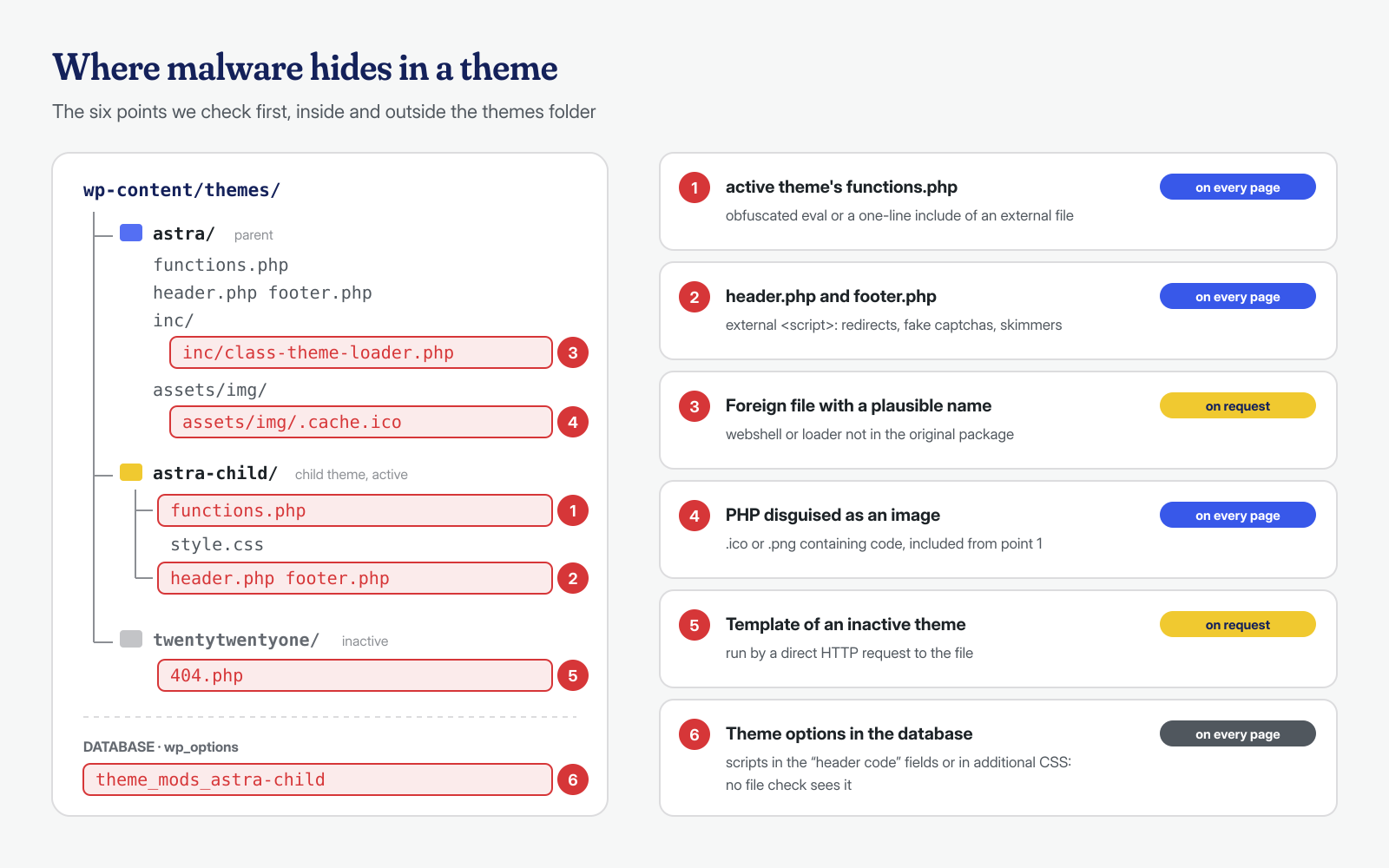
The most common form is also the simplest: a few lines added at the top or bottom of functions.php. Sometimes the code is in plain text, more often it is obfuscated with chains of base64_decode, gzinflate and str_rot13 that end in an eval, the same techniques described in the article on obfuscated files. A frequent trick is to push the code far to the right with hundreds of spaces, so that the line looks empty in the editor, or to append it after the final closing tag ?>.
The more polished variants barely touch functions.php: they add a single include or require_once line pointing to a file somewhere else. The target file may sit inside the theme under a plausible name such as inc/class-theme-loader.php, or outside it, in a subfolder of uploads or in a file with a .ico or .png extension that actually contains PHP. The result is that the real payload does not carry the signature where a superficial check looks for it, and the include line in functions.php looks harmless.
cd /var/www/esempio.it/public_html/wp-content/themes

# Typical obfuscation functions and execution of external input
grep -rnE --include='*.php' \
  'eval\s*\(|base64_decode\s*\(|gzinflate\s*\(|str_rot13\s*\(|assert\s*\(|\$_(POST|GET|REQUEST|COOKIE)\s*\[' .

# Includes pointing to non-PHP files, or outside the theme folder
grep -rnE --include='*.php' '(include|require)(_once)?\s*\(?\s*["'\''][^"'\'']*\.(ico|png|jpg|gif|txt)' .
grep -rnE --include='*.php' '(include|require)(_once)?[^;]*(uploads|/tmp/|\\x2f)' .

# Lines with abnormal length: code pushed to the right or squeezed onto one line
awk 'length > 1000 { print FILENAME ":" FNR ": " length " caratteri" }' $(find . -name '*.php')
These commands produce false positives, especially in commercial themes that use base64_decode for icons or demo data. What matters is context: an eval that receives the contents of a cookie has no justification, while a base64 string that contains an SVG image does.
header.php, footer.php and modified templates
When the goal is to hit visitors, rather than to keep access to the server, the target is the templates that produce the HTML. A <script> inserted before </head> in header.php or before </body> in footer.php reaches every page of the site. It is the mechanism behind many conditional redirects to scam sites, the fake browser update screens described in the article on fake captchas and, in online stores, skimmers that read card data.
The script is rarely written in plain text. Usually it loads an external file from a recently registered domain, builds the URL with String.fromCharCode, or activates only for visitors who arrive from Google and are not logged in, so the administrator never sees it. That is why it pays to fetch the page from the command line while pretending to be an anonymous visitor.
# The page as an anonymous visitor arriving from Google on a smartphone sees it
curl -s -A 'Mozilla/5.0 (Linux; Android 14; Pixel 8) AppleWebKit/537.36 Chrome/126.0 Mobile Safari/537.36' \
  -e 'https://www.google.com/' https://www.esempio.it/ | grep -oE '<script[^>]*src=[^>]+>' | sort -u

# External scripts written directly into the theme templates
grep -rnoE '<script[^>]*src=["'\''][^"'\'']+' wp-content/themes/ --include='*.php'
Then there is a channel that does not go through files: theme options. Many commercial themes offer fields in the admin panel such as “Header scripts” or “Custom code”, saved in the database in the theme_mods_ option followed by the theme name, or in their own options. The same goes for the Customizer’s additional CSS. Anyone with administrative access can paste a script there, and no file check will ever find it:
# Theme options containing scripts or iframes (adjust the table prefix)
wp db query "SELECT option_name, LENGTH(option_value) AS byte FROM wp_options
  WHERE option_name LIKE 'theme_mods_%'
  AND (option_value LIKE '%<script%' OR option_value LIKE '%<iframe%' OR option_value LIKE '%eval(%');"
Fake files and inactive themes that are still reachable
The second large group is files that do not belong to the theme but were placed inside it because nobody looks for them there. A web shell named theme-options.php, a duplicate 404.php in a subfolder, a wp-login.php copied into a theme folder to fool anyone searching for “core files out of place”.
The most underestimated case involves inactive themes. WordPress does not load a theme that is not active, and it is easy to conclude that it can do no harm. But its files stay on disk, inside the docroot, and every PHP file is reachable directly with an HTTP request: https://www.esempio.it/wp-content/themes/twentytwentyone/404.php is executed by the web server like any other script. If the attacker has added code at the top of that file, the code runs before the template even realizes it was called outside WordPress. An old theme that was never updated may also have vulnerabilities of its own, exploitable even when it is not active.
Normal traffic almost never requests a theme’s PHP file by direct address: themes are loaded from index.php. That makes the access logs an excellent filter:
# Direct requests to PHP files inside themes: IP, method and path
grep -hE '"(GET|POST) /wp-content/themes/[^ "]*\.php' /var/log/nginx/access.log* \
  | awk '{ print $1, $6, $7 }' | sort | uniq -c | sort -rn | head -30

# PHP files in themes modified in the last 30 days (ctime cannot be forged with touch)
find wp-content/themes -type f -name '*.php' -cmin -43200 -printf '%CY-%Cm-%Cd %CH:%CM  %p\n' | sort
A sequence of POST requests to /wp-content/themes/something/inc/cache.php from a handful of IP addresses is almost always a backdoor in use. The path found in the logs is the starting point: modification date, contents, other files created in the same minute.
Child themes: why “reinstall the theme” is not enough
The most common advice after an infection is to reinstall the theme from a clean copy. For a theme downloaded from wordpress.org and never touched, that works. On most professional sites, however, the active theme is a child theme: a separate folder that declares its parent theme in its own style.css with the Template: header and contains the code written specifically for that site. Its functions.php is loaded before the parent’s, and the templates it contains replace the parent’s.
The problem becomes obvious: reinstalling the parent theme replaces the parent’s files and does not touch the child. The child has no original to download, because it exists only on that site or in the repository of whoever developed it. And that is exactly where attackers prefer to write, because they know the parent is updated and overwritten periodically, while the child stays as it is for years. The same applies to fully custom themes, where parent and child coincide with the client’s code.
# Which theme is active and which parent it depends on
wp option get template     # parent theme (or the theme itself, if it is not a child)
wp option get stylesheet   # theme actually active

# Status, version and updates of all installed themes
wp theme list --fields=name,status,version,update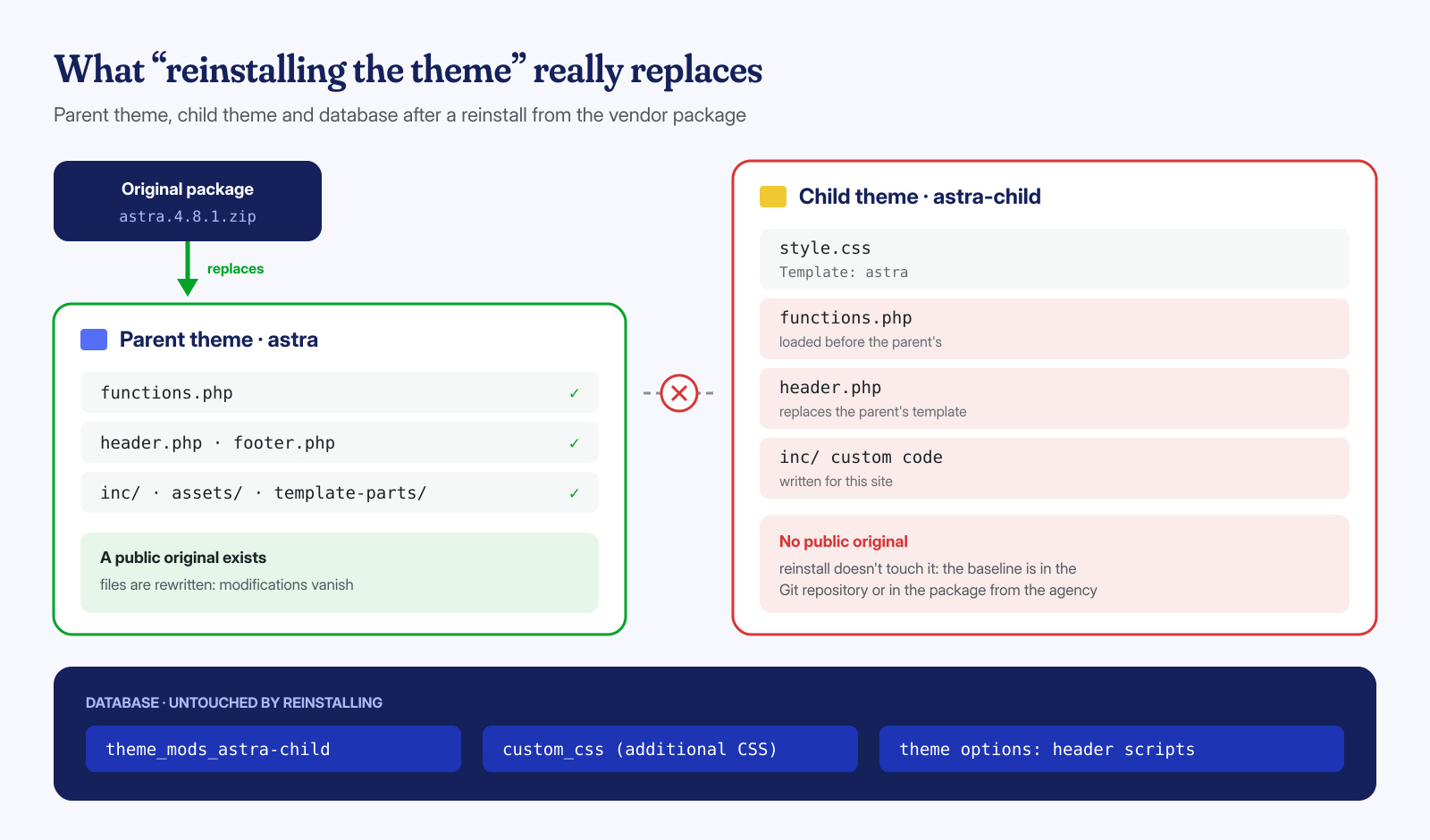
For the child theme, the baseline has to be found elsewhere: in the agency’s Git repository, in a package delivered at launch, in a very old backup, compared with the precautions described in the article on backups that bring the malware back. Failing all of that, what remains is reading line by line, which on a child theme of a few dozen files takes hours, not days.
Comparing against the vendor’s original
For the parent theme, comparison is the most effective tool, provided you use the same version installed on the site. For themes in the official directory, the package of a specific version can be downloaded from downloads.wordpress.org/theme/name.version.zip; for commercial themes it must come from the vendor’s customer area, not from third-party sites, for the reasons explained in the article on nulled themes and plugins.
SITO=/var/www/esempio.it/public_html
TEMA=astra
VER=$(wp --path="$SITO" theme get "$TEMA" --field=version)

mkdir -p /root/confronto && cd /root/confronto
curl -fsSLO "https://downloads.wordpress.org/theme/$TEMA.$VER.zip"
unzip -q "$TEMA.$VER.zip" -d originale

# Files that differ, are missing or are extra compared with the original
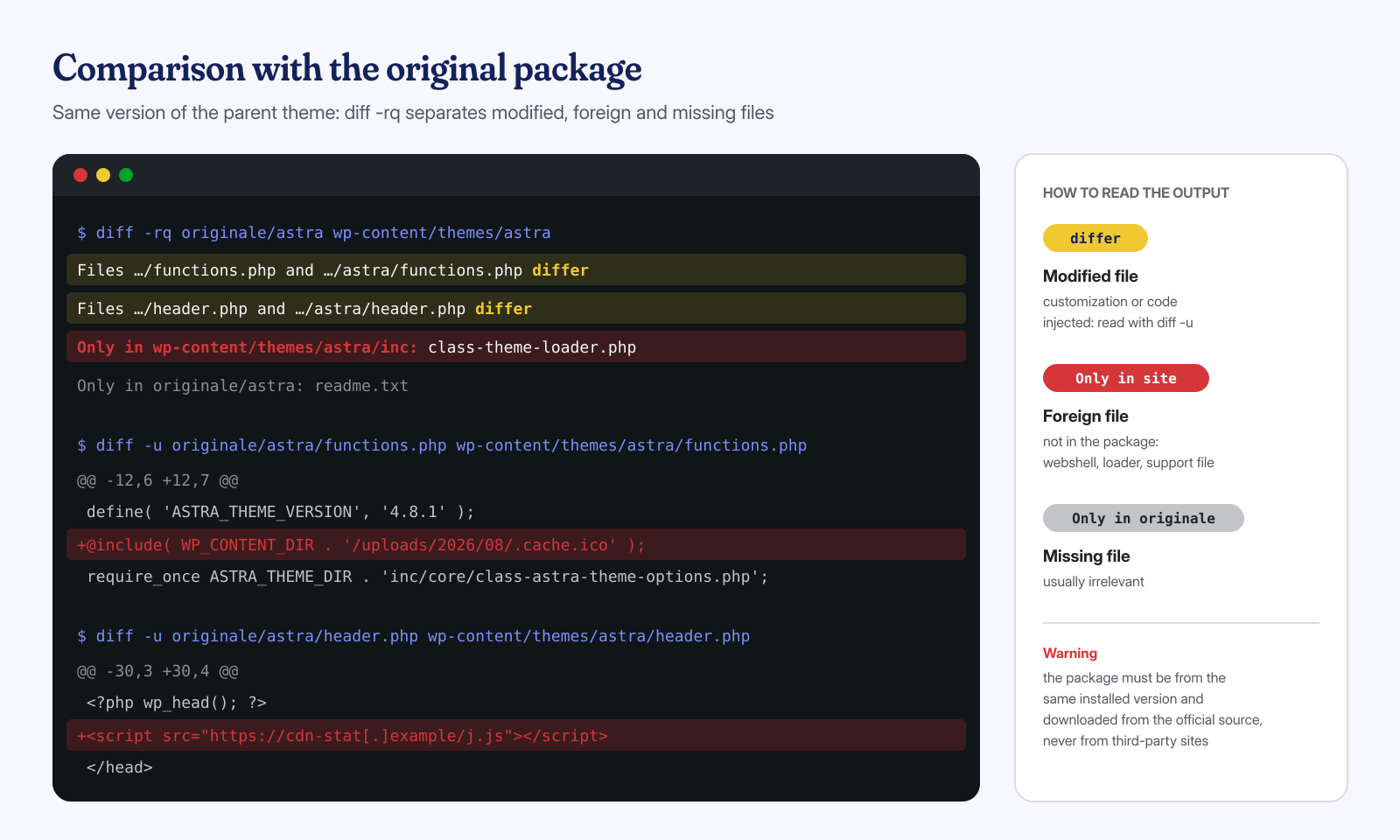
diff -rq originale/"$TEMA" "$SITO/wp-content/themes/$TEMA"

# The line-by-line detail of a suspicious file
diff -u originale/"$TEMA"/functions.php "$SITO/wp-content/themes/$TEMA/functions.php"
The output of diff -rq has three kinds of interesting lines. “Files … differ” indicates a modified file: it may be a badly done customization made directly in the parent, and it still needs to be read. “Only in” followed by the site’s path indicates a file that is not in the original, and it is the category where web shells and support files end up. “Only in” followed by the original’s path indicates a missing file, usually irrelevant.
Commercial themes and bundled plugins
Many commercial themes ship with bundled premium plugins: sliders, page builders, demo import modules. The theme installs them on first activation, but updating them depends on the theme vendor publishing a new version with the updated plugin, and on the site owner installing that new version. The plugin does not update from its own source, because the license belongs to the theme vendor, and often the owner does not know they have it.
The textbook case is the SoakSoak campaign of December 2014. According to Sucuri’s analysis, the vector was a vulnerability in the Slider Revolution (RevSlider) plugin that allowed arbitrary file uploads; the flaw had been fixed months earlier, but the plugin was distributed inside many commercial themes, and many owners did not know they had it, nor could they update it separately. Sucuri had already reported the active exploitation of a RevSlider flaw in September of the same year, stressing precisely the problem of plugins bundled with themes. The lesson still holds: for every plugin that arrived with the theme, you need to know where it updates from and who does the updating.
In practice, after listing the plugins with wp plugin list --fields=name,version,update, for those with no update available from the directory you compare the installed version with the latest published by the plugin’s vendor, not the theme’s, and check for known vulnerabilities in the security advisories. If the plugin is no longer needed, the slider of an old home page for example, the best solution is to remove it.
Cleaning up the theme and removing the ones you don’t need
Cleaning up a theme follows a precise order. First you preserve the suspicious files with their metadata, because modification dates help reconstruct the entry point. Then the parent theme is replaced entirely with the original package of the same version, or better still the latest available version, without copying the old files on top. The child theme is restored from the repository or cleaned by hand, file by file, checking every include. The theme options in the database are checked as shown above.
Then comes housekeeping. WordPress’s Site Health check explicitly recommends removing inactive themes, keeping only the active theme, its parent theme and a default WordPress theme as a fallback. It is advice to follow to the letter:
# Inactive themes: remove everything except the active theme’s parent and a default theme
wp theme list --status=inactive --field=name
wp theme delete twentytwentyone twentytwentytwo vecchio-tema-2019

# No file editor in the admin panel: in wp-config.php
define( 'DISALLOW_FILE_EDIT', true );
The DISALLOW_FILE_EDIT constant removes the theme and plugin file editor from the admin panel: whoever steals an administrator password can no longer write code into 404.php with two clicks, one of the most widely used methods. It is part of the measures described in the article on wp-config.php hardening. On the web server you can also deny direct execution of PHP files inside wp-content/themes, using the same logic applied to uploads in the article on web shells; first, though, you must verify that the theme does not use PHP files called by direct address, which is rare but not impossible in older themes.
One last point remains, the most important: understanding how the code got into the theme. A modified file is the consequence, not the cause. The cause may be a vulnerable plugin, a reused administrator password, FTP credentials stolen from the developer’s computer or another site on the same hosting account. And the theme is rarely the only persistence point: the same infections often leave traces in mu-plugins, in system cron jobs and in the database.
If the site gets reinfected after a few days with the same code in the same functions.php, something is rewriting it: a process in memory, a cron job, a database trigger or an access that was never revoked. In addition to the post-cleanup hardening checklist, it is worth keeping the child theme under version control, so that every difference from the last deploy is visible with a single command.
If you have found suspicious code in your theme, or you already reinstalled the theme and the infection came back, get in touch. We analyze themes, custom child themes and database options together with the rest of the system, look for the entry point, and guarantee the cleanup of every WordPress installation in 6, 12 or 24 hours from the moment we receive the necessary access.
